Voiding a Receipt or Payment
Voiding a Receipt or Payment
You can void a "Receipt" or "Payment" provided it has not already been presented by using either of the following two methods.
- Select the Transaction in the Cashbook List: You can select the transaction displayed in the accounts list
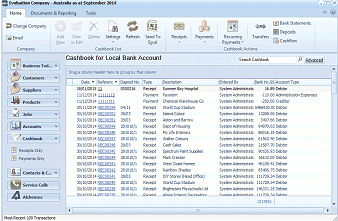
The ABM main screen showing the Cashbook for Local Bank Account. The left navigation panel displays folders including Business Info, Customers, Sales Quotes, Delivery & Returns, Suppliers, Products, Accounts, Cashbook (selected), Contacts & C., Service Calls, and Addresses. The main area shows a list of cashbook transactions with columns for Date, Reference, Type (Payment/Receipt), Payee, User, and Account details. The toolbar at top includes buttons for Receipts, Payments, Recurring, Transfers, Deposits, and Bank Statements.
Double click on the receipt or payment and the following screen will appear.
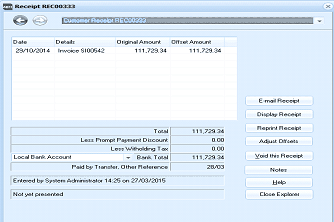
A Receipt details dialog box titled "Receipt REC00233" with a "Customer Finance" tab showing receipt REC00233. The dialog displays a table with columns for Date, Details, Original Amount, and Offset Amount, showing one entry dated 29/10/2014 for Invoice SI00642 with amounts of 111,729.34. Below are fields showing Total (111,729.34), Less Prompt Payment Discount (0.00), Less Withholding Tax (0.00), and Bank Total (111,729.34). Additional fields show Local Bank Account, Paid by Transfer, Other Reference 28/03. Buttons on the right include E-mail Receipt, Display Receipt, Reprint Receipt, Adjust Offsets, Void this Receipt, Notes, Help, and Close Explorer.
Select "Void this Receipt" or "Void this Payment" as appropriate. If the transaction is dated in the current financial period then all postings relating to this transaction will be reset to zero otherwise, if the posting was in a previous financial period it will be reversed. Note: You can also select this transaction by selecting the customer (supplier) account and selecting the "Transactions" tab and selecting "View Transaction Details"
- Selecting the Transaction in Bank Statements: By selecting the "Bank Statements Program" you can select the receipt or payment in the reconciliation window. When you select the receipt or payment you can either right click on the transaction and select "Void this Transaction" or select "Tools" from the menu bar and select "Void this Transaction".
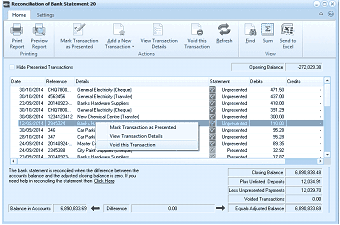
The Reconciliation of Bank Statement 20 window with a right-click context menu visible. The toolbar shows buttons for Print Preview Report, Print Report, Mark Transaction as Presented, Add a New Transaction, View Transaction Details, Void this Transaction, and Settings. The main grid displays transactions with columns for Date, Reference, Details, Statement Debit/Credit amounts, and checkmarks. A row is selected (highlighted in blue) and a right-click context menu is shown with options including "Mark Transaction as Presented", "View Transaction Details", and "Void this Transaction". At the bottom, Balance in Accounts and Difference (0.00) fields are shown along with counts for Expected Transactions, Less Unpresented, and Voided Transactions. A button labeled "Expand Adjustments Follows" is visible.
Note: Foreign currency receipts and payments can only be voided through the "Bank Statements" program.