Electronic Funds Transfer
Electronic Funds Transfer
If you are processing payments electronically through your bank, then you can select Send Transfer to Bank from the following
-
Supplier List: You can select either Multiple Payments or Payment Wizard (See Paying Multiple Suppliers) and select the option "Send Transfers to Bank"
-
From the Cash Book List you can select Payments and select "Send Transfers to Bank"
If you are processing direct debits electronically then when you have processed the direct debit information you can select "Send Transfers to Bank" on the last screen. See Customer Direct Debits
Before processing an electronic file transfer ensure that you have the correct information setup for you bank. Note: If you are processing payments or direct debits in the Single European Payments Area then see the section below for Single European Payments Area
Bank Account Number: You need to enter the bank account number in ledger account for the appropriate bank.
Bank BSB Number: You need to enter the BSB number in ledger account for the appropriate bank.
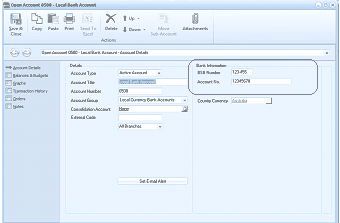
The Open Account dialog for account 0500 - Local Bank Account, showing Account Details. The left navigation lists Account Details (selected), Balances & Budgets, Transaction History, Orders, Sub Accounts, and Attachments. The Details section shows Account Type as Active Account, Account Title as Local Bank Account, Account Number as 0500, Account Group as Local Currency Bank Accounts, Consolidation Account, External Code, and Branch Code (All Branches). On the right, the Bank Information section displays BSB Number (123-456) and Account (12345678). A Country Currency dropdown is visible. A "Set Email Alert" button appears at the bottom.
Generating the file for Electronic Funds Transfer
Select Send Transfer to Bank and the following screen will appear
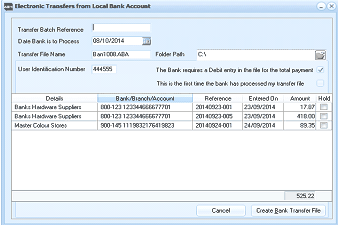
The Electronic Transfers from Local Bank Account dialog. Fields shown include Transfer Batch Reference, Date Bank is to Process (08/10/2014), Transfer File Name (BM1008ABA), Folder Path (C:), and User Identification Number (444555). Checkboxes indicate whether the bank requires a Debit entry in the file for the total payment, and whether this is the first time the bank has processed the transfer file. The main grid shows a Details section with columns for Bank/Branch/Account, Reference, Entered On, Amount, and Hold, listing three supplier entries: Banks Hardware Suppliers (two entries) and Master Colour Stores with various amounts. A total of 525.22 is shown. Cancel and Create Bank Transfer File buttons are at the bottom.
-
Transfer Batch Reference: Enter the reference number for this batch that will identify the transfer during bank reconciliation.
-
Date Bank to Process: Click the calendar button to select the date on which you want the bank to process these payments.
-
Transfer File Name: Enter the name of the file which is to be sent to the bank, with or without the file extension.
-
Folder Path: Enter the full path to the disk folder into which the bank file is to be placed.
-
User Identification Number: Enter the six-digit user identification number given to you by your bank.
Check the boxes to indicate whether the bank requires a Debit entry in the file for the total payment, and if it is the first time the bank has processed your transfer file.
-
Create Bank Transfer File: Select this option to export the payments which have not been put on hold into the file specified in the Transfer File Name field. You then need to use your bank's software to send the transfer file.
-
Cancel: Select this option to exit without creating the transfer file.
Single European Payments Area
Companies making electronic payments from a bank account in the Single European Payments Area (SEPA) will need to setup their bank account details as follows.
-
Euro Payments in Use. In the ledger account for the bank you need to select In Use under the Euro Payments section to signify that that bank will send electronic bank transfers in the SEPA format.
-
Bank BIC Code: You need to enter the BIC code for the bank (Note: this will be shown on your recent bank statement)
-
IBAN: You need to enter your IBAN number for you bank account (Note: this will be shown on your bank statement)
-
Direct Debit OIN. If you are submitting electronic files for Direct Debits then you need to obtain an Originator Identification Number (OIN) which you will receive from you bank.
-
Payments OIN. If you are making payments electronically then you will need to enter the Originator Identification Number (OIN) that you receive from the bank.
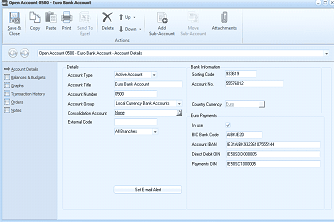
The Open Account dialog for account 0500 - Euro Bank Account, showing Account Details. The Details section shows Account Type as Euro Bank Account, Account Title field, Account Number as 0500, Account Group as Local Currency Bank Accounts, Consolidation Account set to None, and External Code. On the right, the Bank Information section displays Sorting Code, Accounts field, and Country Currency set to Euro. Below is a "Euro Payments" section showing fields for BIC Code, Account IBAN (IE24 AIB 31224 67505 44), Direct Debit OIN, and Payments OIN (IE53321100000). A "Set Email Alert" button is at the bottom.
Bank Ledger Account:
Customer Accounts
If you are sending electronic files to your bank for Direct Debits then you will need to update the following information for each customer you are debiting.
-
Bank BIC. You will need to enter the BIC code for the customer bank account which you should obtain from your customer.
-
IBAN. You will need to enter your customer's IBAN number for their bank which should be obtained from your customer.
-
Direct Debit Type: If this is the first time you are processing a Direct Debit for this customer then select FRST from the drop down list otherwise select either RCUR for recurring direct debits or OOFF for One Off direct debits or FNAL if this is the Final direct debit to be processed for this customer.
-
Mandate ID. This is a unique identifier for this direct debit which you will receive from the bank.
-
Date Signed. Enter the date that the Direct Debit Mandate was signed.
Supplier Accounts
If you are making payments electronically then you will need to enter the supplier's BIC code together with the supplier's IBAN number.
Generating the file for Electronic Funds Transfer
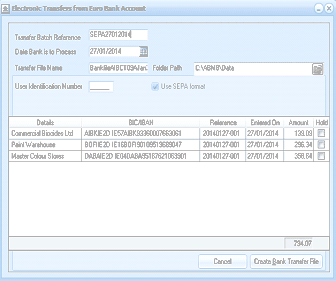
The Electronic Transfers from Euro Bank Account dialog for SEPA payments. Fields include Transfer Batch Reference (SEPA27012014), Date Bank is to Process (27/01/2014), Transfer File Name (BankFileMBC1024Am...), Folder Path (C:\ABNFP\Data), User Identification Number, and a "Use SEPA format" checkbox (checked). The main grid shows columns for Details, BIC/IBAN, Reference, Entered On, Amount, and Hold. Three supplier entries are listed: Commercell Biocides Ltd, Paint Warehouse, and Master Colour Stores, each with their BIC/IBAN codes, references, and amounts. A total of 794.07 is shown at the bottom. Cancel and Create Bank Transfer File buttons are at the bottom.
- Transfer Batch Reference: Enter the reference number for this batch that will identify the transfer during bank reconciliation.
- Date Bank to Process: Click the calendar button to select the date on which you want the bank to process these payments.
- Transfer File Name: Enter the name of the file which is to be sent to the bank, with or without the file extension. Note: The file will be automatically prefixed with PAIN001 for Electronic Payments, and PAIN008 for Direct Debits.
- Folder Path: Enter the full path to the disk folder into which the bank file is to be placed.
- Create Bank Transfer File: Select this option to export the payments which have not been put on hold into the file specified in the Transfer File Name field. You then need to use your bank's software to send the transfer file.
- Cancel: Select this option to exit without creating the transfer file.