Paying Multiple Suppliers
Paying Multiple Suppliers
The Supplier Payments Wizard allows you to pay multiple suppliers by electronic transfer, cash or cheque, and export your list of payments to Excel. Payments are automatically processed and your accounts are immediately updated. To pay multiple suppliers, you will first need to enter their bank account details into the supplier account. See Setting up Supplier Accounts for details.
To pay multiple suppliers:
In the main menu bar, select Actions, then Pay Multiple Suppliers.
The Supplier Payments Wizards appears as below:
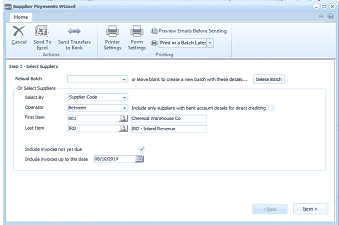
The Supplier Payments Wizard - Step 1 - Select Suppliers screen. The toolbar shows buttons for Cancel, Send To Excel, Send Transfers to Bank, Preview Emails Before Sending, Printer Settings, and Print in a Batch Later. Fields include Reload Batch dropdown with a Delete Batch button. The "Or Select Suppliers" section has Select By (Supplier Code), Operator (Between), and a checkbox for "Include only suppliers with bank account details for direct crediting". First Item (001 - Chemical Warehouse Co) and Last Item (990 - Inland Revenue) fields define the supplier range. Checkboxes for "Include invoices not yet due" and "Include invoices up to this date" (09/10/2014) are shown. Back and Next buttons are at the bottom.
Step 1 of Supplier Payments Wizard
Step 1 - Select Payment Criteria Select the supplier range for payment selection. You can include all invoices even if they are not due for payment yet. If you wish to pay only suppliers by EFT, then you can select the option to include only suppliers that have correct bank details. If you have made a previous selection and saved these selections into a batch, you can reload this batch by selecting Reload Batch, and select from the drop down list. You can then finalise the payments.
Step 2 - Select the Bank Account Select the bank account you want to be debited from the drop-down list. The subsequent fields are automatically updated according to your balances.
Step 3 - Select the Invoices to pay The Wizard uses colour codes to highlight overdue debts. Select the suppliers you want to pay from the list and click Pay Supplier.
To part-pay a supplier, highlight the supplier name and click Show Details. From here you can choose to pay or part-pay specific invoices. After you have entered how much is to be paid to the supplier this time, ABM automatically updates the supplier account.
If prompt payment discounts are available they will be shown for each supplier. These discounts can be accepted or amended if required by selecting the column discounts, and entering an amount. When the Pay Supplier is selected the net amount will be shown in the column pay now, with the discount amount, if any, shown in the discount taken column.
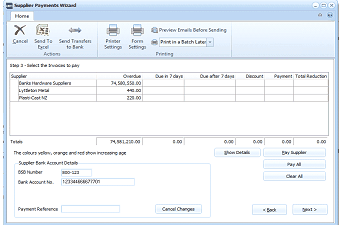
The Supplier Payments Wizard - Step 3 - Select the Invoices to pay screen. A grid lists suppliers with columns for Supplier name, Overdue, Due in 7 days, Due after 7 days, Discount, Payment, and Total Reduction. Suppliers listed include Banks Hardware Suppliers, Lyttelton Metal, and Press-Cast NZ with their respective amounts. Below the grid are totals showing 76,981,120.65 and 0.00. Color-coded rows indicate payment urgency. Supplier Bank Account Details section shows BSB Number (3800-123) and Bank Account No (12345678901TYVT) fields. A Payment Reference field is at the bottom. Buttons include Pay Supplier, Show Details, Cancel Changes, Back, and Next.
Step 4 - Payment Method Payment Method displays the remaining balance in your bank account after the selected suppliers are paid. All payments made to suppliers for whom there are correct bank and branch details will be paid by electronic transfer.
Click Cheque, Internet Banking or Cash to choose the method of payment for all other suppliers. A cheque or reference number appears in the subsequent field.
Rather than processing the payments now, you can select the option "Save the batch details so that they can be approved and processed later". This will then allow you to **Send Payment List to Excel. **You can then use this list to obtain approval for the payments to be made, and then reload this batch again for processing.
Step 5 - Completion When you open the Completion section, ABM automatically processes the payment, which can be viewed in the progress bar.
To send electronic transfers to the bank: When processing is complete, select **Send Transfers to Bank **to send any electronic transfers to the bank. The Electronic Transfers screen appears: See Electronic Funds Transfer
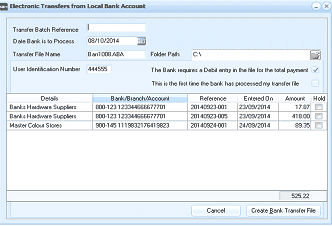
The Electronic Transfers from Local Bank Account dialog. Fields include Transfer Batch Reference, Date Bank is to Process (08/10/2014), Transfer File Name (BM1008ABA), Folder Path (C:), and User Identification Number (444555). Checkboxes for whether the bank requires a Debit entry and whether this is the first transfer. The main grid lists supplier details with columns for Bank/Branch/Account, Reference, Entered On, Amount, and Hold, showing entries for Banks Hardware Suppliers (two entries) and Master Colour Stores. A total of 525.22 is shown. Cancel and Create Bank Transfer File buttons are at the bottom.
Electronic Transfer screen
To view a list of supplier payments in Excel: In the Completion section of the Supplier Payments Wizard, click Send Payments List to Excel. If you have more payments to make using a different method of payment, click Start Again. Otherwise, click Finish to exit the Supplier Payments Wizard.