Charging an Administrative Fee on Credit or Debit Cards
Charging an Administrative Fee on Credit or Debit Cards
When entering a receipt from a customer and the pay method is by Debit or Credit Card you can add an Administrative Fee to the transaction. To achieve this you will need to set up the Administrative Fee details on the Debit or Credit Card Account.
Set-up the Administrative Fee Details
Select the Debit or Credit Card ledger account and on the right hand side enter the details for the administration fee.
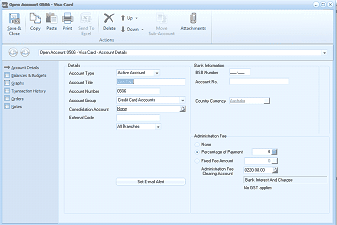
The Open Account dialog for a Visa Card account (account 0506). The left navigation lists Account Details (selected), Balances & Budgets, Transaction History, Orders, and Attachments. The Details section shows Account Type as Active Account, Account Title as Visa Card, Account Number as 0506, Account Group as Credit Card Accounts, and fields for Consolidation Account, External Code, and Branch Code. On the right side, the Bank Information section shows BSB Number and Account fields. Below is a Country Currency dropdown set to Australia. An "Administration Fee" section at the bottom shows radio buttons for None, Percentage of Payment, and Fixed Fee Amount, with an Administration Fee Clearing Account field (2020.00.03) and a checkbox for "No GST applies". The "Set Email Alert" button is at the bottom.
- None: If no administration fee applies to this card then select None:
- Percentage of Payment: If the fee is to be collected based on a percentage of the amount being paid, then enter the percentage for the calculation.
- Fixed Fee Amount: if a fixed fee is being charged, then enter that amount.
- Administration Fee clearing Account: enter a ledger account where the fee will be posted to. You can then use this account to post any fees charged by the Credit or Debit card companies id desired.
Charging the Fee:
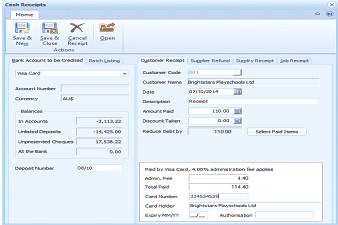
The Cash Receipts screen showing a Customer Receipt tab selected. The toolbar shows Save & New, Save & Close, Cancel Receipt, and Open buttons, along with Printer Settings, Form Settings, and Printing options. The left section shows the Bank Account to be Credited as Visa Card, with Account Number, Currency (AUS), and balance information. The right section shows customer receipt fields including Customer Code (Brightstairs Playschools Ltd), Date (07/10/2014), Description (Receipt), Amount Paid (110.00), Discount Taken (0.00), and Reduce Debt by (110.00). Below, it shows "Paid by Visa Card, 4.00% administration fee applies" with Admin Fee (5.40), Total Paid (114.40), Card Number field, Card Holder (Brightstairs Playschools Ltd), Expiry MM/YY field, and an Authorisation field. A "Select Paid Items" button is visible.
When entering a receipt for a customer, and the customer is paying by Card, then select that Credit or Debit Card account from the drop-down list. Once you enter the amount to be paid, you will notice that the Administrative Fee is automatically calculated and added to the amount required to be paid by the customer.
Tax Calculation:
The administration fee will be deemed to be GST/VAT inclusive, at the rate specified in the account selected to post the Administration Charge (Administration Fee Clearing Account).
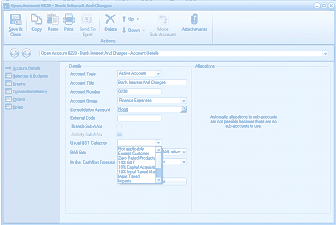
The Open Account dialog for account B220 - Bank Interest And Charges, showing Account Details. The left navigation lists Account Details (selected), Balances & Budgets, Transaction History, Orders, and Attachments. The Details section shows Account Type as Active Account, Account Title as Bank Interest And Charges, Account Number as C045, Account Group as Revenue-Expenses, Consolidation Account set to None, and External Code. A "Usual BRT Category" dropdown is expanded showing tax category options including "10% GST", "Zero Rated/Exports", "GST Free/Input Taxed", "1989 Total Taxed to BAS value", and others. The "In the CashFlow Forecast" dropdown is also visible.
Therefore, to select the correct Tax rate, select the the account nominated to post the Administration Charge, and select the appropriate rate from the drop down list for Usual Tax Category.