Generating a Sales Receipt
Generating a Sales Receipt
The Receipt menu creates a receipt for the payment of goods by a selected customer. Generating a receipt from the Sales menu processes a one off receipt for the customer, for example, if they want to pay off an account. When you enter the receipt for the selected customer and save and close the screen, this method only allows the receipt to that customer.
To view details on generating a continuous receipt against customers, suppliers (refund), ledger and jobs, see Generating a Cash Receipt in the Cash Book section.
To generate a Sales Receipt:
-
Select Customers to the left of the main screen.
-
In the customer list, select the customer for whom you want to generate a sales receipt.
-
In the Sales menu bar, select Receipt.
When creating a new receipt, the following screen will appear:
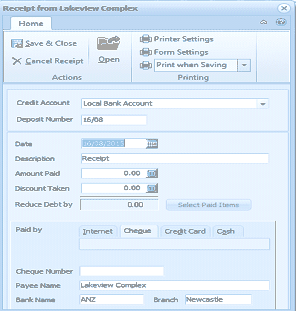 Image Description
The Receipt from Lakeview Complex dialog. The toolbar shows Save & Close, Cancel Receipt, and Open buttons, along with Printer Settings, Form Settings, and Print when Saving options under Printing. The form shows Credit Account (Local Bank Account), Deposit Number (16/08), Date field, Description (Receipt), Amount Paid (0.00), Discount Taken, and Reduce Debt by (0.00) with a "Select Paid Items" button. Payment method options include Paid by Internet, Cheque, Credit Card, and Cash. Fields for Cheque Number, Payee Name (Lakeview Complex), and Bank Name (ANZ, Branch: Newcastle) are displayed at the bottom.
Sales Receipt for Alpha Supplies
Sales Receipt Menu Bar The Sales Receipt menu bar provides the following options:
-
Open: Opens the current customer for editing or viewing.
-
Printing: Provides options for printing the receipt upon saving, later in a batch, or not at all. Click the arrow to the right of Printing to view options. Settings for the printer or the forms can also be set. If desired, a batch of receipts can be printed together once they are all completed.
-
Cancel Receipt: Warning: This option cancels all the information entered on this receipt.
-
Save & Close: This option processes the receipt and closes it.
Sales Receipt Screen
-
Credit Account: Select the credit account relevant to this receipt from the drop-down list.
To set up a default (most frequently used) bank account:
-
Date: Enter the date here. By default, today's date is selected. Alternatively, press F3 or click the button to select a date from the calendar.
-
Description: The text entered here, typically 'Receipt,' appears on the customer's statement.
-
Amount Paid: Enter the actual amount paid by the customer. This figure in this field automatically defaults to 10% of the total order, or the last percentage used for this customer.
-
Discount Taken: Enter here any prompt payment discount taken by the customer.
-
Reduce Debt By: This field updates to take account of the amount paid plus any discount taken.
-
Select Paid Items: Select this option to select the outstanding debts paid this time. Various options are available within this screen to offset any particular debt or the oldest debt, or even to offset the debt partially.
-
Paid By: Enter the method of payment here by selecting either Transfer, Cheque, Credit Card, or Cash. If payment is by transfer, a reference number must be entered; if payment is by cheque, a cheque number must be entered; if payment is by credit card, the card and authorisation details must be entered; and if payment is by cash, a receipt number must be entered. These fields will automatically appear after you have selected the method of payment.
-
Reference: At the end of the receipt, enter the relevant reference into the 'Reference' field.
Save Settings To save the information you have entered, select 'Save and Close'.