Bank and Credit Card Transfers
Bank and Credit Card Transfers
To generate a Transfer:
-
Select Cashbook in the folders list (left of screen) and a list of sub-categories will appear:
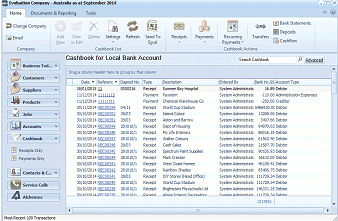 Image Description
The ABM main screen showing the Cashbook for Local Bank Account. The left navigation panel displays folders including Business Info, Customers, Sales Quotes, Delivery & Returns, Suppliers, Products, Accounts, Cashbook (selected), Contacts & C., Service Calls, and Addresses. The main area shows a list of cashbook transactions with columns for Date, Reference, Type (Payment/Receipt), Payee, User, and Account details. The toolbar at top includes buttons for Receipts, Payments, Recurring, Transfers, Deposits, and Bank Statements.
List of current Cashbook Receipts and Payments
-
A list of existing payments and receipts appears in the main screen.
-
Select Transfers in the Cash Transactions menu bar (at top of screen) and a new Bank and Credit Card Transfers screen appears:
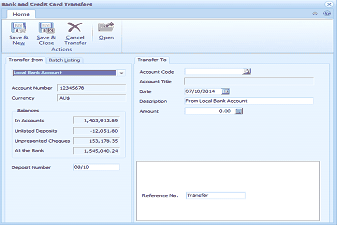 Image Description
The Bank and Credit Card Transfers dialog box. The toolbar shows buttons for Save & New, Save & Close, Cancel Transfer, and Open. The left section "Transfer From" shows fields for the source bank account (Local Bank Account selected), Account Number (12345678), Currency (AUS), and balance information including In Accounts, Unlisted Deposits, Unpresented Cheques, and At the Bank amounts. A Deposit Number field shows 08/10. The right section "Transfer To" shows fields for Account Code, Account Title, Date (07/10/2014), Description (From Local Bank Account), Amount, and Reference No (transfer). A Batch Listing area is shown in the center.
Bank and Credit Card Transfers
Bank Account to be Debited
-
Bank Account: Select from the drop-down list the most frequently used bank account for this transaction.
To set up a default (most frequently used) bank account:
-
Account Number: After you have selected the bank account in the above field, the bank account number appears in this field.
-
Currency: The currency appears according to which bank account you choose.
-
Balances: The account balance appears according to what is in you bank accounts.
-
Deposit Number: Enter a reference that will group receipts on the deposit list.
Batch Listing The Batch Listing section provides you with a list of previous payment entries in list form. The Batch Total field updates with every transfer entry.
Transfer To
-
Account Code: Click the button to select a ledger account from the list. The transfer must be to a bank, debit or credit card account.
-
Account Title: After you have selected the appropriate account, the account title automatically appears here.
-
Date: Enter the date of the transfer or click the button to the right to check the calendar.
-
Description: Enter the description, e.g. "From Bank Account" of this transfer, which appears in the ledger account history.
-
Amount: Enter the total amount received to this account including Tax.
-
Reference: Enter the reference for this ledger account transfer here.
Save Settings To process the transfer and return to the main screen, select 'Save & Close'. To process the transfer and open a new Transfer screen, select 'Save & New'.