Customer Cash Refund
Customer Cash Refund
Bank Account to be Debited
-
Bank Account: Select from the drop-down list the most frequently used bank account for this transaction.
To set up a default (most frequently used) bank account:
-
Account Number: After you have selected the bank account in the above field, the bank account number appears in this field.
-
Currency: The currency appears according to which bank account you choose.
-
Balances: The account balance appears according to what is in your bank accounts.
-
Send Transfers to Bank: Select this option to show a record of current electronic transfers from the bank account selected in the above field. The 'Electronic Transfers from Bank Account' screen appears as below:
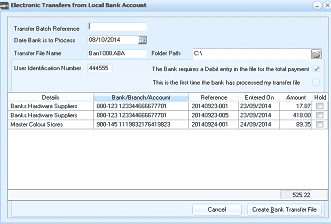 Image Description
The Electronic Transfers from Local Bank Account dialog. Fields shown include Transfer Batch Reference, Date Bank is to Process (08/10/2014), Transfer File Name (BM1008ABA), Folder Path (C:), and User Identification Number (444555). Checkboxes indicate whether the bank requires a Debit entry in the file for the total payment, and whether this is the first time the bank has processed the transfer file. The main grid shows a Details section with columns for Bank/Branch/Account, Reference, Entered On, Amount, and Hold, listing three supplier entries: Banks Hardware Suppliers, Banks Hardware Suppliers, and Master Colour Stores with various amounts. A total of 525.22 is shown. Cancel and Create Bank Transfer File buttons are at the bottom.
Electronic Transfers from Bank Account
Electronic Transfers from Bank Account
-
Transfer Batch Reference: Enter here your reference number for this batch. This reference will identify the transfer during bank reconciliation.
-
Date Bank is to Process: Enter here the date at which you want the bank to process these payments. Press F3 or click the button to select from the calendar. By default, today's date is selected.
-
Transfer File Name: Enter the name of the file which is to be sent to the bank.
-
User Identification Number: Enter the identification number issued to you from the bank for transfers.
-
File Path: Enter here the full path to the disk folder into which the bank file is to be placed.
-
Tick the boxes below File Path to indicate whether:
-
The Bank requires a Debit entry in the file for the total payment.
-
This is the first time the Bank has processed your transfer file.
-
Create Bank Transfer File: Select this option to export the payments which have not been put on hold into the file shown above. You then need to use your bank's software to send the transfer file.
Batch Listing The Batch Listing section provides you with a list of previous payment entries in list form. The Batch Total field updates with every payment entry. You can send this list to Excel by selecting the Send to Excel button on the menu bar.
Customer Refund
-
Customer Code: Enter the unique identifying code for the customer here. Alternatively, press F3 or click the button to the right of the field to select from the customer list. To create a new customer account see Setting up Customer Accounts.
-
Customer Name: The customer name appears when you enter the customer code in the previous field.
-
Date: Enter the date on which the payment is made. This field is set to today's date by default. Press F3 or click the button to the right of the field to check the calendar.
-
Description: The description (i.e. Refund) appears on the customer's statement.
-
Select Credits Refunded: Click 'Select Credits Refunded' option to choose the invoices, overpayments or credit notes paid by this receipt.
-
Other Payment: Enter here any amount paid to the customer which does not relate to a credit.
-
Reduce Debt by: The total by which the customer's debt will be reduced. This field is automatically updated.
-
Discount Taken: Enter here any prompt payment discount taken by the customer.
-
Amount Paid: This field is updated after you have entered 'Other Payment' and 'Discount Taken' figures (if any).
-
Paid By: Enter the method of payment here by selecting either Transfer, Cheque, Credit Card, or Cash. If payment is by transfer, a reference number must be entered; if payment is by cheque, a cheque number must be entered; if payment is by credit card, the card and authorisation details must be entered; and if payment is by cash, a receipt number must be entered. These fields will automatically appear after you have selected the method of payment.