Bank Reconciliation
Bank Reconciliation
Overview
The bank statements program handles any number of bank accounts including foreign currency accounts. It performs two main functions:
- It is the most efficient way of entering cashbook transactions. By accessing your internet banking daily, or at whatever interval you choose, you can download transactions and import them into ABM's cashbook with a minimum of manual data entry. This saves time and virtually eliminates errors.
- It lets you reconcile cashbook transactions in ABM with your bank statement. By this means any posting errors can be identified and resolved.
You can use the program for either or both of these functions. If you are not interested in automating your cashbook and wish to enter transactions manually then proceed to the Preparation section.
Automating Your Cashbook
- Cashbook transactions comprise receipts, payments and transfers between bank accounts. The traditional ways of posting these transactions are:
- Receipts. Whereas customers used to make payments by mailing you a cheque with a remittance, electronic payments direct to your bank account are now much more common. Sometimes the customer will mail or e-mail you a remittance advice and you can use these to post a manual receipt into ABM. Otherwise, a daily look at your account history, via internet banking, is the only way of knowing that you have been paid. The details can then be manually entered.
- Payments. You have several ways of paying bills. If you are still using cheques then these can be printed, with remittance advice, by ABM via the payments buttons. If you prefer to pay electronically then you can use the same buttons to create a payment file which you then send to your bank for processing. Remittance advices can be e-mailed at the same time. When you pay by cash, credit card or internet banking then the details would be entered through the same buttons.
- Bank Transfers. These are normally done via internet banking and are then posted into ABM through the transfers button in the CashBook.
To automate your cashbook, these transactions are handled differently:
- Receipts. These are not entered manually at all. Any remittance advices you receive are retained for later use in allocating each receipt against invoices.
- Payments. If you wish to continue making payments by cheque or by bank payment file then continue to enter payments as before. Credit card, cash or internet banking payments do not have to be manually entered into ABM
- Bank Transfers. These are not entered manually at all.
With an automated cashbook, you use internet banking to log onto each bank account daily. You use the bank's software to download the transaction history for the previous day. ABM can read this history and import the transactions with little or sometimes no manual effort. At the end of the statement period, each bank account is reconciled; a process which should take very little time since the transactions came from the bank in the first place.
Although many would want to update their cashbook records daily, the import from the bank can be done at longer intervals if preferred.
Preparation
There are a number of things to do before commencing automatic transaction entry into your cashbook or doing a bank reconciliation.
In the ABM account list, open each of your bank accounts for viewing. Boxes are provided for the bank code and account number. Make sure that this information has been saved because it will make it easier to post bank transfers which are downloaded from the bank.
In the ABM CashBook section, click on Bank Statements and then select Bank Settings in the menubar.
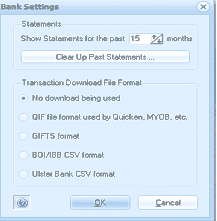
The Bank Settings dialog box with a "Statements" section at the top showing a field "Show Statements for the past 15 months" with a spinner control, and a "Clear Up Past Statements..." button. Below is a "Transaction Download File Format" section with radio button options: "No download being used", "QIF file format used by Quicken, MYOB, etc.", "GIFTS format", "BOI/IBB CSV format", and "Ulster Bank CSV format". OK and Cancel buttons are at the bottom.
At the top of this window, you can choose how many past statements you wish to have instant access to. The smaller the number, the faster the program runs. You can set this number low initially and then return to this window at any time in the future to raise the number, if needed.
Select the format of the transaction histories downloaded from the bank. The format depends largely on the country you are in:
- In Australia, only the QIF format can be used.
- In New Zealand either the QIF or the GIFTS format can be used depending on which is available in your internet banking. If your bank supplies both then use the GIFTS format since this provides both transaction histories and balances whereas QIF is transactions only.
- In Ireland, you can use either the BOI/IBB CSV format or the QIF format; they are equally suitable.
If you have been reconciling your bank statements in ABM on a regular and complete basis then these past statements should show as reconciled in the Bank Statements program. In that case you can continue without further action.
On the other hand, if one or more past statements have not been reconciled but you are satisfied that your accounts are accurate then you may decide that it is not worth going back in time to reconcile these past statements. In that case, click on the Clear Up Past Statements button to remove them.
You need to find out how to download transactions from your bank for a specified date range. Log into your internet banking, select a bank account and look for a facility to download transaction histories for a selected date range. If you can't find it then phone your bank for assistance. If the download is available in a variety of formats then select the format chosen above. If QIF downloads are available in different date formats then choose any of these except the American Month/Day/Year format.
The downloaded transactions will be in a file which needs to be saved each time into a folder on your computer. You may therefore wish to create a "Bank Downloads" folder and decide on a system for the naming of these files.
If your customers pay on statement then it is a good idea to ask them to quote their account code when making payments via internet banking. If your customers pay on invoice then you should ask them to quote the invoice number when making payments via internet banking. If these are done then ABM can save you a lot of time when their payments are imported from the bank, as you will see later. ABM can print this information for you on statements and invoices as described here.
Importing Transactions
Log into your internet banking, select the required date range and download the transaction history in your chosen format. You will be asked where you want the file saved and so select the folder and file name you have chosen during preparation.
In ABM, select your CashBook and click on Bank Statements. Select the required bank account, at the top of the window, if you have more than one. Click once on the statement period you are working on so that it is highlighted. If you haven't received a statement yet, because the period is incomplete, then click on the top line for Current Incomplete.
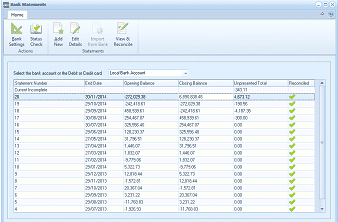
The Bank Statements main screen. The toolbar includes buttons for Bank Settings, Import from Bank, Add Statement, Edit Details, Import to Bank, View & Reconcile, and other options. Below is a dropdown to "Select the bank account or the Debit card" showing "Local Bank Account". The main grid shows a list of bank statements with columns for statement period dates, Statement Balance, Closing Balance, Unpresented Total, and a Reconciled indicator (green checkmarks). Entries span from 2007 to 2014, with the top entry showing "Current Incomplete". Multiple reconciled statements are shown with green tick marks.
Click on the "Import from Bank" button. If this button is disabled then you have forgotten to choose the download format and can do so via the Bank Settings button.
You will then be asked to select the bank transaction file to be imported. Select the file which you have just downloaded via your internet banking.
After a delay, a status message will appear.
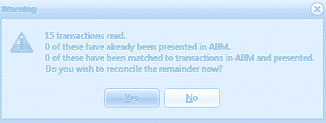
A Warning dialog box with a yellow triangle warning icon displaying import results: "15 transactions read. 0 of these have already been presented in ABM. 0 of these have been matched to transactions in ABM and presented. Do you wish to reconcile the remainder now!" with Yes and No buttons at the bottom.
The first figure shows the total number of transactions read. The second shows the total number of transactions which had already been downloaded before or had been manually presented already in a bank reconciliation.
The third figure shows how many of the downloaded transactions have been matched. As it reads each transaction from the bank, ABM attempts to match it to transactions already entered into ABM. It does this by applying the following tests:
If the bank transaction has a reference number then any leading zeros are stripped from it and it is deemed to match a transaction in ABM if the reference numbers are the same, the amounts are the same and the ABM transaction date is no more than 28 days before the bank transaction date.
If the bank transaction has no reference number then it is deemed to match a transaction in ABM if:
- The dates and the amounts are identical or
- The ABM transaction date is no more than 28 days before the bank transaction date, the amounts are the same and the ABM transaction reference appears in the bank transaction description.
If you click Yes then two Windows will open. One window shows the transactions in ABM which fall within the date range of the statement or were posted earlier and are still unpresented. The second shows transactions imported from the bank and not yet matched to transactions in ABM. You should resize and drag these two windows so that you can see the contents of both on the screen at the same time. Once you have positioned these windows they will appear in the same layout next time.
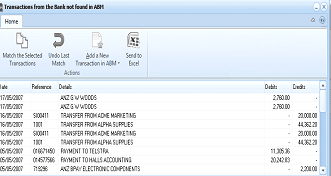
The "Transactions from the Bank not found in ABM" window. The toolbar shows buttons for Match the Selected Transactions, Undo Last Match, Add a New Transaction in ABM, and Send to Excel. The main grid lists imported bank transactions with columns for Date, Reference, Details, Debit, and Credit. Transactions include entries like "ANZ S+V CODES", "TRANSFER FROM ACME MARKETING", "TRANSFER FROM ALPHA SUPPLIES", "PAYMENT TO HALLS ACCOUNTING", and "ANZ BPA ELECTRONIC COMPONENTS" with various amounts.
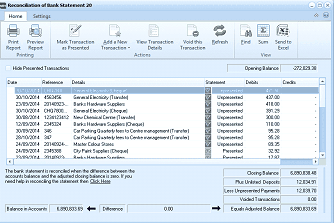
The Reconciliation of Bank Statement 20 window. The toolbar includes buttons for Print Preview Report, Print Report, Mark Transaction as Presented, Add a New Transaction, View Transaction Details, Void this Transaction, and a Settings dropdown. A checkbox labeled "Hide Presented Transactions" is shown. The main grid displays columns for Date, Reference, Details, Statement (with Debit/Credit sub-columns), and checkmarks for presented items. Transactions listed include General Electricity, Banks Hardware Suppliers, New Chemical Centre, Car Parking, and others. At the bottom, a note explains that reconciliation is completed when the difference between the account balance and adjusted closing balance is zero. Fields show Balance in Accounts, Difference (0.00), and Expected Transactions counts.
Matching Transactions
Any transactions downloaded from the bank need to be matched to existing transactions in ABM or, if they are not there, need to be added into ABM.
If you are using this facility to achieve the automatic entry of cashbook transactions then all of them will need to be added into ABM.
There are two ways of matching transactions:
- You can point at the transaction in the bank window, hold the mouse left button down and drag it onto the matching transaction in the reconciliation window. When you release the mouse, the transaction in the reconciliation window will be marked as presented and the imported transaction will disappear.
- You can click on a transaction in the bank window so that it is highlighted, click on the matching transaction in the reconciliation window so that it too is highlighted and then click the Match the Selected Transactions button. The transaction in the reconciliation window will be marked as presented and the imported transaction will disappear. Method 2 can be extended to match multiple transactions by clicking on additional transactions in either window whilst holding down the control key.
Note that transactions in the reconciliation window can be grouped by using the Display Settings button. You can also make things clearer by clicking on the Hide Presented Transactions checkbox.
If you make a mistake then you can click the Undo Last Match button to cancel the match you have just done.
Adding New Imported Transactions
If the imported transaction has never been posted into ABM then it can be added now. This is a quick process because most of the information has been provided by the bank.
Point at a transaction in the imported window, click on it to highlight it and click on the Add a New Transaction into ABM button. Choose the type of transaction from the menu which appears and complete the entry using the window which opens. You only need to add information which is not already known to ABM from the bank import.
If a customer payment contains the customer code as the reference on the bank statement, because the customer specified that reference when making the payment via internet banking, then the customer account will be automatically selected thus saving you time. But you will still have to specify which invoice(s) are offset by the payment.
If a customer payment contains your invoice number as the reference on the bank statement, because the customer specified that reference when making the payment via internet banking, then the customer account will be automatically selected and the invoice will be automatically offset thus saving you more time.
New transactions can also be added by pointing at the transaction in the imported window and clicking the right mouse button.
Adding Transactions which have not been Imported
If you are not downloading transactions from the bank then you may still need to add transactions which have not been entered already into ABM. Bank charges and interest are the most common.
Such transactions can be added via the Add New Transaction button in the reconciliation window. In this case you will need to add full details of the transaction because there is no information from a bank download.
Other Facilities
- Void a Transaction: If a transaction has been posted into ABM in error then it can be voided. This is done by clicking on the transaction in the reconciliation window and then using the Tools menu. Alternatively, you can point at the transaction and click the right mouse button. See Voiding a Receipt or Payment.
- Search: A search button is provided to locate transactions quickly in the reconciliation window. You can use this to search for any text or numbers in any of the columns.