Setting up Customer Accounts
Setting up Customer Accounts
To set up a Customer Account: Before setting up a customer account, ensure you have set up the appropriate customer group for the account. See Setting up Customer Groups for details.
After you have checked that a customer not already has an account by checking the customer list, you can create an account for them as follows:
Select Customers in the Folders list (left of screen) and select New on the menu bar (top of screen), and an Add New Customer screen appears:
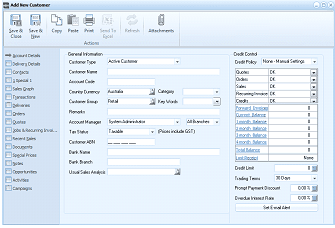
The "Add New Customer" window showing the Account Details tab. The left sidebar lists navigation tabs: Account Details (selected), Delivery Details, Contacts, Sales Graph, Transactions, Deliveries, Orders, Jobs & Recurring Invoices, Recent Sales, Documents, Special Prices, Notes, Opportunities, and Campaigns. The main area shows "General Information" fields including: Customer Type (set to "Active Customer"), Customer Name, Account Code, Country Currency (set to "Australia" with "Category" dropdown), Customer Group (set to "Retail" with "Key Words" button), Remarks, Account Manager (set to "System Administrator" with "All Branches" option), Tax Status (set to "Taxable" with "Prices include GST" checkbox), Customer ABN, Bank Name, Bank Branch, and Usual Sales Analysis. On the right is a "Credit Control" section with Credit Policy (set to "None - Manual Settings"), checkboxes for Quotes OK, Orders OK, Deliveries OK, and Invoicing OK, and fields for Current Balance, Credit Limit, Undelivered Orders, and Available Credit. At the bottom are Trading Terms (set to "30 Days"), Prompt Payment Discount (0.00%), Overdue Interest Rate, and a "Set E-mail Alert" button.
Add New Customer
The Add New Customer screen contains: