Generating a Sales Credit Note
Generating a Sales Credit Note
Sometimes it is necessary to provide the customer with a credit note. The creation of a credit note is carried out through the Credit menu.
To generate a Sales Credit Note:
-
Select Customers to the left of the main screen.
-
In the customer list, select the customer for whom you want to generate a credit note.
-
In the Sales menu bar, click Credit.
When adding a new sales credit note, the following screen will appear:
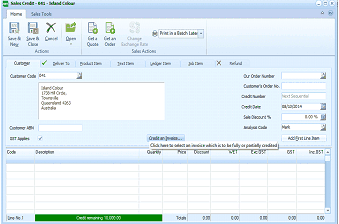 Image Description
The Sales Credit note screen for customer 041 - Island Colour. The toolbar shows buttons for Save & New, Save & Close, Cancel, Open, Get a Quote, Get a List, and Print in a Batch Later under Sales Actions. Tabs include Customer, Deliver To, Product Item, Text Item, Ledger Item, Job Item, and Refund. The Customer tab is active showing fields for Customer Code (041), customer address (Island Colour, 172 Mill Drive, Toowoomba, Queensland 4263, Australia), Customer ABN, GST Applies checkbox, Our Order No, Customer's Order No, Credit Number, Credit Date (08/10/2014), Sale Discount % (0.00), and a "Credit an Invoice..." button with text "Click here to select an invoice which is to be fully or partially credited". An "Add First Line Item" button is at the right. The product grid at the bottom shows columns for Code, Description, Qty, Price, Discount, GST, and totals. Credit remaining of 10,000.00 is shown.
Sales Credit Note
The Credit screen contains the following:
-
Credit Header
-
Product Item
-
Text Item
-
Ledger Item
-
Job Item
-
Refund
**Credit Header ** The first part of generating a credit note is to enter the basic details of the order into appropriate fields. These fields are:
-
Customer Code: Enter the unique identifying code for the customer here. Alternatively, press F3 or click the button to the right of the field to select from the customer list. To create a new customer account, see Setting up Customer Accounts.
-
Customer Details: Enter the name and address of the customer here, as entered in the set up phase. Customer details appear here when you enter the customer code in the previous field.
-
Customer ABN: Enter the customer's Tax registration number here.
-
GST/VAT Applies: By default, this box is checked, indicating that the order is subject to Tax . If this is not the case, uncheck the box.
-
Analysis Code: The name of the appropriate contact for this item appears here. It can be changed by entering a new one or by pressing F3 or by clicking the button to select from the list.
-
Our Order Number: If you are generating a credit note from an existing order, then enter the order number or press F3 to select from a list of orders. By default, it is set at 'New Order' and is greyed out.
-
Customer's Order Number: Enter the customer's order number here, if they provide one.
-
Credit Number: By default, this is set to 'Next Sequential' and is greyed out.
-
Credit Date: Enter the date on which the goods are credited. By default this field is set to today's date. Alternatively, press F3 or click the calendar button to change the date.
-
Sale Discount %: Enter the default discount that applies to the whole sale, on top of any line item special price. By default, this field is set to 0.00%.
-
Credit an Invoice: If you want to apply a credit to a previous invoice, without putting the goods on back order, select this option to view a list of previous invoices. You can then select the required invoice and credit all or selected items.
-
Add First Line Item: Once all the details have been entered in the above fields, select this option to include product details in the credit note. This will display the 'Product Item' section. When entering the product details in the fields provided, they appear in the grid on the lower half of the screen, so you can see at a glance the running totals for the credit note.
**Product Item **
-
Product Code: Enter the code of this product for this transaction. Press F3 or click the button to the right of the field to select from the list. If you know the barcode, enter the barcode and it will automatically be recognised. By default the quantity is set to first unit of measure in the field to the right. You can select a different unit of measure if more than one unit of measure has been set up for that product. See Setting up Product Accounts to set up a new unit of measure for the product.
-
Description: Once the product code is entered, the description of the product, as entered in the set up phase appears.
-
Qty. Credited: Enter the quantity credited at this time, but do not include any quantity invoiced previously on this order.
-
Qty. Returned: Enter the quantity returned at this time, but do not include any quantity delivered previously on this order.
-
Location: Enter the start of the location name for this order or press F3 or click the button to select from the list. To set up a location for your product see Setting up a Stock Location.
-
Unit Cost Amount: Enter the cost price of the product per unit. Press F3 or click the calculator button to the right of the field to enter the amount.
-
Delivery: Enter the date on which the delivery is made. By default this field is set to today's date. Alternatively, press F3 or click the calendar button.
-
Price ex. GST/VAT %: Enter the price of the product excluding Tax. If a customer is in a Trade group (see Setting up Customer Groups) the Trade price for that product will automatically appear. To set different product prices for different groups of customers, e.g. Retail, Wholesale, and so on, see Setting up Product Accounts. To view the cost of the product and the margin on this transaction, click the % button.
-
Discount %: Enter the discount rate that applies to this line item, if any. The default discount rate is set at 0.00%.
-
GST/VAT Code: By default, this field is set at 10% GST/VAT, indicating that the order is subject to Tax of 10%. To change the GST/VAT code, select an alternative entry from the drop-down list. To set up a new Tax category, see Setting up a Tax Category.
-
GST/VAT Amount: Enter the Tax amount if different from the calculated figure. Press F3 or click the calculator button to the right of the field to enter the amount.
-
Cancel Item: Warning: Selecting this option cancels the entries made on this section.
-
Next Item: Once all the details have been entered, select this option to add another product description to the grid for this credit note.
**Text Item **
-
Block of Text: You can enter unlimited text to describe a product in more detail. After you have entered your text, click 'Next Item' and the text appears in the 'Description' field of the grid. Note the details appear in the table to the bottom of the screen.
Ledger Item Use the Ledger Item for entering expenses and services other than product costs, such as postage, shipping etc
-
Account Code: Enter the appropriate ledger account code here. Press F3 or click the button to select an account code from the ledger list. See Adding a Ledger Account for details on how to set up a ledger account.
-
Description: The description entered here appears on the printed document and on the ledger account history.
-
Qty. Credited: Enter the quantity credited at this time, but do not include any quantity invoiced previously on this order.
-
Qty. Returned: Enter the quantity returned at this time, but do not include any quantity delivered previously on this order.
-
Price ex. GST/VAT: Enter the price, excluding Tax here. The price can be changed by entering a new one or by pressing F3 or by clicking the button to select from the list.
-
GST/VAT Code: By default, this field is set at 10% GST, indicating that the order is subject to Tax of 10%. To change the GST code, select an alternative entry from the drop-down list. To set up a new Tax category, see Setting up a Tax Category.
-
GST/VAT Amount: Enter the Tax amount if different from the calculated figure. Press F3 or click the calculator button to the right of the field to enter the amount.
-
Cancel Item: Warning: Selecting this option cancels the entries made on this section.
-
Next Item: Once all the details have been entered, select this option to add another item to the text line for this transaction. Once all the items are entered move to the next section. Note the details appear in the table to the bottom of the screen.
Job Item Use the Job Item section to generate a credit note based on a job you are carrying out for a customer.
-
Job Code: Enter the code of the job for this sale. Press F3 or click the button to select from the list. To set up a job record, which includes a job code, see Adding Jobs
-
Description: Once the job code is entered, the description of the job, as entered in the set up phase appears.
-
Qty. Credited: Enter the quantity credited at this time, but do not include any quantity invoiced previously on this order.
-
Qty. Returned: Enter the quantity returned at this time, but do not include any quantity delivered previously on this order.
-
Qty. Authorised: Enter the total quantity of goods authorised to be returned, including any back order.
-
Charge ex. GST/VAT: Enter the charge, excluding Tax here. The charge can be changed by entering a new one or by pressing F3 or by clicking the calculator button.
-
GST/VAT Code: By default, this box is set at 10% GST, indicating that the order is subject to Tax of 10%. To change the GST code, select an alternative entry from the drop-down list. To set up a new Tax category, see Setting up a Tax Category.
-
GST/VAT Amount: Enter the Tax amount if different from the calculated figure. Press F3 or click the calculator button to the right of the field to enter the amount.
-
Cost Amount: Enter the Work In Progress value that is being credited at this time.
-
Cancel Item: Warning: Selecting this option cancels the entries made on this section.
-
Next Item: Once all the details have been entered, select this option to add another item to the text line for this quote. Note the details appear in the table to the bottom of the screen.
Refund
-
Credit Account: Select the bank account to be credited.
-
Deposit Number: Enter a reference that will be used to group receipts on the deposit list.
-
Amount Paid: Enter the amount paid by the customer.
-
Paid By: Enter the method of payment here by selecting either Transfer, Cheque, Credit Card, or Cash. If payment is by transfer, a reference number must be entered; if payment is by cheque, a cheque number must be entered; if payment is by credit card, the card and authorisation details must be entered; and if payment is by cash, a receipt number must be entered. These fields automatically appear after you have selected the method of payment.
-
Confirm Payment: Click here to confirm that the amount shown above has been paid in relation to this credit note.
Save Settings When you have entered the relevant credit note details, select either:
Save and Close: This will save the credit note information and bring you back to the main menu.
or:
Save and New: This will save the order information and open a new 'New Sales Credit Note' screen.
Back Order: When you process the credit a message will appear asking if you wish to put the returned items on back order. If you answer No to this question, then no back order will be created, and the quantity on the existing order (if selected from order) will be reduced.