Setting up a Stock Location
Setting up a Stock Location
You can choose if stock sales and values in the ledger are to be posted by either Product Group or by Warehouse Location. See Company Menu Bar - Tools for details.
Before processing transactions through the Stock ledger, you will need to set up stock locations if your company has multiple locations (or branches). Each time you sell, receive, transfer stock, or carry out a stock take, the relevant location can be entered.
To add a Product/Stock Location:
-
Select Products in the Folders list (left of screen) and the second level menu appears underneath.
-
Select Locations and a list of any existing locations appears in the main viewing area (right of screen).
-
Select New on the menu bar and an Add New Stock Location screen will appear:
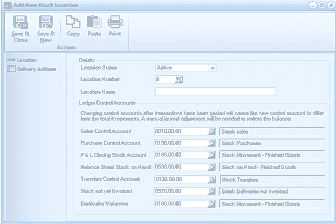
The "Add New Stock Location" dialog window in ABM. The toolbar shows Save & Close, Save & New, Copy, Paste, and Print buttons. The left panel has two navigation items: "Location" and "Delivery Address" with a sub-item labeled "Accounts". The main area has two tabs: "Details" and another tab. The Details section shows fields for: Location Status (set to "Active"), Location Number, and Location Name. Below is a "Ledger Control Accounts" section with a note: "Changing control accounts after transactions have been posted will cause the new control account to differ from the trial of transactions. A manual journal adjustment will be needed to restore the balance." The control account fields include: Sales Control Account (with description "Stock: sales"), Purchase Control Account ("Stock: Purchases"), P & L Closing Stock Account ("Stock Movement - Finished Goods"), Balance Sheet Stock on hand ("Stock on Hand - Finished Goods"), Transfers Control Account ("Stock: Transfers"), Stock not yet Invoiced ("Stock: Deliveries not invoiced"), and Stocktake Variances ("Stock Movement - Finished Goods"). Each field has a ledger account code entry area.
Add New Stock Location
Note: This screen appears when stock sales and values in the ledger are to be posted by warehouse location.
Details
-
Location Name: Enter the branch or location name as it is to appear on reports.
Ledger Control Accounts If you want to post transactions based on locations, then you will need to enter the ledger accounts so that postings will be done automatically when stock is purchased or sold.
-
Sales Control Account: This will contain the Profit & Loss Sales Account for Sales Revenue generated by the products associated with this location (Branch).
-
Purchase Control Account: This will contain the Profit & Loss Purchase Account for purchases of products associated with this location (Branch).
-
P & L Closing Stock Account: This will contain the Cost of Sales Account for the Closing Stock of these products.
-
Balance Sheet Stock on Hand: This will contain the Balance Sheet Account for the value of Stock on Hand.
-
Transfers Control Account: This will contain the Cost of Sales Account for stock used for internal purposes.
-
Stock Not Yet Invoiced: This will contain the Balance Sheet Account for stock which has been delivered to you but not yet invoiced by suppliers.
-
Stocktake Variances: If you wish to post the variances arising from stocktake entries you can select a Balance Sheet Account to record the value of adjustments as a result of a stocktake.
Save Settings When you have entered the relevant stock location details, select either: Save and Close: This will save the stock location information and bring you back to the main menu. or: Save and New: This will save the stock location information and open a new Add New Stock Location screen.
Location Address
You can add an address for each location and have this printed on your documents when that location is selected. To add an address for a location select Locations from the locations list and select Delivery Address and enter the address for this location.
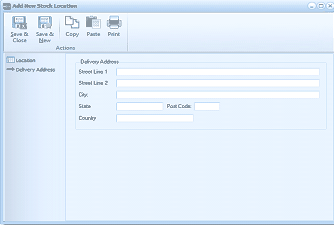
The "Add New Stock Location" dialog window showing the Delivery Address tab. The toolbar shows Save & Close, Save & New, Copy, Paste, and Print buttons. The left panel shows "Location" and "Delivery Address" navigation items. The main area displays address entry fields: Street Line 1, Street Line 2, City, State, Post Code, and Country. All fields are empty, ready for input.