Sales Order Management
Sales Order Management
Sales Order Management
The Sales Order management screen displays a list of orders created for customers. The orders can be sorted by Order Date, Delivery Date Promised, Order Number , Customer Order Number or by Customer.
Select Customers in the Folders list (left of screen) and the second level menu appears underneath.
Select Sales Orders, and a list of existing orders appear in the main viewing area (right of screen).
Each order has a flag beside it showing the status of the order.
-
Back Orders not yet due
This signifies that there are back orders on the particular order, however, the due date for delivery is later than the current date.
-
Overdue Back Orders
Orders where back orders exist and the due delivery date has expired.
-
Overdue Orders:
Orders where nothing has been delivered/invoiced on the order, and the promised delivery date has expired.
Note: You can sort or filter on the status column so that you can group all like orders together.
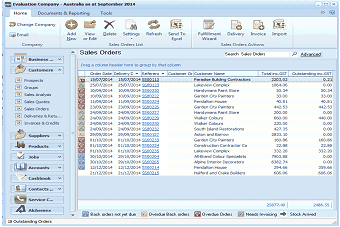
The ABM main screen showing the Sales Orders list. The left navigation panel displays folders including Customers, Sales Quotes, Sales Orders (selected), Delivery & Returns, Suppliers, Products, and others. The main area shows a list of sales orders with columns for Order Date, Delivery Date, Order Number, Customer Order Number, Customer name, and Outstanding amount. The toolbar at top includes buttons for Add, View, Quotes, Delete, Settings, Refresh, Send To, Fulfillment, Delivery, Invoice, Import, and other options. A "Search Sales Orders" bar with an Advanced option is visible. At the bottom, color-coded status indicators show "Back orders not yet due", "Overdue Back orders", "Overdue Orders", "Needs Invoicing", and "Stock Advised" for filtering orders.
**Maintaining and Processing Orders **
-
Create New Order:
To create a new order, select New from the top menu bar. This will bring up the New Sales Order screen.
-
Editing an Existing Order:
To edit an existing order select the order and select Open from the top menu bar. This will allow you to amend the details of the order.
-
Deleting an Order:
To delete an order select Delete from the top menu bar. This will remove the selected order. Note: only orders that have not been delivered/invoiced can be deleted. If you wish to cancel Back Orders on the order, then select the order, and select Open. Select Options and select Cancel All Back Orders (CTRL+A)
-
Viewing the Details of the Order:
To see the details on the order select the order on the list and Double Click on that order to see the contents.
-
Convert to Delivery:
If the order is to be delivered select Delivery from the menu bar. This will open the Sales Delivery program and automatically select that order.
-
Convert to Invoiced:
If the order is to be invoiced, then select Invoice from the menu bar. This will open the Sales Invoice program and automatically select that order.
-
Fulfillment Wizard:
The fulfillment wizard will automatically select the orders for delivery and invoicing in accordance with the rules set for each customer See Customer Delivery Rules. For a detailed explanation of the Fulfillment Wizard see Sales Order Automation