Adding Jobs
Adding Jobs
Before you start to process a job, it is important that you have all relevant suppliers and customers set up on the system. You can hold both financial and non-financial data for each job on the system.
Before setting up a job record, ensure you have set up the appropriate job group for the job record. See Adding Job Costing Groups for details.
Setting up all job accounts at the beginning and having all details to hand (such as job groups to which this job will belong, the status of the job, and so on) will save time when posting transactions later. Editing jobs to add in extra information at a later date is extremely time-consuming.
To add a new Job Record:
Select Jobs in the Folders List (left of screen), select New in the menu bar (at top of screen) and an Add New Job screen appears as below:
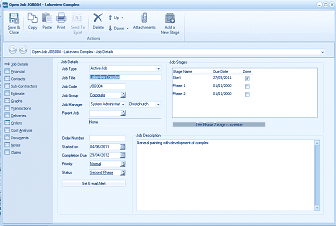
The "Open Job" dialog window is displayed showing a job record for "Lakeview Complex". The window has a toolbar at the top with buttons including Save & Close, Copy, Paste, Print, Send To, Delete, Attach, Attachments, and New Stage. The left side shows navigation tabs for Job Details, Financial, Sub-Contractors, Estimate, Graphs, Transactions, Deliveries, Orders, Cost Analysis, Notes, and Documents. The main area shows the "Job Details" tab with fields including Job Status (Active Job), Job Title, Job Code, Job Group (System Administrator), Job Manager (dropdown), and Parent Job. Below are fields for Order Number, Started On date, Completion Due date, Priority, and Status (showing "In Progress"). A "Job Description" text area shows details about the job. On the right side is a "Job Stages" grid with columns for Stage Name, Due Date, % Complete, Status, and Done, showing multiple phases listed. A "Set E-mail Alert" link is visible at the bottom.
Add New Job
The Add New Job screen that appears containing the following sections: