Importing Sales Orders
Importing Sales Orders
You can import sales orders containing product line items into ABM from an Excel spreadsheet. If you receive orders from Customers in an Excel format, then you can use this file to create the order, rather than creating the order manually.
The spreadsheet file will need to have a row for each line item of the order, and a heading row with the following column headings:
- Product Code: The product code for the line item
- Quantity: The product quantity being ordered.
- Price: This is optional and can be set to Not Applicable. If set to Not Applicable the appropriate price for this customer will be selected automatically.
Note: Only Product lines will be imported from the spreadsheet.
To Import a Sales Order:
Step 1. In the navigation bar under customers select Sales Orders.
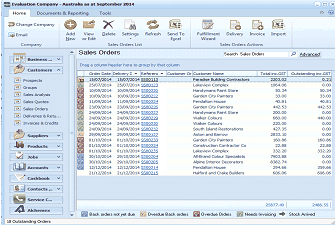
The ABM main screen showing the Sales Orders list. The left navigation panel displays folders including Customers, Sales Quotes, Sales Orders (selected), Delivery & Returns, Suppliers, Products, and others. The main area shows a list of sales orders with columns for Order Date, Delivery Date, Order Number, Customer, and Outstanding amount. The toolbar at top includes buttons for Add, View, Quotes, Delete, Settings, Refresh, Send To, Fulfillment, Delivery, Invoice, Import, and other options. A "Search Sales Orders" bar with an Advanced option is visible. Orders are shown for various customers with color-coded status indicators at the bottom showing "Back orders not yet due", "Overdue Back orders", "Overdue Orders", "Needs Invoicing", and "Stock Advised".
Step 2. Select Import Sales Order from the menu bar. You will then be presented with the following screen.
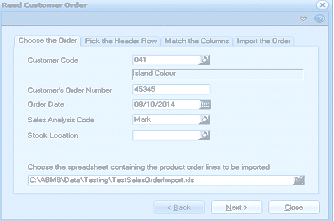
The Read Customer Order wizard - Step 1 "Choose the Order" tab. The wizard has four tabs: Choose the Order, Pick the Header Row, Match the Columns, and Import the Order. Fields shown include Customer Code (041 - Island Colour), Customer's Order Number (45345), Order Date (08/10/2014), Sales Analysis Code (Mark dropdown), and Stock Location (empty dropdown). At the bottom, a file path field shows the spreadsheet file to import: "C:\ABMData\Testing\TestSalesOrderImport.xls". Navigation buttons include Back, Next, and Close.
Read Order Screen:
- Customer Code: Select the Customer Code for whom the order is to be imported.
- Customer Order Number: Enter the customers order reference if supplied.
- Sales Analysis Code: Select the analysis code to associate with the order.
- Stock Location: Select the location from where the products will be supplied.
Step 3. Pick the Header Row: Select the spreadsheet row which contains the column headings.
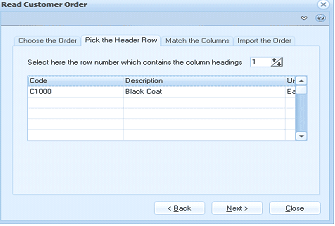
The Read Customer Order wizard - Step 2 "Pick the Header Row" tab. The instruction reads "Select here the row number which contains the column headings" with a spinner control set to 1. Below is a preview grid showing the spreadsheet data with columns for Code, Description, and additional columns. Two data rows are visible: "C1000 - Black Coat" and another entry. Navigation buttons include Back, Next, and Close.
Step 4. Match the Columns: Select the columns which contain the product code, the quantity and price.
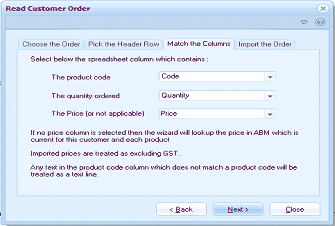
The Read Customer Order wizard - Step 3 "Match the Columns" tab. The instruction reads "Select below the spreadsheet column which contains:" followed by three dropdown fields: "The product code" (set to Code), "The quantity ordered" (set to Quantity), and "The Price (or not applicable)" (set to Price). Below is explanatory text noting that if no price column is selected, the wizard will look up the price in ABM for the customer and product. Additional notes state that imported prices are treated as excluding GST, and any text in the product code column which does not match a product code will be treated as a text line. Navigation buttons include Back, Next, and Close.
Step 5: Import the order: Prior to importing the order you can select Check the spreadsheet for errors. This option will verify if the spreadsheet will import without errors. when you are satisfied that all the information is correct, select **Create the Customer Order. **
When the order has been imported you can select Finish.