Adding a Ledger Account
Adding a Ledger Account
Setting up all accounts at the beginning and having all details to hand (such as consolidation account number, account group, and so on) will save time when posting transactions later. Editing account details to add extra information at a later date is extremely time-consuming.
To set up a Ledger Account:
-
Select Accounts in the Folders List (left of screen)
-
Select New in menu bar (at top of screen) and an Add New Ledger Account screen appears:
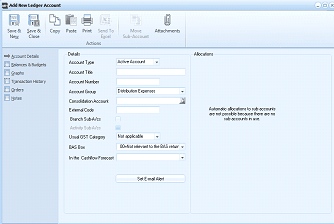
The "Add New Ledger Account" screen with navigation tabs on the left side: Account Details, Balances & Budgets, Graphs, Transaction History, Orders, and Notes. The "Account Details" tab is selected, showing the Details section with fields for: Account Type (dropdown set to "Active Account"), Account Title (empty), Account Number (empty), Account Group (dropdown set to "Distribution Expenses"), Consolidation Account (empty), Branch Sub-A/cs (empty), Used GST Category (set to "Not applicable"), BAG Box (showing "Do Not relevant to the BAS return"), and "In the Cashflow Forecast" field. An "Allocations" section on the right states "Automatic allocations to sub accounts are not possible because there are no sub-account types set up." A "Set E-mail Alert" button is at the bottom. The toolbar at the top shows Save & New, Save & Close, Copy, Paste, Print, Send To, and Attachments buttons.
Add New Ledger Account
The New Ledger Account screen contains the following sections: