Setting up Customer Groups
Setting up Customer Groups
Before setting up customer accounts, you must set up customer groups, one of which will be allocated to each customer. This allows you to set up trading terms for each group, saving you having to re-key it in for each customer. For example, you might want to set up one group as retail customers with 14 days credit terms, and a pricing scale allocated to retail (see Setting up Product Accounts).
To set up a Customer Group:
-
Select Customers in the Folders list (left of screen) and the second level menu appears underneath.
-
Select Groups, and a list of existing groups (if any) appears in the main viewing area (right of screen).
-
Select New in the menu bar and the Add New Customer Group screen appears:
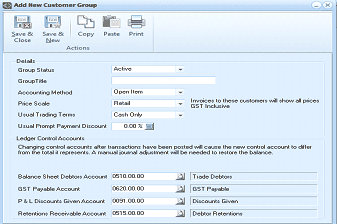
The "Add New Customer Group" dialog window. The toolbar includes Save & Close, Save & New, Copy, Paste, and Print buttons. The "Details" section shows fields for: Group Status (set to "Active" dropdown), Group Title, Accounting Method (set to "Open Item"), Price Scale (set to "Retail" with a note "Invoices to these customers will show all prices GST Inclusive"), Usual Trading Terms (set to "Cash Only"), and Usual Prompt Payment Discount (set to 0.08%). Below is the "Ledger Control Accounts" section with a warning message about changing control accounts after transactions. Fields include: Balance Sheet Debtors Account (showing account number and "Trade Debtors"), GST Payable Account (showing account number and "GST Payable"), P & L Discounts Given Account (showing account number and "Discounts Given"), and Retentions Receivable Account (showing account number and "Debtor Retentions").
Add New Customer Group
Note: if you are posting sales revenue by Customer Group, then the screen will appear as follows:
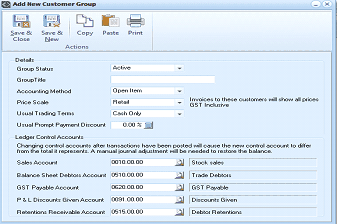
The "Add New Customer Group" dialog window, showing the variant where sales revenue is posted by Customer Group. This version is identical to the standard view but includes an additional "Sales Account" field at the top of the Ledger Control Accounts section, showing an account number and "Stock sales" label. The remaining fields are the same: Balance Sheet Debtors Account ("Trade Debtors"), GST Payable Account ("GST Payable"), P & L Discounts Given Account ("Discounts Given"), and Retentions Receivable Account ("Debtor Retentions"). The Details section above shows the same fields for Group Status, Group Title, Accounting Method, Price Scale, Usual Trading Terms, and Usual Prompt Payment Discount.
Details
-
Group Title: Type the group title here as it is to appear in reports and other documentation, for example, Retail.
-
Accounting Method: Here you can select the accounting method you want from a drop-down list: Open Item: This accounting method tells you exactly what invoices are outstanding for a particular customer. Balance Forward: This accounting method simply tells you the total amount owed by the customer.
-
Pricing Scale: It is possible to link a particular group to a pricing scale. This pricing scale is set up for each product. See Setting up Product Accounts. This can be useful if, for example, a different pricing structure applies for wholesale and retail. It means that this does not have to be inserted for each individual customer.
-
Usual Trading Terms: You can define trading terms to a particular group of customers. For example, if you set up a group called Retail Customers, you might want to set trading terms to cash only. It is also possible to overwrite this for individual customers, for example, if you have a customer who is part of the retail group but has had a good credit history with your company, you might want to offer them 30 day's credit. This can be set for the individual customer in Customer Details.
-
Usual Prompt Payment Discount: You can set a discount to be applied to each customer within this group, if they pay within their credit terms. If you are not offering a discount, set this to 0.00%
Ledger Control Accounts When you enter a transaction, the postings to the control accounts will be posted automatically in accordance to the ledger accounts you specify.
-
Sales Account: If you have selected to post sales revenue based on the customer group, then there will be an extra ledger control account for the sales revenue. Enter the Sales Account number, click the Find option to the right of the field to select from a list of existing accounts, or set up a new ledger account.
-
Balance Sheet Debtors Account: Enter the Trade Debtors Account number, click the Find option to the right of the field to select from a list of existing accounts, or set up a new ledger account.
-
GST/VAT Payable Account: Enter the Tax Payable Account number, click the Find option to the right of the field to select from a list of existing accounts, or set up a new ledger account.
-
GST/VAT on Sales not yet Paid Account: (only if your Tax reporting method is Cash or Payments basis in the company setup) Select here the Balance Sheet liability account for taxes not yet paid to the government.
-
P & L Discounts Given Account: Enter the Discounts Given Account number, click the Find option to the right of the field to select from a list of existing accounts, or set up a new ledger account.
-
Retentions Receivable Account: If a retention applies to job invoices, enter an account to record the accrual for this retention. Retentions apply where you are supplying a service, and the customer will withhold an amount until the job is complete.
Save Settings When you have entered the relevant supplier details, select either: Save and Close: This will save the customer group information and bring you back to the main menu. or: Save and New: This will save the customer information and open an Add New Customer Group screen. The drop-down lists are defaulted to your previous entries.