Processing Recurring Invoices
Processing Recurring Invoices
To view details on how to add a recurring invoice, see Customer Accounts - Jobs & Recurring Invoices.
To process a Recurring Invoice:
-
Select Customers from the Folders List.
-
In the customer list, select the customer for whom you want to process an invoice.
-
In the Sales menu bar, click the arrow to the right of Invoice, and select Process Recurring Invoices. You can also select Actions in the menu bar and select Process Recurring Invoices.
When processing a recurring invoice, the following screen will appear:
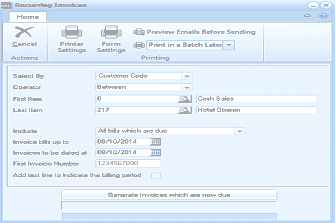 Image Description
The Recurring Invoices dialog box. The toolbar shows buttons for Cancel, Printer Settings, Form Settings, Preview Emails Before Sending, and Print in a Batch Later dropdown under Printing and Actions. Fields include Select By (Customer Code), Operator (Between), First Item (Cash Sales), Last Item (217 - Hotel Glenarm). Additional fields include Includes dropdown (All bills which are due), Invoice bills up to date (08/11/2014), Invoices to be dated at (08/10/2014), First Invoice Number (1234567890), and a checkbox for "Add text line to indicate the billing period". At the bottom is a "Generate Invoices which are now due" button.
Recurring Invoices
- To select your printing and e-mail options, select Printing on the top left hand corner of the screen and select the appropriate option from the dropdown list
- Enter the date that is to appear on the invoices. Press F3 or click the calendar button to check the date.
-
First Invoice Number: Each invoice that you generate will contain a unique document number so you can identify each transaction. For example, each recurring invoice is numbered sequentially starting from 'SP00015'.
To view/change invoice settings:
-
Click 'Generate Invoices which are now due' to produce recurring invoices.
When you select Generate Invoices a list of the invoices to generate together with any Credit Limit warnings will appear. From this screen you can select all documents, or de-select all documents, and then select the ones you wish to process.
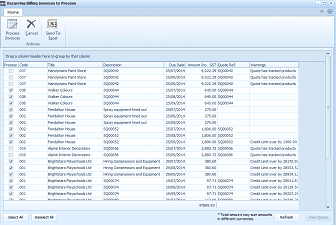
The Recurring Billing Invoices to Process dialog box. The toolbar shows buttons for Process Invoices, Cancel, Send To Excel, and an Excel export icon. The text reads "Drag a column header here to group by that column." The main grid shows a list of recurring invoices with columns for checkbox selection, Customer Code, Customer Name (e.g., Pendalton House, Hardwares Paint Store, Island Colour, Portyknots Floorsh, Fendalton House, etc.), Description, Due Date, Amount Inc., GST, Quote Ref, and Warnings. Multiple invoices are listed with various amounts and dates. At the bottom are "Select All" and "De-select All" buttons, along with a note that "Total amount may span amounts to be credited". Buttons for Re-sort and a filter option are at the bottom right.
When you have completed the selection select Process Invoices to generate all the required invoices. You can also send the list to Excel for checking further prior to processing.
- When you have finished processing your invoices, select 'Close' to return to the main screen.