Product Accounts - Kits and Components
Product Accounts - Kits and Components
If you are selling products which are assembled from components, then you can set up a Kit product. A Kit product can be assembled and held in stock or the components can be reduced when the Kit is sold.
To Add Components
Select the Kit product and select the Components tab.
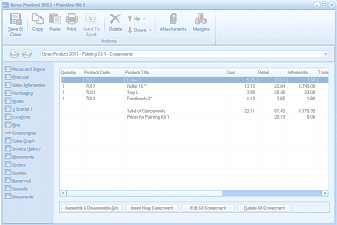
The Components tab of the "Open Product 2011 - Painting Kit 1" screen in ABM. The toolbar shows Save & Close, Copy, Paste, Print, Send To, Delete, Browse, Attachments, and Margins buttons. The left navigation panel lists various tabs with "Components" selected. The main area displays a grid of components that make up the kit, with columns: Quantity, Product Code, Product Title, Cost, Retail, Wholesale, and Trade. The component rows list items like "Roller 9", "Roller 15", "Tray L", and "Paintbrush 2" with their respective codes, costs, and prices. Below the grid, a "Total of Components" row summarizes the values, followed by "Prices for Painting Kit 1" showing the kit's aggregate pricing. At the bottom are buttons: "Assemble & Disassemble Kits", "Insert New Component", "Edit Selected Component", and "Delete Kit Component".
-
Insert New Component: Select this option to insert a new component above the highlighted component.
-
Edit Component: Select this option to open the highlighted component and make changes.
-
Delete Indicated Component: Select this option to delete the highlighted component.
To Assemble Kits.
Select the Components tab and select Assemble & Disassemble Kits. The following screen will appear.
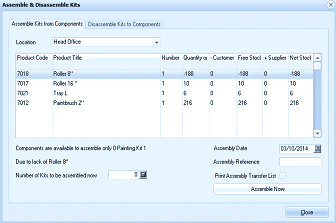
The "Assemble & Disassemble Kits" dialog window with two tabs: "Assemble Kits from Components" (currently selected) and "Disassemble Kits to Components". At the top is a Location dropdown set to "Head Office". The main grid displays component details with columns: Product Code, Product Title, Number, Quantity on hand, Customer, Free Stock, Supplier, and Net Stock. Components listed include Roller 9, Roller 15, Tray L, and Paintbrush 2 with their respective stock quantities. Below the grid, information text states "Components are available to assemble only 0 Painting Kit 1" with a note "Due to lack of Roller 9". Fields at the bottom include Assembly Date, Assembly Reference, "Number of Kits to be assembled now" (set to 0), a "Print Assembly Transfer List" checkbox, and an "Assemble Now" button. A "Done" button is at the bottom right.
Select the tab Assemble Kits from Components.
-
Location: Select the location you wish to remove the components from, and the location the resultant kit will be placed into.
-
Number of Kits to Assemble: Enter the number of kits you wish to assemble. A narration will show the maximum quantity you can assemble, based on the quantity of components in stock.
-
Reference: Enter a reference number for the assembly.
-
Print Assembly Transfer List: If you wish to print a list of the components to be used in the assembly, then select the Check Box.
Select Assemble Now and this will put the Kit into stock and remove the components from stock.
To Disassemble Kits.
If the product is capable of disassembly, and you wish to return the components back into stock, select the Components tab and select Assemble & Disassemble Kits. The following screen will appear.
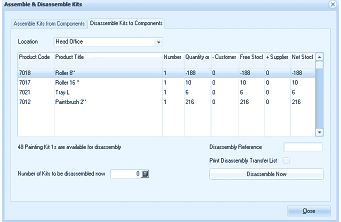
The "Assemble & Disassemble Kits" dialog window with the "Disassemble Kits to Components" tab selected. At the top is a Location dropdown set to "Head Office". The main grid displays component details with columns: Product Code, Product Title, Number, Quantity on hand, Customer, Free Stock, Supplier, and Net Stock. Components listed include Roller 9, Roller 15, Tray L, and Paintbrush 2 with their stock figures. Below the grid, information text states "48 Painting Kit 1 is are available for disassembly". Fields at the bottom include a "Disassembly Reference" text field, a "Print Disassembly Transfer List" checkbox, "Number of Kits to be disassembled now" (set to 0), and a "Disassemble Now" button. A "Done" button is at the bottom right.
Select the tab Disassemble Kits to Components.
-
Location: Select the location you wish to return the components to, and the location the kit will be removed from.
-
Number of Kits to Disassemble: Enter the number of kits you wish to disassemble.
-
Reference: Enter a reference number for the disassembly.
-
Print Assembly Transfer List: If you wish to print a list of the components to be returned to stock, then select the Check Box.
Select Disassemble Now and this will take the Kit out of stock and return the components to stock.