Product Accounts - Sales Information
Product Accounts - Sales Information
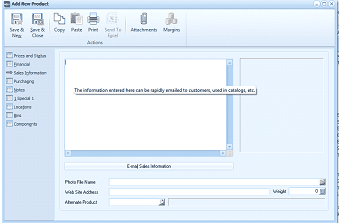
The "Add New Product" screen in ABM showing the Sales Information tab. The toolbar includes Save & Close, Save & New, Copy, Paste, Print, Send To, Attachments, and Margins buttons. The left navigation panel shows tabs: Prices and Status, Financial, Sales Information (currently selected), Purchasing, Locations, Bins, and Components. The main area contains a large text area with the note "The information entered here can be rapidly emailed to customers, used in catalogs, etc." Below is an "E-mail Sales Information" section. At the bottom are fields for: Photo File Name (with a folder browse button), Web Site Address, Weight (with a calculator button), and Alternate Product.
Sales Information section
In the blank space enter information about the product or services you provide that might be e-mailed to the customer, used in catalogues and so on.
-
Photo File Name: Click the folder to find the picture to match your product.
-
Web Site Address: Enter the full address (URL) where information on the product can be found.
-
Weight: Click the calculator button to enter the weight of the product.
-
Alternate Product: If a particular product is out of stock, assign a similar product, which can be distributed in its place. This might happen if you have different manufacturers making the same type of product. For example, if a customer orders Duracell Batteries but they are out of stock, you can set Ever Ready Batteries as the alternative product, and these will then be shipped to the customer.
When you have entered the relevant product details, click E-mail Sales Information to send an e-mail containing the above information from Outlook.