Special Prices and Discounts
Special Prices and Discounts
You can add/edit special prices or discounts relating to products, and assign these special prices and discounts to customers:
To add new special prices or discounts or edit/view existing prices then select company menu bar, go to Tools, Options and Prices
To view a list of special prices and discounts and edit these discounts select the Business Today screen under products and select the Special Prices list. Note: You cannot add new price/discount tables here.
Adding/Editing New Price tables from the Tools\Options\ Prices section.
- Special Prices and Discounts: Select this option to assign special or quantity-based prices or discounts to individual or sets of customers, products and locations.
Select **Add a New Table **and the Add New Price Table screen appears:
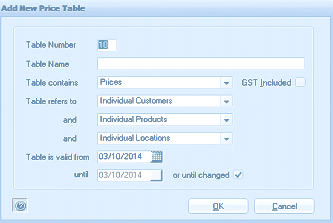
The "Add New Price Table" dialog window. It contains the following fields: Table Number (set to 18), Table Name (empty text field), Table Contains (dropdown set to "Prices" with a "GST Included" checkbox), Table refers to (three dropdown fields set to "Individual Customers", "Individual Products", and "Individual Locations" respectively), Table is valid from (date field showing 03/10/2014), until (date field showing 03/10/2014 with an "or until changed" checkbox that is checked). OK and Cancel buttons are at the bottom.
Add New Price Table screen
-
Table Number: Enter a number which determines the order in which the price tables are displayed.
-
Table Name: Enter the price table name (up to 40 characters).
-
Table Contains: Select if the price table contains a special price, or a discount which applies to standard prices or discounts which apply to all prices from the drop-down list. Note: If you select Discount on Standard Prices Only then these discounts will only apply to the price 1 to 8 setup on the product and will not apply to Special Prices that exist for the customer. If you wish to apply the discount to all Special Prices as well as the prices setup on the product then select Discount on All Prices.
-
GST/VAT Included: Tick the box to indicate if GST/VAT is included in the price or discount.
-
Table refers to: Select if the price table applies to customers, products, locations, groups or categories.
-
Table is valid from: Enter the dates at which the price or discount starts and ends.
Select OK to add the price table details to the Special Price and Discounts Table.
Select **Edit Table Contents **to add, edit or delete a price or discount.
Select **Add Price or Discount **and the Add New Quantity screen appears as below:
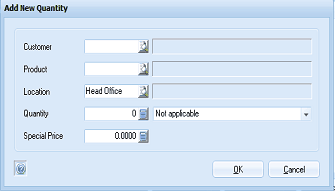
The "Add New Quantity" dialog window. It contains the following fields: Customer (empty field with a search/finder button), Product (empty field with a search/finder button), Location (set to "Head Office" with a search/finder button), Quantity (set to "0" with a "Not applicable" dropdown for unit of measure), and Special Price (set to "0.0000" with a search/finder button). OK and Cancel buttons are at the bottom.
Add New Quantity screen
-
Customer: Enter the customer name or click the button to select from the customer list.
-
Product: Enter the product name or click the button to select from the product list.
-
Location: Enter the location name or click the button to select from the list.
-
Quantity: Enter the sale quantity to which this price or discount applies. You can also select the unit of measure to which this price applies if there are more than one unit of measure associated with the product.
-
Unit Of Measure: You can select the unit of measure that the price applies to:
-
Special Price/Discount: Enter the special price or discount here.
Select OK to add the price table contents to the Special Price and Discounts Table.
Importing/Exporting Special Prices
You can import or export any of the special price tables by selecting the price table and selecting the appropriate option at the bottom of the screen.
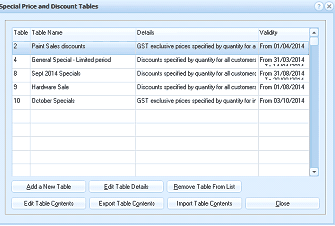
The "Special Price and Discount Tables" dialog window. It displays a list/grid of existing price tables with columns: Table (number), Table Name, Details, and Validity. Listed tables include: "2 - Paint Sales discounts" (GST exclusive prices specified by quantity for all customers, From 01/04/2014), "4 - General Special - Limited period" (Discounts specified by quantity for all customers, From 31/03/2014), "8 - Sept 2014 Specials" (Discounts specified by quantity for all customers, From 01/08/2014), "9 - Hardware Sale" (Discounts specified by quantity for all customers, From 01/08/2014), and "10 - October Specials" (GST exclusive prices specified by quantity for all customers, From 01/08/2014). At the bottom are six buttons: "Add a New Table", "Edit Table Details", "Remove Table From List", "Edit Table Contents", "Export Table Contents", "Import Table Contents", and a "Close" button.
-
Export Special Prices
To export the details of a special price table select that table and then select Export Table Contents. This will open an export wizard which will have the specified table selected. If this is not the required table you can select the table from the drop down list. Once you have selected the table you need to enter the name of the file Excel file you wish to export the details to. By selecting or unselecting the check box you can decide if you wish to include the headings in the export file. Once you have made your selections select Finish and the contents will be exported.
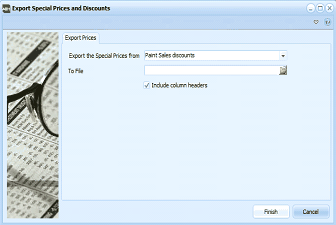
The "Export Special Prices and Discounts" wizard dialog. The left side shows a decorative image of glasses on a newspaper. The right side has the heading "Export Prices" with fields: "Export the Special Prices from" (dropdown set to "Paint Sales discounts"), "To File" (empty file path field with a browse button), and a checked checkbox labeled "Include column headers". At the bottom are "Finish" and "Cancel" buttons.
-
Import Special Prices
To import a special price table select the Special Prices and Discount tables and select Import Table Contents
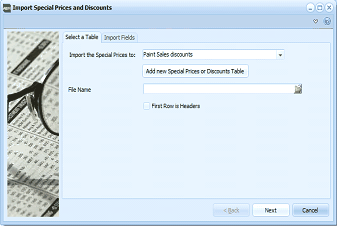
The "Import Special Prices and Discounts" wizard dialog with two tabs: "Select a Table" (currently selected) and "Import Fields". The left side shows a decorative image of glasses on a newspaper. The right side has fields: "Import the Special Prices to" (dropdown set to "Paint Sales discounts"), an "Add new Special Prices or Discounts Table" button, "File Name" (empty file path field with a browse button), and a "First Row is Headers" checkbox. At the bottom are "Back", "Next", and "Cancel" buttons.
-
Select the table to import. Note: If you wish to create a new table to import the contents to, then select Add new special Price or discount Table
-
Select the file which contains the details of the price table to be imported
-
Select the check box if the file includes headings. These headings can be selected on the second stage of the import where you will specify the relevant columns you wish to import.
-
Import the fields: Select the columns which relate to the table details. Note: the selection on the import screen will depend on the type of special table that was created.
Viewing/Editing Special Prices or Discounts from the Products Special Prices List
Select the Business Today screen and select Products then select Special Prices & Discounts
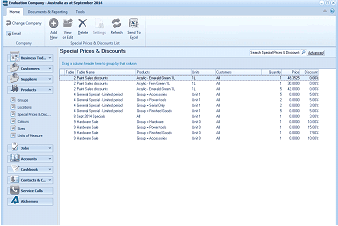
The ABM main application window showing the "Special Prices & Discounts" list view under the Products section. The title bar shows "Evaluation Company - Australia as at September 2014". The left navigation panel shows the folder tree with Business Today, Suppliers, Products (expanded to show Groups, Special Prices & Disc., Locations, etc.), Accounts, Branch List, Cashbook, Contacts & C., Service Calls, and Addresses. The main area displays a "Special Prices & Discounts" data grid with a search bar at top ("Search Special Prices & Discount") and an "Advanced" button. The grid columns include: Table, Table Name, Product/Customer/Category details, pricing columns (showing values like 41.0000), and "All" indicators. Multiple rows show entries from tables like "Paint Sales discounts" and "General Special - Limited period" with products such as "Acrylic - Emerald Green 1L", "Soap - Peppermint", "Soap - Hardware", etc.
-
Edit Existing Price : Select that price and select Open from the menu bar. This will allow you to change the price or discount whichever is relevant. You can also change the quantity and unit of measure if required.
-
Add New Price: Select New from the menu bar and a screen will open allowing you to select an existing table from the dropdown list. Once you have selected the relevant table you then then enter the price or discount details as required.
-
Delete a Price: If you wish to delete an existing price then select that price and select Delete from the menu bar.
** Adding Special Prices on the Fly**
If you wish to add or change special prices which apply to customers at the time of entering a Quote, Order, Delivery or Invoice then you can select this option in Tools\Options\Sales. With this option selected you can easily add new special prices for a customer. If there are special prices set up for that customer and you enter a different price you will be asked if this price is to be saved for the future.
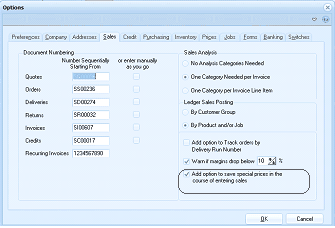
The "Options" dialog window with the "Sales" tab selected. Other tabs visible across the top are: Preferences, Company, Addresses, Sales (active), Credit, Purchasing, Inventory, Pages, Jobs, Forms, Banking, and Sys[tems]. The Sales section shows: Document Numbering fields with "Number Sequentially Starting From" and "or enter manually as you go" options for Quotes, Orders, Deliveries, Returns, Invoices, Credits, and Recurring Invoices, each with their respective starting numbers. On the right side: "Sales Analysis" section with radio buttons for "No Analysis Categories Needed", "One Category/Needed per Invoice", and "One Category per Invoice Line Item". "Ledger Sales Posting" options include "By Customer Group", "By Product and/or Job". Additional options include "Add option to Track orders to Delivery Run Number", a "Warn if margins drop below" percentage field (set to 10%), and a checked checkbox labeled "Add option to save special prices in the course of entering sales" at the bottom. OK and Cancel buttons are at the bottom.
Tools\Options\Sales setting to select option to add specials on the fly
If you have selected this option and are entering a sales transaction the following screen will appear
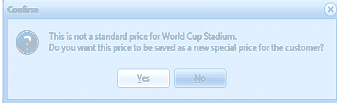
A "Confirm" dialog box with a question icon. The message reads: "This is not a standard price for World Cup Stadium. Do you want this price to be saved as a new special price for the customer?" Two buttons are displayed: "Yes" and "No".
If you select Yes to the above you will be presented with another screen which will allow you to set up the details of the special price.
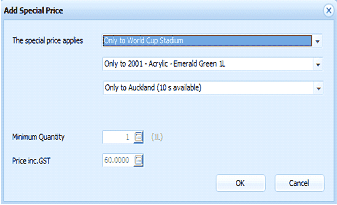
The "Add Special Price" dialog window. It contains the following fields: "The special price applies" (dropdown set to "Only to World Cup Stadium"), a product field (showing "Only to 2001 - Acrylic - Emerald Green 1L"), a location field (showing "Only to Auckland (10 s available)"), "Minimum Quantity" (set to 1, with a unit dropdown showing "1L"), and "Price inc.GST" (set to 60.0000 with a finder button). OK and Cancel buttons are at the bottom.
The following options are then available for selection.
- Price Applies To: You can specify if the price only applies to this customer or change the selection from the drop down list to specify that it applies to any customer in the same customer group or same customer category or that it applies to all customers.
- Product Applicable to: You can select this product only or all products in the associated product group or product category or if it applies to all products
- Location : You can specify if it applies to products only from that location or all locations.
- Minimum Quantity. If the price applies only if the customer purchases a minimum quantity then enter that minimum quantity in the appropriate field. Note: By default the minimum quantity will be the quantity entered for that line item.
- Price: The price is the price you have entered for that product.