Product Accounts - Purchasing
Product Accounts - Purchasing
This section displays information on supplier pricing which is updated when you purchase products from that supplier. You can also enter a supplier price together with a quantity break. These prices will be selected on all purchase transactions.
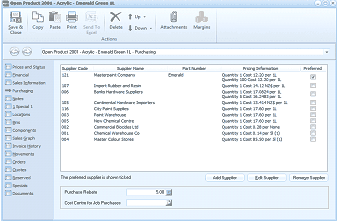
The Purchasing tab of the "Open Product 3006 - Acrylic - Emerald Green 4L" screen in ABM. The toolbar shows Save & Close, Copy, Paste, Print, Send To, Delete, Browse, Attachments, and Margins buttons. The left navigation panel lists product tabs with "Purchasing" selected. The main area displays a supplier list grid with columns: Supplier Code, Supplier Name, Part Number, Pricing Information, and Preferred (checkbox). Multiple supplier rows are listed including Masterform Company (Emerald), Dragon Rubber and Rain, Bunke Hardware Suppliers, Continental Hardware Suppliers, City Paint Supplies, Paint Warehouse, New Chemical Centre, Chemworld Holdings Ltd, Chemical Industries Co, and Walker Colour Stones. Each shows pricing information like "Quantity 1 Cost 12.50 per 1L" or similar. A note states "The preferred supplier is shown in bold." Below the grid are buttons: "Add Supplier", "Edit Supplier", and "Remove Supplier", plus a "Purchase Rebate" field showing 5.00 and a "Cost Centre for Job Purchases" field.
-
Add a Supplier:
You can add a new supplier and enter that supplier's code if appropriate. You can enter the price being charged by that supplier. When entering the pricing information an option is available to enter a quantity price. Example: If the product cost 150.00 per unit, and you negotiate a price of 130.00 if you purchase 10 or more, then enter the quantity as 10 and the price as 130.00. You can enter an expiry date if this price is subject to change on a particular date.
-
Edit Supplier:
You can edit the supplier pricing details.
-
Remove Supplier:
If you wish to remove supplier pricing details select the supplier on the list and select remove.
-
Preferred Supplier:
You can nominate you preferred supplier by placing a tick in the box next to that supplier. That supplier will then be used for reorder information.
-
Purchase Rebate:
If you receive a purchase rebate from your supplier when you sell this product you can enter the rebate percentage here.
-
Cost Centre for Job Purchases:
If you purchase products from a supplier and these products are delivered direct to a job then you can enter the default cost centre code.
To add a new note to the product, which appears in transactions, select New Note. To ensure the note is picked up in transactions, begin the note with a plus (+) sign followed by the text.