Automatic Posting by Group and Location
Automatic Posting by Group and Location
Ledger Control Accounts If you want to the automatic posting to the control accounts based on both product group and product locations, then select Tools\Options and select Stock and select by Group and Location. You will need to enter the ledger accounts so that postings will be done automatically when stock is purchased or sold.
You can enter the control accounts by either selecting product groups or locations and selecting the button for control accounts.
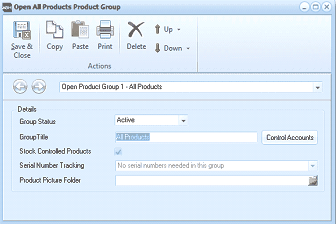
The "Open All Products Product Group" dialog window in ABM. The toolbar at the top includes Save & Close, Copy, Paste, Print, Delete, Up, and Down buttons under an "Actions" section. Below is a dropdown showing "Open Product Group 1 - All Products". The Details section contains fields for: Group Status (set to "Active"), Group Title (set to "All Products") with a "Control Accounts" button, a checked "Stock Controlled Products" checkbox, Serial Number Tracking (set to "No serial numbers needed in this group"), and Product Picture Folder.
This will bring up a posting matrix screen so that you can enter the control accounts for each product group and location. The locations are shown across the top with the product groups shown in the left column. The enter the ledger accounts for sales select the Sales Control tab and similarly for Purchases select the Purchase Control tab.
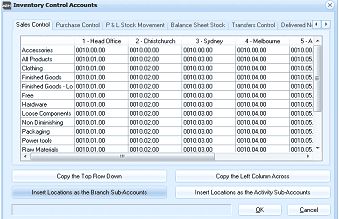
The "Inventory Control Accounts" dialog window showing a matrix/grid layout. Across the top are tabs for: Sales Control, Purchase Control, P & L Stock Movement, Balance Sheet Stock, Transfers Control, and Delivered Not I[nvoiced]. The columns represent locations: 1 - Head Office, 2 - Christchurch, 3 - Sydney, 4 - Melbourne, and 5 - A[uckland]. The rows list product groups including: Accessories, All Products, Clothing, Computers, Finished Goods, Finished Goods - Lo[cation], Hardware, Loose Components, Non Diminishing, Packaging, Paper/aging, Power Tools, Pro Materials, and more. Each cell contains ledger account codes (shown as values like 00.01.00). At the bottom are four buttons: "Copy the Top Row Down", "Copy the Left Column Across", "Insert Locations as the Branch Sub-Accounts", and "Insert Locations as the Activity Sub-Accounts", along with OK and Cancel buttons.
Posting by Product Group and Location:
** Options Available**
-
Copy Top Row Down:
When you have entered the control accounts for the first line (group and locations) you can replicate these codes for all other product groups if the same codes apply to the remaining product groups, otherwise enter different ledger accounts if appropriate.
-
Copy Left Columns Across:
When you have entered the control accounts for the all the product groups, you can replicate these codes for all locations if the same codes apply to the remaining locations, otherwise enter different ledger accounts if appropriate.
-
Insert Locations as the Branch Sub Accounts:
If you have set up sub accounts to mirror image your locations you can enter the main ledger account and automatically update the sub account 1 section with the sub account number of that branch.
Ledger Control Tabs
-
Sales Control Account: This will contain the Profit & Loss Sales Account for Sales Revenue generated by the products associated with this product group and location (Branch).
-
Purchase Control Account: This will contain the Profit & Loss Purchase Account for purchases of products associated with this product group and location (Branch).
-
P & L Closing Stock Account: This will contain the Cost of Sales Account for the Closing Stock of these products.
-
Balance Sheet Stock on Hand: This will contain the Balance Sheet Account for the value of Stock on Hand.
-
Transfers Control Account: This will contain the Cost of Sales Account for stock used for internal purposes.
-
Stock Not Yet Invoiced: This will contain the Balance Sheet Account for stock which has been delivered to you but not yet invoiced by suppliers.
-
Stocktake Variances: If you wish to post the variances arising from stocktake entries you can select a Balance Sheet Account to record the value of adjustments as a result of a stocktake.