Product Accounts - Serial/Lot Numbers
Product Accounts - Serial/Lot Numbers
When adding a product that is Serial or Lot Tracked you need to assign the product to a product group which has been setup for Serial or Lot Tracking. see Setting up Product Groups
Warranty: If the Serial number or Lot number has a warranty date then you can set the default warranty period by selecting the financial tab of the product and setting the default warranty period to Days, Weeks, Months or Years.
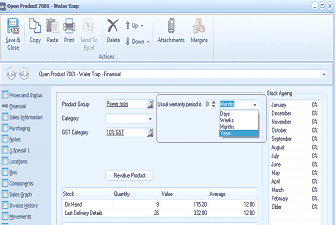
The Financial tab of the "Open Product 7003 - Walter Trap" screen in ABM. The toolbar shows Save & Close, Copy, Paste, Print, Send To, Delete, Attachments, and Margins buttons. The left navigation panel shows product tabs with "Financial" selected. The main area displays fields for: Product Group (set to "Power tools"), Category, GST Category (showing 100% GST), and a "Used warranty period" dropdown showing options of "Days", "Weeks", "Months" (highlighted), and "Years" with a numeric value field. A "Revalue Product" button is below. The Stock section shows a table with Quantity, Value, and Average columns, with rows for "On Hand" and "Last Delivery Details". A Stock Ageing panel on the right shows months from January through December, with March highlighted.
**Serial Numbers ** Selecting any serial number line displays detailed information relating to that serial number. This view can be configured to include or exclude both serial numbers currently in stock or all serial numbers including past sales, by selecting the radio buttons at the bottom of the screen.
- View Movement Details: Select this option to view the purchase and sale movement details of the selected serial tracked item.
- Show Document Details: Once you are in the serial number Movement screen, select this option to view the transaction in greater detail.
- Change Details: You can change the serial number and the warranty date (if applicable) by selecting the Serial Number tab and selecting the appropriate serial number and selecting Change Details button at the bottom of the screen.** Note:** You will not be able to change the Serial Number if that item has been sold.
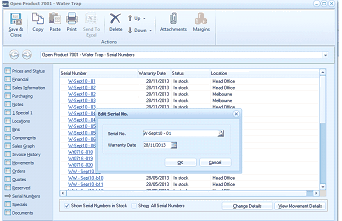
The Serial Numbers tab of the "Open Product 7001 - Walter Trap" screen in ABM. The toolbar shows Save & Close, Copy, Paste, Print, Send To, Delete, Browse, Attachments, and Margins buttons. The left navigation panel shows product tabs with the Serial/Lot Numbers tab selected. The main area displays a grid of serial numbers with columns: Serial Number, Warranty Date, Status, and Location. Multiple serial number entries are listed (e.g., VcSerI1-81, VcSerI1-82, etc.) with warranty dates (e.g., 28/11/2013), statuses showing "In stock" or "Melbourne", and locations showing "Head Office" or "Melbourne". An "Edit Serial No." dialog box is overlaid on the screen with fields for "Serial No." (showing "jk SerI18 - C5"), "Warranty Date" (showing "28/11/2013"), and OK/Cancel buttons. At the bottom of the main screen are options: "Show Serial Numbers in Stock", "Show All Serial Numbers", "Change Details", and "View Movement Details".
- Lot Numbers Selecting any lot number line displays all the information relating to that lot number. This view can be configured to include or exclude both lot numbers in stock or all lot numbers by selecting the radio buttons at the bottom of the screen.
- View Movement Details: Select this option to view the purchase and sale movement details of the selected lot numbered item.
- Show Document Details: Once you are in the Lot Number Movement screen, select this option to view the transaction in greater detail.
- Change Details: You can change the Lot number and the Use-By date (if applicable) by selecting the Lot Number tab and selecting the appropriate Lot number and selecting Change Details button at the bottom of the screen.