Product Accounts - Movements
Product Accounts - Movements
This section shows the movements for the item of interest. It can be configured to show all movement, movements outward, or movements inward by clicking the radio buttons at the bottom of the screen. Select a company name from the list and click 'View Transaction Details' to view an invoice in more detail and export the transaction to Excel for further analysis.
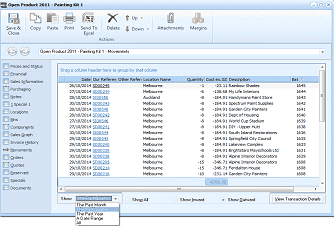
The Movements tab of the "Open Product 2011 - Painting Kit 1" screen in ABM. The toolbar shows Save & Close, Copy, Paste, Print, Sort By, Delete, Browse, Attachments, and Margins buttons. The left navigation panel shows various tabs with "Movements" selected. The main area displays a data grid with sortable columns: Date, Our Reference, Other Reference, Location Name (all showing Melbourne), Quantity, Cost inc. GST, Description, and Set. Multiple transaction rows are listed with dates, reference numbers, quantities (positive and negative indicating inward and outward movements), costs, and company/description names such as Spectrum Paint Supplies, South Island Restorations, etc. At the bottom are filter options including "This Period", "This Past Year" dropdown, and radio buttons: Show All, Show Inward, Show Outward, plus "View Selected Batch" and "View Transaction Details" buttons.
Movements section of Painting Kit 1
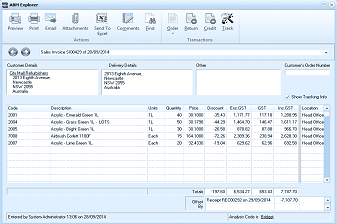
The ABM Explorer window showing a Sales Invoice (S00429) dated 26/09/2014. The toolbar includes Preview, Print, Email, Attachments, Send To, Components, Edit, Delete, Deliver, Check, and Return buttons. The screen has tabs for Customer Details, Delivery Details, Other, and Customer's Order Number. The Customer Details section displays company name and address (NSW 2099, Australia). A "Show Tracking Info" checkbox is visible. The main grid shows invoice line items with columns: Code, Description, Units, Quantity, Price, Discount, Exc GST, GST, Inc GST, and Location. Four Acrylic product lines are listed with prices and GST calculations. Totals are shown at the bottom of the grid. A status bar at the bottom shows entry details and Analysis Code fields.
Transaction Details
- View Selected Batch: You can view all the postings in a selected batch by selecting "View Selected Batch". A column chooser is available so that you can select the columns you wish to see on the batch details. you can also print the selected batch by selecting the Print Batch List button on the Ribbon or Send the details to Excel by selecting the Send to Excel.
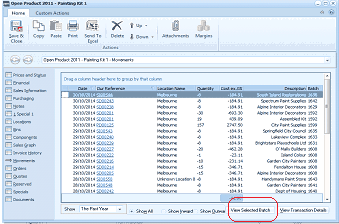
The "Open Product 2011 - Painting Kit 1 - Movements" screen in ABM showing a movements data grid. The toolbar includes Save & Close, Copy, Paste, Print, Send To, Delete, Browse, Attachments, and Margins buttons. The main grid displays columns: Date, Our Reference, Location Name, Quantity, Cost Inc GST, Description, and Set. Multiple rows show stock movement transactions at the Melbourne location with various companies. At the bottom are filter buttons: Show All, Show Inward, Show Outward, and "View Selected Batch" and "View Transaction Details" buttons, with the "View Selected Batch" button highlighted with a red circle indicator.
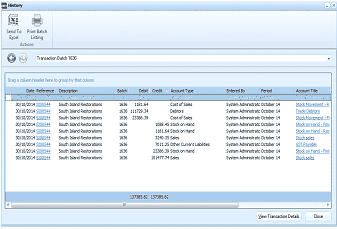
The "History" window displaying Transaction Batch 1636 details. The toolbar has "Send To Excel" and "Print Batch Listing" buttons. The data grid shows columns: Date, Reference, Description, Batch, Debit, Credit, Account Type, Entered By, Period, and Account Title. Multiple rows show accounting entries dated 01/10/2014 with descriptions such as "South Island Restorations" and account types including "Cost of Sales", "Stock on Hand", and "Other Current Liabilities". Debit and credit amounts are displayed for each line entry. Totals appear at the bottom along with a "View Transaction Details" button.
Batch Details.