Product Transfers
Product Transfers
You might want to transfer stock from one location (e.g. Warehouse) to another (e.g. Office), or from one location to a job. You can also transfer damaged or obsolete products to scrap, using Product Transfers. After you have transferred your stock, the transfer is immediately visible in the 'Transaction History and 'Graphs section of your product account.
To transfer products:
-
Select Products in the Folders List, which displays the Products list:
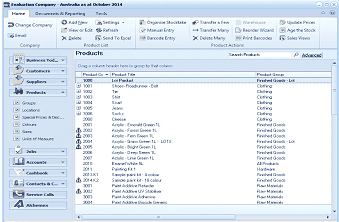
The Products list view in ABM. The title bar reads "Evaluation Company - Australia as at October 2014." The toolbar includes buttons for Change Company, Email, Add New, Add Type, Settings, and Stock Transactions options. The left navigation panel shows the folder tree with Products selected. The main area displays a "Products" grid listing products with columns for Product Code, Product Title, Product Group, and Product Category, showing items like paints, clothing, and other inventory items.
Product List
-
In the Stock Transactions menu bar, select Transfers and a screen appears as below:
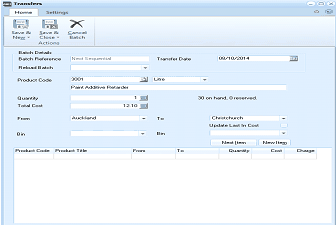
The Transfers screen in ABM. The toolbar shows Home and Settings tabs, with buttons for Save & New, Save & Close, and Cancel Batch. The Batch Details section includes fields for Batch Reference (Next Sequential), Transfer Date (08/10/2014 with calendar button), Product Code (3001 with lookup), product description (Plant Additive Retarder), Unit of Measure (Litre dropdown), Quantity, Total Cost (12.10), "30 on hand, Greenseed" stock status note, From location (Auckland dropdown), To location (Christchurch dropdown), a Bin field, and an "Update Last In Cost" checkbox. Next Item and Cancel Item buttons appear. The lower grid shows columns for Product Code, Product Title, From, To, Quantity, Cost, and Charge with a "New Imp" column.
Product Transfers screen
Batch Details
-
Batch Reference: Enter a relevant reference for this transfer.
-
Transfer Date: Enter the date the transfer takes place. Alternatively, press F3 or click the calendar button to select a date.
-
Product Code: Enter the code of this product for this transfer. Press F3 or click the button to select from the list. If you know the barcode, enter the barcode and it will automatically be recognised. After you enter the product code or barcode, the product title appears in the field to the right. See Setting up Product Accounts to set up a new product and a product code or barcode.
-
Unit of Measure: You can select the unit of measure being transferred from the drop down list.
-
Quantity: Enter the total quantity of the selected product to be transferred. To calculate the quantity, press F3 or click the calculator.
-
Total Cost: Enter the total cost of all the units of the specified product. To calculate the cost, press F3 or click the calculator.
-
From: Select the current location of the product before it is transferred. To set up a location for your product see Setting up a Stock Location.
-
To: Select the new location to where you want the product transferred. To set up a location for your product see Setting up a Stock Location.
If you are transferring products to a job, the following fields will appear:
-
Job Code: Enter the code of the job for this transfer. Press F3 or click the button to select from the list. After you have entered the job code, the job title appears in the field below. To set up a job record, which includes a job code, see Adding Jobs.
-
Stage: Enter the stage (if any) of the job that you are transferring the product to.
-
Cost Centre: Enter the cost centre name here. Alternatively, press F3 or click the button to select from the list of existing cost centres. To set up a new cost centre, see Adding Cost Centres.
-
Total Charge: The total charge of the product appears here.
-
Next Item: Once all the details have been entered, select this option to enter the details and to add another item to the text line in the grid.
Note the details appear in the grid at the bottom of the screen.
- Cancel Item: Warning: Selecting this option cancels the entries made on this section.
Save Settings When you have entered the relevant details, select either:
Save and Close: This will save the information and bring you back to the main menu. or: Save and New: This will process the information and open a new 'Transfers' screen.
Process Later: when you select Save and Close or Save and New there is an option on the drop down list to Process Later. This will allow you to save the details of the transfer so that you can complete it at a later state. To process later, select this option from the drop down list, and enter a batch reference number when requested. The batch reference will be used for Reloading the saved details later.
Reload Batch: To retrieve details of a transfer that you have saved, select Reload Batch when you select the transfer program. You can select the batch that you have saved previously from the drop down list.