Sales Views
Sales Views
You can produce graphical summary sales information relating to products by selecting Sales Views.
There are two options available Sales Summaries and Sales by Product.
Sales Summaries:
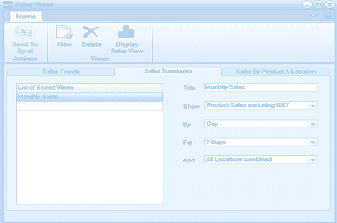
The Sales Views screen in ABM with the Sales Summaries tab active. The toolbar shows a Home tab with buttons for Send To Excel, New, Delete, and Display Sales View under a "Views" section. Three tabs are visible: Sales Trends, Sales Summaries (selected), and Sales by Product & Location. The left panel shows "List of Saved Views" with an entry "Monthly Sales." The right panel displays configuration fields: Title ("Monthly Sales"), Show dropdown ("Product Sales excluding GST"), By dropdown ("Day"), For dropdown ("7 Days"), and And dropdown ("All Locations combined"). These settings control how the sales summary graph will be generated.
Selecting the sales summaries screen will allow you to produce an instant graph of sales for the selected period.
-
Title: Enter a title for the View to be produced or select from the list of saved views.
-
Show: You can select what information you wish to show in your summary.
-
Quantity Sold: This will generate summary information based on product quantity sold.
-
Product Sales excluding Tax: This will generate summary information based on sales values excluding tax.
-
Product Sales including Tax: This will generate summary information based on sales values including tax.
-
Product Gross Profit: This will generate summary information based on the gross profit on each product sale.
-
By: You can determine how you wish to present the graphs. This can be by
-
Day:
-
Month
-
Product Group
-
Product Category
-
Primary Supplier
-
Location
-
For: You can select which period you wish to generate the information. The options available depend on the selection you make for By.
-
Location: You can select for all locations or an individual location.
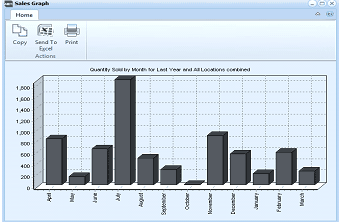
A Sales Graph window in ABM displaying a bar chart. The toolbar shows Home tab with Copy, Send To Excel, and Print buttons. The chart title reads "Quantity Sold by Month for Last Year and All Locations combined." The vertical axis shows values from 0 to 1,500, and the horizontal axis shows months from April through March. The bar chart displays monthly sales quantities with varying heights - notable peaks in June (approximately 1,000), September (approximately 1,200), and lower values in other months. The bars are rendered in dark blue/gray color.
Display of Sales Graph showing Product Sales by Product Group for the year to date.
Sales By Product
This will allow you to send information to an Excel spreadsheet.
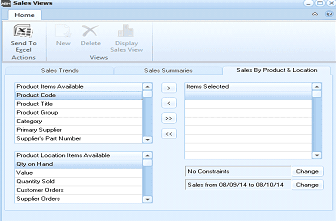
The Sales Views screen with the "Sales By Product & Location" tab active. The toolbar shows Home tab with Send To Excel, New, Delete, and Display Sales View buttons. Three tabs are visible: Sales Trends, Sales Summaries, and Sales by Product & Location (selected). The left panel shows "Product Items Available" with a list including Product Code, Product Title, Product Group, Category, Primary Supplier, and Location Part Number. The right panel shows "Items Selected" (currently empty) with arrow buttons to add/remove items. Below is "Product Location Items Available" listing Qty on Hand, Value, Quantity Sold, Customer Orders, and Supplier Orders. A Constraints section on the right shows "No Constraints" with a Change button, and a Sales period field showing "Sales from 08/09/14 to 08/10/14" with a Change button.
- Product Items: You can select columns required to be shown in the spreadsheet from the Products Items Available section on the left hand side. To include a product item select the required information and select to remove this from your selection select the item and select . To select all items select or to deselect all items select .
- Product Location Items: You can select information relating to each location such as quantity and value on hand. Select the required item and Double Click on that item to select it.
- Constraints: You can restrict the output to a specific product group, product category or location.
- Sales Period: Select the data range for the sales information to be included in your output.