Product Reorder Wizard
Product Reorder Wizard
You can get a suggested list of products that need to be ordered from suppliers, based on the criteria you set. Once you select your criteria, you can view the suggested order requirements, and amend the quantities if required.
To run the reorder wizard:
-
Select Products in the Folders List, which displays the Products list:
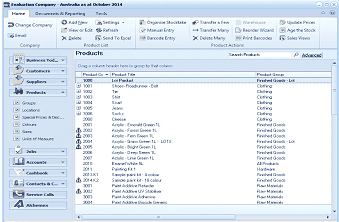
The Products list view in ABM. The title bar reads "Evaluation Company - Australia as at October 2014." The toolbar includes buttons for Change Company, Email, Add New, Add Type, Settings, and Stock Transactions options including Organise Stocktake, Transfer a Few, Warehouse, and Update Prices. Additional buttons include Manual Entry, Transfer Many, Align the Stock, Refresh, Send To Excel, Barcode Entry, Delivery Due, and Product Actions. The left navigation panel shows folders for Business Tool, Suppliers, Products (selected and expanded), Jobs, Accounts, Cashbook, Contacts & C., Service Calls, and Addresses. The main area displays a "Products" grid with columns for Product Code, Product Title, Product Group, and Product Category. Products listed include items like "Frieze Polyethene - 6 mil," "Decor - Emerald Green 1L," "Acrylic - Forest Green 1L," and others with their corresponding groups (Paints, Clothing, etc.) and categories.
Product List
-
In the Stock Transactions menu bar, select Reorder Wizard and a screen appears as below:
Reorder Wizard Screen
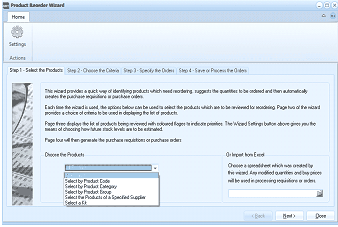
The Product Reorder Wizard at Step 1 - Select the Products. The wizard has four step tabs: "Step 1 - Select the Products," "Step 2 - Choose the Criteria," "Step 3 - Specify the Orders," and "Step 4 - Save or Process the Orders." A Home tab and Settings button are at the top. The main area explains that the wizard provides a quick way of identifying products needing reordering, suggesting quantities and automatically creating purchase requisitions or orders. The "Choose the Products" section shows a dropdown list with options: All Products, Select by Product Code, Select by Product Category, Select by Product Group, Select the Products of a Specified Supplier, and Select a Kit. An "Or Import from Excel" section on the right allows choosing a previously saved spreadsheet. Location dropdown and Back/Next/Close buttons are at the bottom.
-
Settings: Before you run the wizard for the first time you will need to check if the settings are correct for your company needs. Select the the Settings button and from the drop down list select the following settings:
-
Wizard Settings: You can select the basis of the forward estimates and how the suggested quantities should appear in the suggested order screen.
-
Forward Estimates
-
To be based on sales for ? months. If you wish the reorder wizard to base your requirements on the sales history of the past number of months into consideration, select the number of months that you wish to use, or,
-
You can select the sales to be based on the previous years sales or,
-
Calculate the requirements from existing sales orders. This will look at outstanding sales orders, and compare the total quantity per product with the quantity on hand for that product.
-
Calculated on the basis of: You can select to base the calculation on the sales for the chosen location, or on the sales for all locations
-
Suggested Order Quantities
-
Leave as zero for manual entry: This will allow you to enter your own suggested quantity. You can enter the quantity based on the information supplied about each product such as Minimum Quantity, Maximum Quantity, Sales as per the criteria set, Free Stock and when stock is likely to run out.
-
Set the quantity required to achieve the maximum quantity for each product. This will suggest a quantity which will take into consideration your forward estimate criteria and bring the stock up to the maximum stock level.
-
Set the quantity required to achieve the free stock of ? turnover. This will suggest a quantity required so that your free stock will equal the number of months turnover set after taking other stock requirements into consideration based on the criteria set.
Hide Products with no Reorder Quantity: If you do not wish to see products that have a suggested order quantity equal to zero then you can hide these products. The products will not then appear on the suggested order screen.
**Show in Stock Control Units: **If you have different units of measure per product then you can decide to show the suggested quantity based on your Stocking Control Unit. Example you have units of measure set up for a product as each, box or carton and you stock control unit is each therefore, all quantities shown will be based on a unit of measure of each. Or,
** Show in Purchase Units**. If you wish to see the suggested quantities based on the highest purchase unit then select this option. Example you have units of measure of Each, Box (which has 10 units) and Carton (which has 100 units) therefore, if you select Purchase Units the suggested quantities will be per carton (a suggested quantity of 10 would be 10 cartons or 1000 of each product).
Step 1 - Select the Products: From the drop down list you can choose what range of products to be included for the calculation. You can select All Products, By Product Code range, Product Category range, Product Group or by specified supplier. You can also select the location required from the drop down list. Alternatively if you have saved a previous calculation to an Excel file then you can re-load this file (see step 4 Save or Process)
Step 2 - Choose the Criteria: You can select various criteria for the selection of the products as follows
- List all products: You can list all your active products.
- List products that are out of stock now: This will only select products where the free stock is zero or below.
- List all products which currently have a free stock under their minimum: This will list all products where the free stock is lower than the minimum stock set for the product.
- List all products which are likely to have their free stock fall below their specified minimum in the next month, 2 months or three months. You can select the number of months from the dropdown list. This will list products where the free stock is expected to fall below the minimum stock set for the product based on the projected sale of the product as per the criteria set.
- List products which are due to run out in the next three months due to usage and long supplier lead times. This will list the products that expected to be out of stock based on the projected sales of the product and taking into consideration supplier lead times.
Step 3 - Specify the Orders: In step 3 the products will appear as per the criteria selected. You can amend the ordered quantity if required by selecting the field for the order quantity, and keying in the quantity required. The wizard will display information which will help you in deciding on the quantity required. These columns are
- Minimum: The minimum stock that needs to be held for the product.
- Minimum Buy: Some suppliers may require you to purchase a minimum quantity on each order therefore you will need to take this quantity into consideration before finalising the order quantity
- Buy Price: This is the price you would expect to pay the supplier listed for the product.. This price can be changed if necessary.
- Supplier: The default supplier listed will be the Preferred Supplier for this product. However, you can change the supplier from the drop down list.
- Turnover: The projected sales quantity based on the criteria set.
- Free Now: The amount of stock available to sell now taking the quantity on hand less customer orders and adding on any existing supplier orders.
- 1 Month, 2 months, 3 Months: The projected free stock 1, 2 or 3 months from now. This will show the expected free stock for each of the three months based on the projected sales of the product over that period of time.
- Maximum: The maximum quantity to be held for this product.
- Note: You can sort on any column on this screen. Therefore, if you wish to see all products sorted by supplier then select the supplier column to sort on. You can also rearrange the columns by dragging the column to the left or right of the screen. Alternatively you can use the Column Chooser on the settings dropdown list to select which columns you wish to include and their position on the grid.
Step 4 - Save or Process the Orders: The final stage gives you the opportunity to either save the list to a spreadsheet for further evaluation or approval or produce requisitions or orders for each supplier.
-
Document Processing Options:
-
Send the reorder list to Excel for approval: This gives you the opportunity to save the recommended list to an Excel spreadsheet. You can then work on this further, or compare it to a further output with different criteria, or use it to obtain approval to place the orders.
-
Produce purchase requisitions for each supplier. This will allow you to produce a requisition for each supplier and review the requisitions, or obtain approval before converting to an order. You can also specify the date to associate with the requisition.
-
Produce purchase orders for each supplier. If you are satisfied with the recommendations and any adjustments made then you can create the orders for each supplier. You can also specify the date to associate with the order.
Document Sorting Options:
-
Sort by supplier code: This will sort the output (either Excel or printed documents) into supplier code order.
-
Sort alphabetically by supplier title. This will sort the output (either Excel or printed documents) by supplier title in alphabetical order.
- Document Printing Options:
-
Print the documents as they are processed: If you have selected to process requisitions or orders then you can select to print them immediately on processing or,
-
Process the documents but print them later. This will allow you to produce the orders or requisitions and print them out at a later time (from actions menu print/email/fax saved documents)
-
Process the documents without printing: this will allow you to process the orders or requisitions without sending them to the printer. Note: They can be individually printer later by editing the order or requisition and processing with the appropriate print option.
Purchasing of Kit Components
If you are using Kits you can run the reorder wizard to reorder components required to manufacture a Kit.
-
Step 1: when the reorder wizard screen appears select the option Select a Kit from the drop down list Choose the Products. You can then select the required Kit and enter the quantity that you wish to assemble and the location you wish to take the components from.
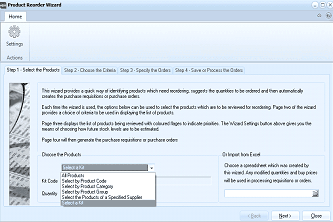
The Product Reorder Wizard at Step 1 showing the "Choose the Products" dropdown expanded with the following options: All Products, Select by Product Code, Select by Product Category, Select by Product Group, Select the Products of a Specified Supplier, and Select a Kit. The Kit option is highlighted. The right side shows the "Or Import from Excel" section. Location dropdown and navigation buttons are at the bottom.
Reorder Wizard with drop down list option.
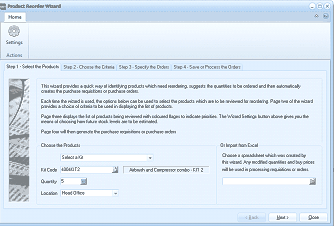
The Product Reorder Wizard at Step 1 with the "Select a Kit" option chosen. The wizard displays fields for Kit Code (AB0012), a description field showing "Airbrush and Compressor combo - EST 2," and a Quantity field. The Location dropdown is set to "Head Office." The "Or Import from Excel" section on the right allows loading a previously saved spreadsheet. Back, Next, and Close buttons appear at the bottom.
Step 2: Choose the criteria from either of the two options.
- Assume existing stocks of components are to be used where available. This option will calculate the quantity to be ordered based on the quantity required less stock on hand.
- Assume that the entire quantities needed to make the specified number of kits will be purchased. This option will order all components required irrespective on any stock on hand.
Step 3 - Specify the Orders: In step 3 the products will appear as per the criteria selected. You can amend the ordered quantity if required by selecting the field for the order quantity, and keying in the quantity required. The wizard will display information which will help you in deciding on the quantity required. These columns are
-
Minimum: The minimum stock that needs to be held for the product.
-
Minimum Buy: Some suppliers may require you to purchase a minimum quantity on each order therefore you will need to take this quantity into consideration before finalising the order quantity
-
Buy Price: This is the price you would expect to pay the supplier listed for the product.. This price can be changed if necessary.
-
Supplier: The default supplier listed will be the Preferred Supplier for this product. However, you can change the supplier from the drop down list.
-
Turnover: The projected sales quantity based on the criteria set.
-
Free Now: The amount of stock available to sell now taking the quantity on hand less customer orders and adding on any existing supplier orders.
-
1 Month, 2 months, 3 Months: The projected free stock 1, 2 or 3 months from now. This will show the expected free stock for each of the three months based on the projected sales of the product over that period of time.
-
Maximum: The maximum quantity to be held for this product.
Note: You can sort on any column on this screen. Therefore, if you wish to see all products sorted by supplier then select the supplier column to sort on. You can also rearrange the columns by dragging the column to the left or right of the screen. Alternatively you can use the Column Chooser on the settings dropdown list to select which columns you wish to include and their position on the grid.
Step 4 - Save or Process the Orders: The final stage gives you the opportunity to either save the list to a spreadsheet for further evaluation or approval or produce requisitions or orders for each supplier.
- Document Processing Options:
- Send the reorder list to Excel for approval: This gives you the opportunity to save the recommended list to an Excel spreadsheet. You can then work on this further, or compare it to a further output with different criteria, or use it to obtain approval to place the orders.
- Produce purchase requisitions for each supplier. This will allow you to produce a requisition for each supplier and review the requisitions or obtain approval before converting to an order. You can also specify the date to associate with the requisition.
- Produce purchase orders for each supplier. If you are satisfied with the recommendations and any adjustments made then you can create the orders for each supplier. You can also specify the date to associate with the order.
Document Sorting Options:
-
Sort by supplier code: This will sort the output (either Excel or printed documents) into supplier code order.
-
Sort alphabetically by supplier title. This will sort the output (either Excel or printed documents) by supplier title in alphabetical order.
- Document Printing Options:
-
Print the documents as they are processed: If you have selected to process requisitions or orders then you can select to print them immediately on processing or,
-
Process the documents but print them later. This will allow you to produce the orders or requisitions and print them out at a later time (from actions menu print/email/fax saved documents)
-
Process the documents without printing: this will allow you to process the orders or requisitions without sending them to the printer. Note: They can be individually printer later by editing the order or requisition and processing with the appropriate print option.