Stock Reservations
Stock Reservations
If you wish to reserve stock for customers then select Tools\Options and select Inventory.
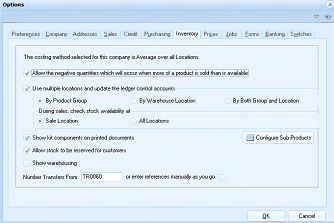
The ABM Options dialog with the Inventory tab selected. The dialog has tabs for Preferences, Company, Addresses, Sales, Credit, Purchasing, Inventory (active), Pages, Jobs, Exams, Banking, and Switches. The Inventory tab displays settings including: "The costing method selected for this company is Average over all Locations." Checkboxes include "Allow the negative quantities which will occur when more of a product is sold than is available," "Use multiple locations and update the ledger control accounts" with sub-options for "By Product Group," "By Warehouse Location," and "By Both Group and Location," plus "During sales, check stock availability at" with a "Sale Location" dropdown set to "All Locations." Additional checkboxes include "Show kit components on printed documents" with a "Configure Sub Products" button, "Allow stock to be reserved for customers," "Show warehousing," and fields for "Number Transfers From" (TF0060) and "or enter references manually as you go." OK and Cancel buttons are at the bottom.
At the bottom of the screen there is an option to Allow Stock to be Reserved for Customers. Once this option is selected, you can then reserve stock when processing a customer order. The reservation can be either against current stock, or against a supplier order which is due for future delivery.
Reserving Stock on a Customer Order: When you are creating a customer order, and you select a product, you can select the Reserve Stock button to reserve the stock.
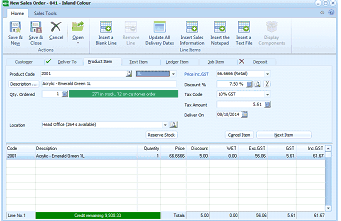
The New Sales Order screen in ABM showing a product being ordered with a Reserve Stock button. The title bar reads "New Sales Order - 041 - Inland Colour." The toolbar includes buttons for Save & New, Save & Close, Cancel, Open, Insert a Blank Line, Reserve, Update All Delivery Dates, Insert Sales Information, Insert the Notepad, Display the Text Full, and Components. Below are tabs for Customer, Delivery & Bulk Items, Product Item, Text Item, Ledger Item, and Job Item. The Product Item section shows Product Code (2011), description (Enamel Green 1L), quantity ordered (27 in stock, 12 on customer order), Tax Code, Tax Amount, Discount, Deliver On date (08/08/2014), and Location (Head Office - item is available). A "Reserve Stock" button is prominent. The lower grid shows one line item for "Acrylic - Emerald Green 1L" with quantity, price, discount, and GST values.
When you select the Reserve Stock button the following screen will appear.
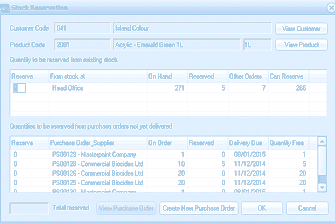
The Stock Reservations dialog box in ABM. The top section shows Customer Code (D49 - Inland Colour) with a "View Customer" button, and Product Code (E009 - Acrylic - Emerald Green 1L) with a "View Product" button. The text reads "Quantity to be reserved from existing stock." A table shows the reserve location "From stock at" with columns for Location (Head Office), On Hand (271), Reserved (5), Other Orders (7), and Can Reserve (266). Below is a section titled "Quantities to be reserved from purchase orders not yet delivered" with a grid showing columns for Reserve checkbox, Purchase Order Supplier, On Order, Reserved, Reserve By date, and From. Multiple purchase orders are listed from suppliers including Maintenance Company and Commercial Biocides Ltd with various quantities and dates. At the bottom are buttons for "Total Reserved," "View Purchase Order," "Create a New Purchase Order," OK, and Cancel.
You can then choose to reserve the stock against current stock on hand (if there is sufficient stock on hand), or reserve the stock against a suppliers order. I you do not have sufficient stock on hand, and there are no supplier orders available, you can create a new supplier order from this screen. To create a new suppliers order, select Create a New Supplier Order and the suppliers order screen will be opened see Generating a Purchase Order.
Note: The maximum quantity you can reserve on this screen is the quantity order for that product. However, you can reserve a lower quantity if required. You can only reserve stock from stock on hand against the location selected in the main product selection screen.
Amending Reservations:
You can amend the allocation of the order by either editing the customer order and amending the reservation by selecting the product line and selecting Reserve Stock. However, if you wish to amend multiple reservations then select the product maintenance screen and select the Reserved tab.
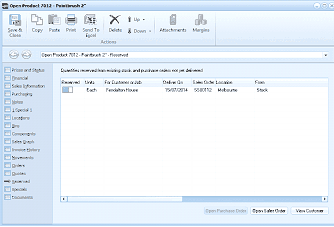
The Open Product screen in ABM showing the Reserved tab for product 2012 - Paintbrush 2". The title bar reads "Open Product 2012 - Paintbrush 2"." The toolbar shows Save & Close, Copy, Paste, Print, Send To Excel, Delete, Attachments, and Margins buttons. The left panel shows navigation sections for Product Details, Sales Information, Transaction History, Consignment, and Quantities. The Reserved tab is selected, showing the heading "Quantities reserved from existing stock and purchase orders not yet delivered." A grid displays columns for Reserved checkbox, Units (Each), For Customer (with customer name), Order Qty, Order Date, From (location), and other details. One reservation entry shows for Pendleton House at location Melbourne, Stock, dated 15/07/2014. At the bottom are buttons for "Open Purchase Order," "Open Sales Order," and "View Customer."
Within this screen you can increase or decrease the allocation on any customer order. Note: You can only increase the quantity reserved to the maximum quantity on the order using this screen. If you wish to create the quantity on the order then you will need to amend the order by selecting edit customer order. You can also reallocate the reservation on this screen. Example if you have a quantity of 5 allocated for a customer order but that order is not due to delivered for another month then you can change this allocation by opening the customer order and changing the reservation from stock to a supplier order.
Status of Customer Orders:
When a supplier order is delivered the customer order will be flagged as Stock Arrived in the customer order list.
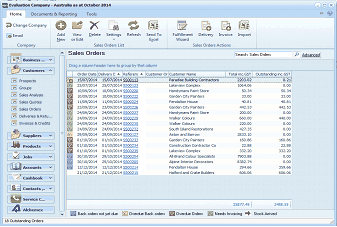
The Sales Orders list view in ABM. The title bar reads "Evaluation Company - Australia as at October 2014." The toolbar includes buttons for Email, Add New, Add Via Import, Delete, Settings, Refresh, Send To Excel, Fulfilment, Delivery, Invoice, and Reserve. A search bar and Advanced button are at the top right. The left navigation panel shows the folder tree with Sales Orders selected under the Customers section. The main grid shows a list of sales orders with columns for Order Date, Outstanding amount, Customer name, and additional status columns. Orders are listed for various customers including Criterion Building Commodities, Pendleton House, Trailer Colours, and others. Status flags at the bottom include "Back orders not yet due," "Overdue Back orders," "Overdue Orders," "Needs Invoicing," and "Stock Arrived" - indicating orders where reserved supplier stock has been delivered and is ready for customer fulfillment.
From this list you can then deliver/invoice the customer orders.