Entering Stocktakes using Barcode Readers
Entering Stocktakes using Barcode Readers
Entering Stocktake using Barcode Readers
If you have a barcode reader for counting stock the the PDE Text file can be read into ABM to update your stock
Select Products in the Folders list (left of screen).
Select Use Barcode Readers to enter Stocktake data from the drop down list under Stocktakes. Note: you can also import a PDE file in the "Manually Enter Stocktake Data" screen. See Entering Stock Take
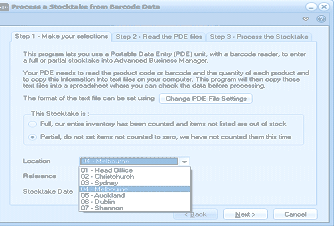
The "Process a Stocktake from Barcode Data" wizard in ABM. The dialog shows three step tabs at the top: "Step 1 - Make your selections," "Step 2 - Read the PDE files," and "Step 3 - Process the Stocktake." Step 1 is active, with explanatory text describing the process of using a Portable Data Entry (PDE) unit with a barcode reader to enter a stocktake into ABM. Below are options for "This Stocktake is:" with two radio buttons - "Full, your entire inventory has been counted and items not listed are out of stock" and "Partial, do not set items not counted to zero, we have not counted them this time." A Location dropdown shows a list of locations including 01 - Head Office, 02 - Christchurch, 03 - Sydney, 04 - Melbourne, 05 - Auckland, 06 - Dublin, and 08 - Shannon. A "Stocktake Date" field is visible. Back, Next, Cancel buttons appear at the bottom.
Settings
You can set the format of the PDE file to be imported by selecting settings, and then selecting the format.
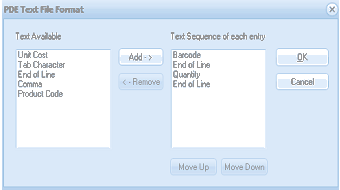
The PDE Text File Format dialog box for configuring the barcode stocktake import format. The left side shows "Text Available" with field options: Unit Cost, Tab Character, End of Line, Comma, and Product Code. Center buttons "Add ->" and "<- Remove" allow moving fields between lists. The right side shows "Text Sequence of each entry" listing the configured format: Barcode, End of Line, Quantity, End of Line. "Move Up" and "Move Down" buttons at the bottom allow reordering. OK and Cancel buttons are on the right.
The file should contain the barcode together with the quantity, and each field should be separated by an End of Line, Tab Character or Comma. If the unit cost is available on the PDE file, then this can be added, otherwise, ABM will assign the cost based on the current costing method set for the company.
Step 1 - Full or Partial Stocktake
If you are entering a stocktake containing all products, then select the first option. Any stock items not listed in the PDE file will be treated as being zero in that location. If you are only performing a partial stocktake, then select the second option and only the products on the PDE file will be updated.
You will also need to select the location that the stocktake is to update.
Step 2 - Reading the PDE File
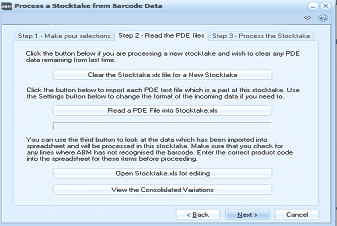
The "Process a Stocktake from Barcode Data" wizard at Step 2 - Read the PDE files. The dialog explains the process of reading PDE files into ABM. It shows four action buttons: "Clear the Stocktake.xls file for a New Stocktake" (to clear previous PDE data before starting a new stocktake), "Read a PDE File into Stocktake.xls" (to import each PDE text file from the barcode readers), "Open Stocktake.xls for editing" (to review and edit imported data, check for unrecognized barcodes, and enter correct product codes), and "View the Consolidated Variations" (to review the consolidated variance report). Instructional text explains each step. Back, Next, and Cancel buttons are at the bottom.
-
Clear the Stocktake.xls file
When the PDE file is read into ABM it creates an Excel file called Stocktake.xls. Therefore, before commencing a new stocktake you will need to clear this file. Note: if you have mode than one PDE file to read, do not clear the Stocktake.xls file each time, you should only clear it once.
-
Read a PDE file into Stocktake.xls
Read each PDE file created from the barcode readers into ABM. The information will be placed in the Stocktake.xls for editing when finished. Continue selecting this option for each PDE, and all the stocktake information will be consolidated into the stocktake.xls file.
-
Open Stocktake.xls for editing
You can open the Stocktake.xls to edit the information that has been read. It is possible that you may find some barcode entries without corresponding product codes, in this case, add the new product code in ABM, and enter the code in the Excel file.
-
View the Consolidated Variations
When you have completed reading all the PDE files, you can view the consolidated Excel file which will show the quantity counted, quantity on hand and the variance.
Step 3 - Process the Stocktake
When you are satisfied that the information is correct, proceed to step 3 and select finish. This will read the consolidated information from the Stocktake.xls file and process the stocktake.