Adding Cost Centres
Adding Cost Centres
For each job set up on the system, it is possible to assign different stages. Each stage can be associated with a cost centre. A Cost Centre, for example, could be Marketing. If part of a job is marketing, you can see how much money was earned at any stage by this cost centre.
It is also possible to run reports by Cost Centre. This way you can see which cost centre is more profitable. See Generating Reports for further details.
To add a new Cost Centre:
-
Select Jobs in the Folders list (left of screen) and the second level menu appears.
-
Select Cost Centres and a list of existing Cost Centres (if any) appears in the main viewing area (right of screen).
-
Select New on the menu bar and an Add New Cost Centre screen appears:
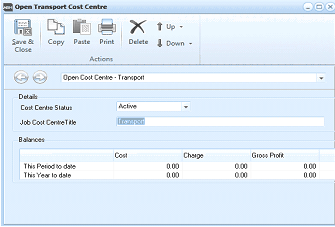
The "Open Transport Cost Centre" dialog window is displayed with a toolbar at the top containing Save & Close, Copy, Paste, Print, Delete, Up, and Down buttons under an "Actions" section. Below the toolbar is a breadcrumb showing "Open Cost Centre - Transport". The Details section contains a "Cost Centre Status" dropdown set to "Active" and a "Job Cost Centre Title" field with the value "Transport". The Balances section displays a grid with columns for Cost, Charge, and Gross Profit, with rows for "This Period to date" and "This Year to date", all showing values of 0.00.
Add New Cost Centre
Details
-
Job Cost Centre Title: Enter the job cost centre title here as you would like to see it appear in reports. This field will allow up to 20 characters.
Balances The fields here are read-only fields used to display the following:
-
Cost: Here you can see the Cost Period to Date. This will show the cost accrued over the period to date for all jobs within this cost centre. For example, you will be able to see the accrued cost for the month to date in this field. You can also see the **Cost Year to Date. **This will show the cost accrued over the year to date for all jobs within this cost centre.
-
Charge: Here you can see the Charge Period to Date. This will show the amount earned over the period to date for all jobs within this cost centre. For example, you will be able to see the amount earned for period to date in this field. You can also see the **Charge Year to Date. **This will show the amount earned over the year to date for all jobs within this cost centre.
-
Gross Profit: Here you can see the Gross Profit / Loss to Date. This will show the gross profit/loss over the period to date for all jobs within this cost centre. For example, you will be able to see the gross profit/loss to date in this field. You can also see the **Gross Profit Year to Date. **This will show the gross profit/loss over the year to date for all jobs within this cost centre.
**Save Settings **To save the settings, select Save and Close at the top of the screen.