Update Price List
Update Price List
To update the Price List:
-
Select Products in the Folders List (left of screen), which displays the Products list:
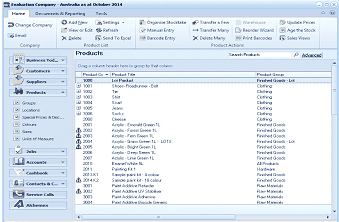
The Products list view in ABM showing the main product listing. The toolbar includes stock transaction options and the main grid lists products with their codes, titles, groups, and categories.
Product List
-
In the Stock Transactions menu bar, select Update Price List:
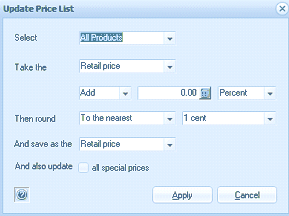
The Update Price List dialog box in ABM. The dialog contains the following fields: "Select" with a dropdown set to "All Products," "Take the" with a dropdown set to "Retail price," then an operation section with "Add" selected from a dropdown and a value field showing "0.00" with "Percent" as the unit. "Then round" has dropdowns for "To the nearest" and "1 cent." "And save as the" dropdown is set to "Retail price." A checkbox option "And also update all special prices" is shown. Apply and Cancel buttons appear at the bottom right.
Update Price List
-
Select : Click the drop-down arrow to choose the group of products to which you want to apply price changes. When you select 'Products in Group' a new field appear to the right. Click the button to the right of the field to choose the product group. To create a new product group, see Setting up Product Groups for details.
-
Take the: Click the drop-down arrow to select a price from the list. To set up a new price for a product or group of products, see Setting up Product Accounts.
In the following fields, select how much to add to or deduct from the price you have chosen in the above field.
-
Then round: Click the drop-down arrows to allow the price to be rounded up, down or to the nearest, and by different amounts.
-
And save as the: Click the drop-down arrow to assign a name to the new price.
-
Cancel:
Clears all entries in the above fields. -
Apply:
Applies the price changes to the selected products.