Stock Ageing
Stock Ageing
You can age the stock so that you can see the average number of days stock has been held. You can also show the value of stock held for either New Stock, Held for 30 days, 60 days or 90 Days, and older.
To Age the Stock
Select Age Stock from the Products menu bar. The following screen will appear.
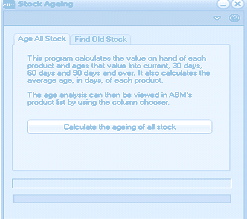
The Stock Ageing dialog in ABM with the "Age All Stock" tab selected. The dialog has two tabs: "Age All Stock" and "Find Old Stock." The description text explains: "This program calculates the value on hand of each product and ages that value into current, 30 days, 60 days and 90 days and over. It also calculates the average age, in days, of each product." It further notes that the age analysis can then be viewed in ABM's product list by using the column chooser. A large "Calculate the ageing of all stock" button is centered at the bottom of the dialog.
When you have calculated the age of the stock you can display this information by selecting the Column Chooser and selecting the appropriate fields.
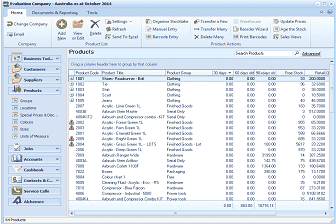
The Products list view in ABM after stock ageing has been calculated, showing additional ageing columns. The title bar reads "Evaluation Company - Australia as at October 2014." The toolbar shows the standard product management buttons. The main grid now displays extended columns including Product Code, Product Title, Product Group, and additional stock ageing data columns showing values like "30 Days," "60 Days," "90 Days," and average age values for various products. Products listed include paints, acrylics, adhesives, and other inventory items with their corresponding ageing data. A column chooser has been used to make the ageing fields visible in the grid.
Find Old Stock"
If you wish to list stock that has been purchased a few months previously and is still in stock, then select "Stock Ageing" and select "Find Old Stock". The following screen will appear.
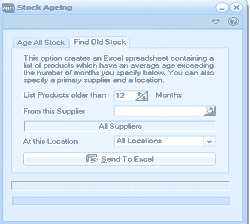
The Stock Ageing dialog with the "Find Old Stock" tab selected. The dialog has two tabs: "Age All Stock" and "Find Old Stock" (active). The description explains: "This option creates an Excel spreadsheet containing a list of products which have an average age exceeding the number of months you specify below. You can also specify a primary supplier and a location." Fields include: "List Products older than" with a value of "12" Months, "From this Supplier" with an empty field and an "All Suppliers" button, and "At this Location" with an "All Locations" dropdown. A "Send To Excel" button is at the bottom.
- List Products older than: You can select the number of months you wish to use as your criteria.
- From this Supplier: You can select a specific supplier or leave blank for all suppliers
- At this Location: You can check the old stock held at a specific location or all locations.
- Send to Excel: When you have made your selections select "Send to Excel" and the list will be displayed in an Excel spreadsheet.