Organising Stock Take
Organising Stock Take
The stock take procedure is divided into two processes:
-
Organise Stock Take: Sets up a new stock take, edits counting batches and processes the data on completion of counting.
-
Enter Stock Take: Enters the quantities recorded in a stock take.
Note: Only users with the appropriate security rights can perform the stock organisation (see Users and Groups).
To organise and process batches:
-
Stocktake Title: Enter a unique reference, for example, "Year End 2011".
-
Show Current Quantities: If you want the quantity on hand to be displayed when the results of the stock take is being entered then select this option. Otherwise, the quantity on hand for each product will be suppressed.
-
Stocktake Type: You can select Full, or Partial Stocktake. If you select Full Stocktake, then any products not counted in the criteria selected will be treated as having zero quantity in stock, and will be adjusted accordingly. Alternatively, if you select Partial, then any products not counted ill be not be adjusted, and will be treated as though these products have not yet been counted, and will be counted at a later stage. You can also select to Import a PDE file by selecting this option and then when entering the stocktake data you can select the PDE file. See Entering Stock Take
-
Start Date: Enter the starting date of the stocktake. Alternatively, press F3 or click the calendar to check the date.
-
Start Time: Enter the start time of the stocktake. Click the up-downarrows to change the time.
To enter a new batch: Select New Batch to enter new batch details for the stocktake and the Stocktake Range Specification screen will appear:
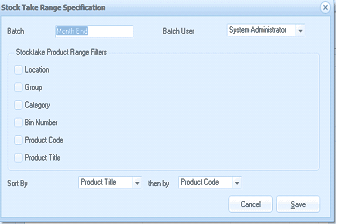
The Stock Take Range Specification dialog box in ABM. At the top are fields for Batch (with "New Bat..." label) and Batch User (set to "System Administrator" via dropdown). Below is the "Stocktake Product Range Filters" section with fields for Location, Group, Category, Bin Number, Product Code, and Product Title - each with input fields allowing specific values or ranges to be set. At the bottom is a "Sort By" section with two dropdowns - the primary sort set to "Product Title" and a secondary sort ("then by") set to "Product Code." Cancel and Save buttons are at the bottom right.
Stocktake Range Specification
-
Batch: Enter a unique batch reference into the Batch field.
-
Batch User: Assign the above batch to the user who will be entering the stock take results. To assign a new person to the stock take, select 'New Batch' in the Stock take menu bar. Select 'New Batch User' from the drop-down list.
The following fields allow you to set the parameters for stock taking for each user.
-
Location: You can select a particular location, or a range of locations, or leave blank for all locations
-
Group: You can select a specified group of products, or a range of products, or leave blank for all products
-
Category: You can select a particular product category or a range of product categories, or leave blank for all products categories
-
Bin Number: You can select a particular Bin Number or a range of Bin Numbers, or leave blank for all bins. Note: If you are not using warehousing then the bins being selected here are the bin numbers entered in the Locations Tab on the product maintenance screen.
-
Product Code: Select a particular product code, or a range of product codes, or leave blank for all products
-
Product Title: Select a particular product title, or a range of product titles, or leave blank for all products
-
Sort By: Allows you to select the way the products will be displayed when entering the results. Select a primary sort from the drop-down list. Select a secondary sort from the drop-down list after 'then by'.
Save Settings To save the new batch, select 'Save' at the bottom of the screen and return to the Stocktake screen. When you have entered all the batches, you can then process each batch. ABM will process the difference between the quantity on hand and the quantity counted, and will adjust the stock accordingly. Do not process the batches until you are sure that everything in that batch is correct.
Recalculate:
Before processing a batch you can Recalculate the batch details so that you can print a variance report before processing. The recalculation will calculate the quantity and value variance based on the quantity and value on hand in accordance with the criteria set against the quantity counted.