Adding Job Costs and Charges
Adding Job Costs and Charges
Use the Job Costs screen to enter charges to a specific job. The Job Costs screen is appropriate if you are entering various costs to a particular job. If materials are issued to various jobs at the same time, then Product Transfer would be more appropriate.
To add Job Costs and Charges:
-
Select Jobs (left of main screen) and a list of existing jobs (if any) appears as below:
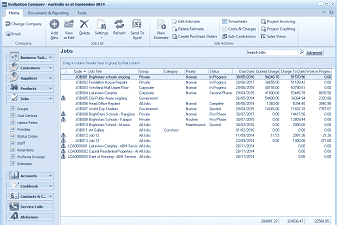
The ABM main application window is shown displaying the "Jobs" list view. The title bar shows "Evaluation Company - Australia as at September 2014". The left side shows a folder navigation tree. The main viewing area on the right displays a "Jobs" list with a search bar and "Advanced" link. The list shows multiple job records in a data grid with columns for Code, Job Title, Group, Category, Status, Quoted, Charges, and other financial columns. Visible job entries include various jobs with their groups, statuses (like In Progress), and financial values. A toolbar at the top includes buttons for Edit Estimate, Timesheets, Costs & Charges, Create Purchase Orders, Sub-Contractors, and Project Invoicing. The bottom shows totals.
List of existing Job records
Note: It is possible to sort all job records in ascending or descending order under titles such as Code, Job Title, Group, Category, by clicking the relevant heading (on top of main viewing area). Once clicked you will see an arrow beside the heading. If the arrow is pointing upwards, then this will sort in ascending order. If the arrow is pointing downwards, then this will sort in descending order. Simply select the heading to toggle between the two if required.
-
Select the job record you want to add costs and charges to, so that the record is highlighted.
-
In the Job Transactions menu bar, select Costs & Charges and a Job Costs screen appears as below:
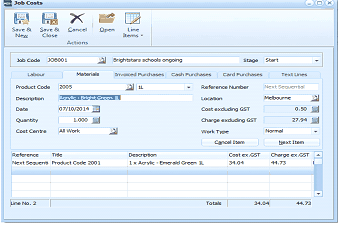
The "Job Costs" dialog window is displayed for entering costs and charges to a job. The toolbar at the top includes Save & New, Save & Close, Cancel, Open, and Line Items buttons. Below the toolbar are fields for "Job Code" (showing "JOB001"), job description ("Brightstars schools ongoing"), and "Stage" (with a "Start" dropdown). The form has tabs for Labour, Materials, Invoiced Purchases, Cash Purchases, Card Purchases, and Text Lines, with the Materials tab currently active. The Materials section shows fields for Product Code (showing "2005"), Description, Date (07/10/2014), Quantity (1.000), Cost Centre (set to "All Work"), Location, "Cost excluding GST" (showing a value), "Charge excluding GST" (showing 27.94), Reference Number ("Next Sequential"), and Work Type (set to "Normal"). At the bottom is a data grid showing entered line items with columns for Reference, Title, Description, Cost ex GST, and Charge. A line item is visible showing "Product Code 2001" with "1 x Acrylic - Emerald Green 3L" description. The line totals are shown at the bottom.
Job Costs screen for Brightstars Schools
Labour
-
Staff Member: Select the staff member that carries out the labour by entering their name. Alternatively, press F3 or click the button to the right of the field to select from a list of existing staff members. To record a new staff member, see Adding Staff Members.
-
Description: Enter the description of the labour performed.
-
Date: Enter the date the staff member was working on the selected job. By default, this field is set to today's date. Alternatively, click the calendar to select a date.
-
Number of Hours: Enter the number of hours the selected staff member worked in decimals (E.g., Four hours 30 minutes will be 4.5 hours). Alternatively, press F3 or select the calculator to calculate the number of hours worked.
-
Cost Centre: Enter the cost centre name here. Alternatively, press F3 or click the button to select from the list of existing cost centres. To set up a new cost centre, see Adding Cost Centres.
-
Labour Category: Select from the drop-down list the labour category that the staff member worked in, e.g. 'Normal Time'. If the same staff member worked in two different categories, for example, 'Normal Time' and 'Time and a Half', enter the first labour category and the rates, then select 'Next Item' to enter the new labour category.
-
Labour Rate: Enter the labour rate for this job. Alternatively, press F3 or click the button to the right of the field to select from existing labour rates. To set up a new labour rate, see Adding Labour Rates.
-
Cost Amount: After you have entered the staff member, the hours they worked and in which labour category, this field will be updated.
-
Charge Amount: After you have entered the staff member, the hours they worked and in which labour category, this field will be updated.
-
Next Item: Once all the details have been entered, select this option to add another item to the text line in the grid. Once all the items are entered move to the next section. Note the details appear in the grid to the bottom of the screen.
-
Cancel Item: Warning: Selecting this option cancels the entries made on this section.
Materials If materials are issued to various jobs at the same time, then Product Transfer would be more appropriate.
-
Product Code: Enter the code of this product. Press F3 or click the button to the right of the field to select from the list. If you know the barcode, enter the barcode and it will automatically be recognised. After you have entered the code, the product description appears in the field underneath, this description can be amended if required. See Setting up a Product Account add a new product account, with a product code or barcode.
-
Reference Number: Enter a unique reference for the product that is different to the product code or barcode.
-
Date: Enter the date the product is transferred to the selected job. By default, this field is set to today's date. Alternatively, click the calendar button to select a date.
-
Quantity: Enter the quantity of the product transferred to the selected job. By default, the quantity is set at 1.000. To calculate the quantity, press F3 or click the calculator button.
-
Cost Centre: Enter the cost centre name here. Alternatively, press F3 or click the button to select from the list of existing cost centres. To set up a new cost centre, see Adding Cost Centres.
-
Location: Enter the location name for this product transfer or press F3 or select the button to select from the list. To set up a location for your product see Setting up a Stock Location
-
Cost Amount Excluding GST/VAT: Enter the cost amount of the product to be transferred to the job excluding Tax here. To calculate the cost amount, press F3 or click the calculator button.
-
Charge Amount Excluding GST/VAT: Enter the charge amount of the product to be transferred to the job excluding Tax here. To calculate the charge amount, press F3 or click the calculator button
-
Next Item: Once all the details have been entered, click this button to add another item to the text line in the grid. Once all the items are entered move to the next section.
Note the details appear in the grid to the bottom of the screen.
-
Cancel Item: Warning: Selecting this option cancels the entries made on this section.
Invoiced Purchases Select this option when you have to purchase a product for a particular stage in the selected job.
-
Supplier Code: Enter the unique identifying code for the supplier here. Alternatively, press F3 or select the button to the right of the field to select from the supplier list. To create a new supplier account, see Setting up Supplier Accounts.
-
Invoice Number: Enter a number or reference (up to 20 characters) that will be used to identify the transaction in reports later.
-
Date: Enter the date of the purchase invoice here. By default, this field is set to today's date. Alternatively,click the calendar button to select a date.
-
Quantity: Enter the quantity of the product purchased for the selected job. By default, the quantity is set at 1.000. To calculate the quantity, press F3 or click the calculator button.
-
Cost Centre: Enter the cost centre name here. Alternatively, press F3 or click the button to select from the list of existing cost centres. To set up a new cost centre, see Adding Cost Centres.
-
Description: Supplier details appear here when you enter the supplier code in the previous field. If you want to change the description, edit the details in the field as required.
-
GST/VAT Code: By default, this box is set at 10% GST/VAT, indicating that the purchase is subject to Tax of 10%. If this is not the case, select the drop-down arrow to the right of the field to select an alternative entry. To set up a new Tax category, see Setting up a Tax Category.
-
Cost Amount: Enter the extended cost of the item purchased. To calculate the cost amount, press F3 or click the calculator button.
-
GST/VAT is included: By default, this box is checked, indicating that the cost of the item is subject to Tax. If this is not the case, uncheck the box.
-
Charge Amount: Enter the amount which the customer will be charged for the items purchased.
-
Next Item: Once all the details have been entered, select this option to add another item to the text line in the grid. Once all the items are entered move to the next section.
Note the details appear in the grid to the bottom of the screen.
-
Cancel Item: Warning: Selecting this option cancels the entries made on this section.
Cash Purchases Select this option if you have had to pay directly for work carried out for the job that you are doing.
-
Bank Account: Select from the drop-down list the most frequently used bank account for this transaction.
To set up a default (most frequently used) bank account:
-
Cheque Number: Enter the cheque number as it appears on your bank statements.
-
Date: Enter the payment date here. By default, this field is set to today's date. Alternatively, click the calendar button to select a date.
-
Quantity: Enter the quantity of the product purchased for the selected job. By default, the quantity is set at 0.000. To calculate the quantity, press F3 or click the calculator button.
-
Cost Centre: Enter the cost centre name here. Alternatively, press F3 or click the button to select from the list of existing cost centres. To set up a new cost centre, see Adding Cost Centres.
-
Description: Enter a brief description of the job.
-
GST/VAT Code: By default, this box is set at 10% GST/VAT, indicating that the purchase is subject to Tax of 10%. If this is not the case, select an alternative entry from the drop-down list. To set up a new Tax category, see Setting up a Tax Category.
-
Cost Amount: Enter the extended cost of the product/service purchased for the selected job. To calculate the cost amount, press F3 or click the calculator button
-
GST/VAT is included: By default, this box is checked, indicating that the cost of the item is subject to Tax. If this is not the case, uncheck the box.
-
Charge Amount: Enter the amount which the customer will be charged for the items purchased.
-
Next Item: Once all the details have been entered, select this option to add another item to the grid. Once all the items are entered move to the next section.
Note the details appear in the grid to the bottom of the screen.
-
Cancel Item: Warning: Selecting this option cancels the entries made on this section.
Text Lines
-
Block of Text: You can enter unlimited text to describe a product or job in more detail. After you have entered your text, select the Next Item and the text appears in the 'Description' field of the grid.
-
Next Item: Once all the details have been entered, select this option to add another item to the text line in the grid. Once all the items are entered move to the next section.
Note the details appear in the grid to the bottom of the screen.
-
Cancel Item: Warning: Selecting this option cancels the entries made on this section.
Save Settings When you have entered the relevant details, select either: Save and Close: This will save the information and bring you back to the main menu. or: Save and New: This will process the information and open a new 'Job Costs' screen.