Adding Estimates
Adding Estimates
Use the Estimate screen to estimate the costs and charges to a specific job.
To add an Estimate:
-
Select Jobs (left of main screen) and a list of existing jobs (if any) appears as below:
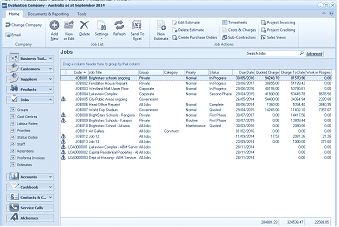
The ABM main application window is shown displaying the "Jobs" list view. The title bar shows "Evaluation Company - Australia as at September 2011". The left side shows a folder navigation tree. The main viewing area on the right displays a "Jobs" list with a search bar and "Advanced" link. The list shows multiple job records in a data grid with columns for Code, Job Title, Group, Category, Status, Quoted, Charges, and other financial columns. Visible job entries include various jobs with their groups and statuses. A toolbar at the top includes buttons for Edit Estimate, Timesheets, Costs & Charges, Create Purchase Orders, Sub-Contractors, and Project Invoicing. The bottom shows totals for the displayed records.
List of existing Job records
Note: It is possible to sort all job records in ascending or descending order under titles such as Code, Job Title, Group, Category, and so on, by clicking the relevant heading (on top of main viewing area). Once clicked you will see an arrow beside the heading. If the arrow is pointing upwards, then this will sort in ascending order. If the arrow is pointing downwards, then this will sort in descending order. Simply select the heading to toggle between the two if required.
-
Select the job record to which you want to add an estimate, so that the record is highlighted. In the Job Transactions menu bar, select Estimate and an Estimate screen appears as below:
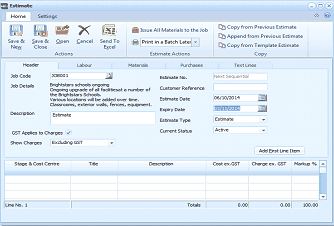
The "Estimate" dialog window is displayed showing the Header tab for creating a new job estimate. The window has a toolbar at the top with Home and Settings tabs. The toolbar includes buttons for Save & New, Save & Close, Open, Cancel, Send To Excel, and "Print in a Batch Later" dropdown. Additional options on the right include "Save All Materials to the Job", "Copy from Previous Estimate", "Append from Previous Estimate", and "Copy from Template Estimate". Below the toolbar are tabs for Header, Labour, Materials, Purchases, and Text Lines. The Header section shows fields for Job Code (showing "JOB001"), Job Details (showing a description about upgrading schools), Description ("Estimate"), Estimate No. (with Customer Reference), Estimate Date, Expiry Date, Estimate Type (dropdown showing "Estimate"), Current Status (showing "Active"), GST Applies to Charges checkbox, and Show Charges (set to "Excluding GST"). At the bottom is a grid with columns for Stage & Cost Centre, Title, Description, Cost ex GST, Charge ex GST, and Markup %, with an "Add Est Line Item" button. The totals row shows aggregate values.
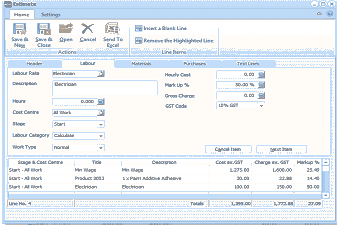
The "Estimate" dialog window is displayed showing the Labour tab for a job estimate. The toolbar at the top includes Save & New, Save & Close, Open, Cancel, Send To Excel buttons, and line item tools including "Insert a Blank Line" and "Remove the Highlighted Line" under the "Line Items" section. Tabs visible include Header, Labour, Materials, Purchases, and Text Lines, with Labour currently active. The Labour section contains fields for Labour Rate (showing "Electrician"), Description ("Electrician"), Mark Up percentage, Hourly Cost, Charge Rate, Hours, Units, GST Code, Cost Centre ("Start"), Labour Category (dropdown set to "Calculate"), and Work Type (set to "normal"). At the bottom is a data grid showing entered estimate line items with columns for Stage & Cost Centre, Title, Description, Cost ex GST, Charge ex GST, and Markup %. Several line items are visible including entries for "Min Wage", "Hire Mgt", "Product 2803.1" (Additive Adhesive), and "Electrician" with their respective costs and charges.
Estimate for Brightstars School
Header
The header section of the estimate has the following fields
-
Job Code: The Job code which the estimated is being created.
-
Job Details: This is the information entered in the job description field when setting up the job.
-
Description: You can enter a description relating to this estimate.
-
GST/VAT applies to Charges: Select the tick box if Tax is to be applied to the charges entered.
-
Estimate Number: If you have set the option to have Job estimate numbers sequentially numbered then this field will be automatically filled in. Otherwise enter a reference number for the estimate.
-
Customer Reference: If the customer has given you a reference for this job you can enter this here.
-
Estimate Date: This is the date applicable to the estimate.
-
Expiry Date: If the estimate is to expire on a particular date then enter that date here.
-
Estimate Type: You can set the estimate type as being an estimate or a quotation.
-
Current Status: Enter the current status of the job which will be either Active, Accepted or Rejected. Note: You can change the status at any time by editing the estimate.
The Estimate screen contains the following sections: