Entering Sub-Contractor Payment Claims
Entering Sub-Contractor Payment Claims
The Sub-Contractors screen allows you to enter claims for sub-contractor's payments.
-
Select Jobs (left of main screen) and a list of existing jobs (if any) appears as below:
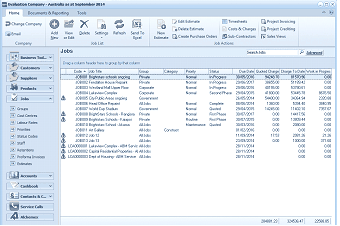
The ABM main application window is shown displaying the "Jobs" list view. The title bar shows "Evaluation Company - Australia as at September 2014". The left side shows a folder navigation tree. The main viewing area on the right displays a "Jobs" list with a search bar and "Advanced" link. The list shows multiple job records in a data grid with columns for Code, Job Title, Group, Category, Status, Quoted, Charges, and other financial columns. Visible job entries include various jobs with their groups, statuses, and financial values. A toolbar at the top includes buttons for Edit Estimate, Timesheets, Costs & Charges, Create Purchase Orders, Sub-Contractors, and Project Invoicing. The bottom shows totals.
List of existing Job records (if any)
-
In the Job Transactions menu bar, select Sub-Contractors and a Sub-Contractors Payment Claims screen appears as below:
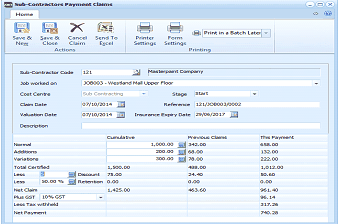
The "Sub-Contractors Payment Claims" dialog window is displayed. The toolbar at the top has a Home tab with buttons for Save & New, Save & Close, Cancel Claim, Send To Excel, Printer Settings, and Form Settings under respective groups, plus "Print in a Batch Later" dropdown under Printing. The main form shows fields for Sub-Contractor Code (showing "121" with "Masterpaint Company" name), "Job worked on" (showing "JOB003 - Westland Mall Upper Floor"), "Cost Centre" (showing "Sub Contracting"), "Stage" (showing "Start"), "Claim Date" (07/10/2014), "Reference" (showing "121/OCR003/0002"), "Valuation Date", and an "Insurance Expiry Date". The Description field is visible. Below is a financial summary section displaying a grid with columns for Cumulative, Previous Claims, and This Payment. Rows include Normal Work (1,000.00), Special Work, Variations (with values), Less Retention (with percentage), Less Discount (with percentage and values), Net Claim, Plus GST (10% GST), Less tax withheld, and Net Payment (showing 740.28 in the This Payment column). This form is used for entering and calculating sub-contractor payment claims.
Sub-Contractors Payment Claims screen
-
Sub-Contractor Code: Enter the supplier's or sub-contractor's code here, or press F3 or click the button to select from the list. After you have selected the supplier, the supplier name appears in the adjacent field. See the Account Details section of Setting up Supplier Accounts for detail on how to set up a supplier as a sub-contractor.
-
Job worked on: Select from the drop-down list the job which the selected supplier or sub-contractor worked on for this claim.
-
Cost Centre: Select the Cost Centre to be charged for this claim.
-
Stage: Enter the job stage relating to this claim.
-
Claim Date: Enter the date of the claim, press F3 or click the calendar button to check the date. By default, the date is set to today's date.
-
Reference: Enter a number or reference here that will be used to identify the claim in reports later.
-
Valuation Date: Enter the date of the valuation, press F3 or click the calendar button to check the date. By default, the date is set to today's date.
-
Standard Work: Enter the amount claimed for measured work, e.g. work the sub-contractor estimated for.
-
Special Work: Enter the amount claimed for non-measured work, e.g. adding a new feature.
-
Variations: Enter the amount claimed for contract variations e.g. extra work not estimated for.
-
Total Certified: The total value of work carried out at this stage of the job.
-
Total Certified Less % Retention: Enter the retention percentage held off until the completion of the job which is relevant to this claim.
-
Total Certified Less % Discount: Enter any discount given by the sub-contractor which applies to this claim.
-
Net Claim Plus: Enter the start of the Tax category, press F3 or click the arrow to select the Tax category from the drop-down list.
-
Less tax withheld: This field automatically populates if the sub-contractor tax certificate number has not been recorded in the supplier account.
When you have entered the above information in the appropriate fields, the Net Payment field automatically populates. If you are entering a subsequent claim for the sub-contractor, the previous claim(s) details are displayed in the Previous Claims column. The difference between the cumulative cost to date and the current payment are displayed in the This Payment column.
-
Printing: Select this option to choose how forms are to be printed and on which printer.
-
Send to Excel: Select this option to send the claim details to Excel for analysis or printing.
-
Cancel Claim: Warning: Selecting this option cancels the entries made in this screen.
Save Settings When you have entered the relevant details, select either:
Save and Close: This will save the information and bring you back to the main menu.
or:
Save and New: This will process the information and open a new Claims screen.