Copy Estimate
Copy Estimate
You can copy an existing Estimate to another Estimate or append to and existing Estimate. You can copy to the same job or a different job.
The option to Copy an Estimate is available from four areas as follows.
- Business Today Estimate List
- View Details of and Estimate
- View Estimates for the Job
- Add/Edit Job Estimate
Business Today Estimate List:
Copy Estimate
Select the Business Today and select Jobs and then select Estimates.
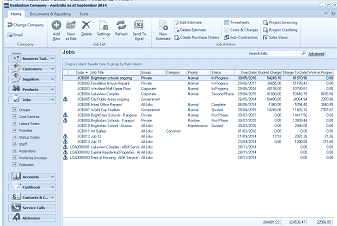
The ABM main application window is shown displaying the "Jobs" list view. The title bar shows "Evaluation Company - Australia as at September 2011". The left side shows a folder navigation tree. The main viewing area on the right displays a "Jobs" list with multiple job records in a data grid with columns for Code, Job Title, Group, Category, Status, Quoted, Charges, and other financial columns. A toolbar at the top includes buttons for Edit Estimate, Timesheets, Costs & Charges, Create Purchase Orders, Sub-Contractors, and Project Invoicing. The bottom shows totals. This view is where users can select a job to copy its estimate.
Select the required Estimate and select the option on the menu bar to Copy Estimate.
When you select Copy Estimate you will then have the option to select whether the estimate is to be copied to a new estimate or appended to an existing estimate.
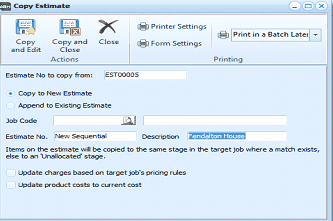
The "Copy Estimate" dialog window is displayed with a toolbar at the top containing "Copy and Edit", "Copy and Close", and "Close" buttons under "Actions", plus "Printer Settings" and "Form Settings" under settings, and "Print in a Batch Later" dropdown under "Printing". The main area shows "Estimate No to copy from" (showing "EST00005"), followed by two radio button options: "Copy to New Estimate" (selected) and "Append to Existing Estimate". Below are fields for "Job Code" (with a finder button), "Estimate No." (set to "New Sequential"), and "Description" (showing "Fendelton House"). A note states "Items on the estimate will be copied to the same stage in the target job where a match exists, else to an 'Unallocated' stage." Two checkboxes are shown: "Update charges based on target job's pricing rules" and "Update product costs to current cost".
- Job Code: Enter the code for the job where the estimate is to be copied to or select the finder to select the job.
- Estimate Number: enter the new estimate number to be used or if the settings are to use the next sequential number then ABM will generate this number automatically.
- Update charges based on target jobs pricing rules: If you want to change the prices on this estimate to reflect the policy adopted for the job you are coping to then select this option. Example if the pricing policy for this job is Cost plus a Mark up then the pricing will be based on the costs of the line items on the estimate.
- Update product costs to current costs: If this option is selected then the estimate costs will be update for each of the products on the estimate to reflect the current cost of those products.
Once you have made you selections you can Copy and Edit so that the estimate is copied and will give you an opportunity to make any changes before finally saving the new estimate, or select Copy and Close so that you can edit later if required.
Appending the copy to an Existing Estimate:
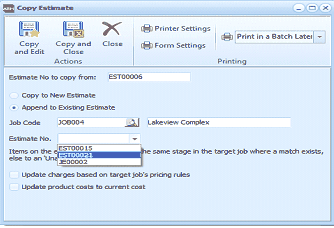
The "Copy Estimate" dialog window is displayed, similar to the previous copy estimate screen, but with the "Append to Existing Estimate" radio button selected instead of "Copy to New Estimate". The form shows "Estimate No to copy from" (showing "EST00006"), "Job Code" field (showing "JOB004" with "Lakeview Complex" label), and an "Estimate No." dropdown showing existing estimate numbers (EST00015 and EST00002 visible in the dropdown list). The same checkboxes appear at the bottom: "Update charges based on target job's pricing rules" and "Update product costs to current cost". This view demonstrates the option to append estimate content to an already existing estimate on the same or different job.
To append the estimate to an existing estimate select the option to Append to Existing Estimate and then select the Job. This will give an option to select the required estimate from the drop down list. Once you have made the selection you can either Copy and Close or Copy and Edit the estimate with the newly appended information.
View Details of the Estimate
To copy the estimate from the View Details, select an estimate from the Business Today and select either Open from the menu bar or double click on the estimate to view the details. Once the details of the estimate are displayed you can select Copy Estimate.
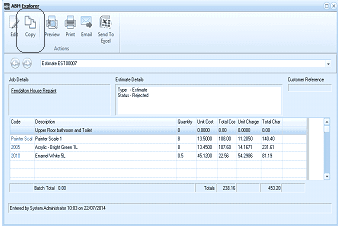
The "ABM Explorer" window is displayed showing the details of an estimate (Estimate EST00007). The window has a toolbar with buttons for Edit, Copy, Preview, Print, Email, and Send To Excel under "Actions". Below the toolbar are two sections: "Job Details" and "Estimate Details" with fields showing the estimate type (showing "Type - Estimate" and status). A "Customer Reference" field is visible in the top right. The main area shows a "Fendelton House Request" description. The data grid below lists estimate line items with columns for Code, Description, Quantity, Unit Cost, Total Cost, Unit Charge, Total Charge. Visible items include "Upper floor bathroom and Toilet", "Doors - Cedar Doors", "Acrylic - Bright Green 5L", and "Enamel White SL" with their corresponding quantities, costs, and charges. A "Batch Total" row at the bottom summarizes the estimate. The footer shows "Entered by System Administrator 10:01 on 22/07/2014" and an "Edit" button. A "Copy" button is visible in the toolbar for copying this estimate.
View Estimates from the Job
To copy an estimate from the Job maintenance screen select the Job and select Estimate.
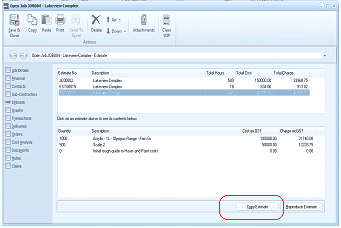
The "Open Job" dialog window is displayed showing the "Estimate" section for the "Lakeview Complex" job. The left navigation shows tabs including Job Details, Financial, Sub-Contractors, and Estimate (currently selected). The main area displays a list of estimates at the top with columns for Estimate No., Description, Total Hours, Total Cost, and Total Charge. Two estimates are listed: "JOB004" for "Lakeview Complex" and "EST00078" for "Lakeview Complex". Below the estimate list is a details section showing information for the selected estimate, including line items with columns for Quantity, Description, and amounts. Items visible include entries like "Bypass Range - Trim GL" and others. At the bottom right are two highlighted buttons: "Copy Estimate" and "Reproduce Estimate", circled in red to indicate their location for copying an estimate from within the job record.
Select the required estimate from the list if more than one exists and select Copy Estimate.
Add/Edit and Estimate
If you select Add new Estimate or Edit an existing estimate there are a number of options available from the drop down list by selecting Options.
The options available are
- Copy from Previous Estimate
- Append from Previous Estimate
- Copy from Template Estimate
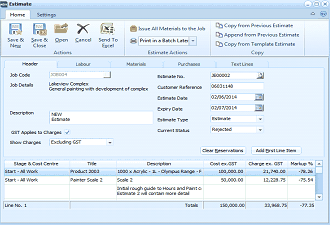
The "Estimate" dialog window is displayed showing the editing view for a job estimate. The toolbar at the top has Home and Settings tabs. The toolbar includes buttons for Save & New, Save & Close, Open, Cancel, and Send To Excel. On the right side of the toolbar, a dropdown menu is shown with three options: "Copy from Previous Estimate", "Append from Previous Estimate", and "Copy from Template Estimate". These represent the copy options available when adding or editing an estimate. The Header tab is selected, showing fields for Job Code ("Lakeview Complex"), Job Details (showing a description about general painting), Description, Estimate No., Customer Reference, Estimate Date, Expiry Date, Estimate Type (showing a dropdown with options), and Current Status (showing "Rejected" option). The bottom grid shows estimate line items including "1000 x Acrylic - Olympus Range" and "Paint" entries with associated costs and charges.