Adding Staff Members
Adding Staff Members
You can enter all the members of staff who will be working on specific jobs. This will be used later for entering timesheets.
To add a Staff Member:
-
Select Jobs (left of screen), and a list of sub-categories appears.
-
Select Staff and a list of existing staff members (if any) appears in the adjoining screen.
-
In the Jobs menu bar, select New and a screen appears as below:
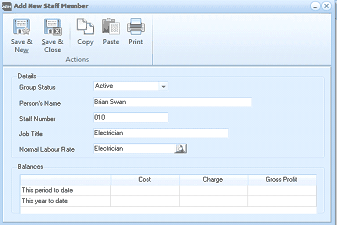
The "Add New Staff Member" dialog window is displayed with a toolbar at the top containing Save & New, Save & Close, Copy, Paste, and Print buttons under an "Actions" section. The Details section contains fields for "Group Status" (dropdown set to "Active"), "Person's Name" (showing "Brian Swan"), "Staff Number" (showing "010"), "Job Title" (showing "Electrician"), and "Normal Labour Rate" (showing "Electrician" with a finder button). The Balances section displays a grid with columns for Cost, Charge, and Gross Profit, with rows for "This period to date" and "This year to date", all currently empty.
Add New Staff Member
Details
-
Person's Name: Enter the full name of the employee or contractor here. The format 'Smith, John' is recommended.
-
Staff Number: Enter the clock number or staff number of the employee here. Leave blank if this is not applicable.
-
Job Title: Enter a description of the person's job here, e.g. Apprentice Plumber.
-
Normal Labour Rate: Type the rate name here or click the button or select F3 to select from or add to a list.
Balances The Balances grid will display a record of the cost of the staff member to you versus the charge of the staff member to the client, resulting in gross profit. This is calculated on a 'period to date' and 'year to date' basis.
Save Settings When you have entered the relevant staff details, select either: Save and Close: This will save the staff member information and bring you back to the main menu. or: Save and New: This will save the staff member information and open a new 'Add New Staff Member' screen.