Adding Labour Rates
Adding Labour Rates
Labour Rates are set up to store various rates which can apply to the labour portion of a job. The maximum number of rates that can be stored is limited only by disk space, or by the maximum capacity of the data table.
To add a Labour Rate:
-
Select Jobs in the Folders list (left of screen) and the second level menu appears.
-
Select Labour Rates and a list of existing labour rates (if any) appears in the main viewing area (right of screen).
-
Select New on the menu bar at the top of the screen and the Add New Labour Rate screen appears:
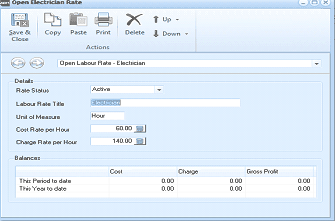
The "Open Electrician Rate" dialog window is displayed with a toolbar at the top containing Save & Close, Copy, Paste, Print, Delete, Up, and Down buttons under an "Actions" section. Below is a breadcrumb showing "Open Labour Rate - Electrician". The Details section contains fields for "Rate Status" (set to "Active"), "Labour Rate Title" (showing "Electrician"), "Unit of Measure" (set to "Hour"), "Cost Rate per Hour" (60.00), and "Charge Rate per Hour" (140.00), each with a calculator button. The Balances section displays a grid with columns for Cost, Charge, and Gross Profit, with rows for "This Period to date" and "This Year to date", all showing values of 0.00.
Add New Labour Rate
Details
-
Labour Rate Title: Enter the labour rate title here as you would like to see it appear in reports. This field will allow up to 20 characters.
-
Unit of Measure: Enter here the unit in which the rates will be measured, for example, if you pay this particular labour type by the hour, type Hour in this field. This field will allow up to six characters.
-
Cost Rate: Enter here the amount that it costs your company for the particular labour rate as per the unit detailed above. You can either key in the amount here or select the icon to the right of the field and calculate the amount from the pop-up number pad.
-
Charge Rate: Enter here the amount that your company charges for the particular labour rate as per the unit detailed above. You can either key in the amount here or select the icon to the right of the field and calculate the amount from the pop-up number pad.
Balances The fields here are read-only fields used to display the following:
-
Cost: Here you can see the Cost Period to Date. This will show the cost accrued over the period to date for all jobs within this labour rate. For example, you will be able to see the accrued cost for the period to date in this field. You can also see the **Cost Year to Date. **This will show the cost accrued over the year to date for all jobs within this labour rate.
-
Charge: Here you can see the Charge Period to Date. This will show the amount earned over the period to date for all jobs within this labour rate. For example, you will be able to see the amount earned for the period to date in this field. You can also see the **Charge Year to Date. **This will show the amount earned over the year to date for all jobs within this labour rate.
-
Gross Profit: Here you can see the Gross Profit / Loss to Date. This will show the gross profit/loss over the period to date for all jobs within this labour rate. For example, you will be able to see the gross profit/loss to date in this field. You can also see the **Gross Profit Year to Date. **This will show the gross profit/loss over the year to date for all jobs within this labour rate.
**Save Settings **To save the settings, select Save and Close at the top of the screen.