Create Purchase Orders/Requisitions from Estimates
Create Purchase Orders/Requisitions from Estimates
Once you have created job estimates and added purchases onto that estimate (see Adding Job Estimates ) you can create automatic purchase orders, or requisitions, for those line items contained on the estimate.
To generate Purchase Orders or Requisitions from an Estimate, select the list of Jobs and from the menu bar select Create Purchase Orders. This will give you an option to Create Purchase Orders or Purchase Requisitions.
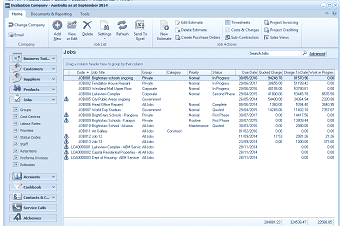
The ABM main application window is shown displaying the "Jobs" list view. The title bar shows "Evaluation Company - Australia as at September 2011". The left side shows a folder navigation tree. The main viewing area on the right displays a "Jobs" list with a search bar and "Advanced" link. The list shows multiple job records in a data grid with columns for Code, Job Title, Group, Category, Status, Quoted, Charges, and other financial columns. A toolbar at the top includes buttons for Edit Estimate, Timesheets, Costs & Charges, Create Purchase Orders (highlighted to show its location), Sub-Contractors, and Project Invoicing. This view is where users select a job and then click "Create Purchase Orders" to generate purchase orders from estimates.
List of Jobs with option to create Purchase Orders.
When you select this option the purchase order wizard will appear.
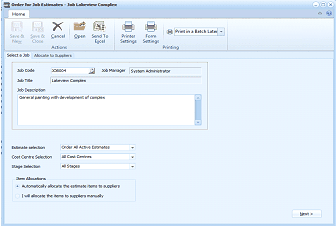
The "Order for Job Estimates" dialog window is displayed, showing Step 1 "Select a Job" for generating purchase orders from job estimates. The title shows "Job Lakeview Complex". The toolbar at the top includes Save & New, Save & Close, Cancel, Open, Send To Excel, Printer Settings, Form Settings buttons, and "Print in a Batch Later" dropdown. The main area has a "Select a Job" header with tabs showing "Select a Job", "Allocate to Suppliers", and "Order Summary". The "Job Details" section shows Job Code (with a finder), Job Manager ("System Administrator"), Job Title ("Lakeview Complex"), and Job Description ("General painting with development of complex"). Below are options for "Estimate selection" (dropdown showing "Order All Active Estimates"), "Cost Centre Selection" (showing "All Cost Centres"), "Stage Selection" (showing "All Stages"), and "Item Allocation" with two radio buttons: "Automatically allocate the estimate items to suppliers" (selected) and "I will allocate the items to suppliers manually".
Step 1: Set the Criteria
When you enter the Job Code and select the job you then have the following options
- Include Sub Jobs: If the job is a Parent Job and has a sub job or sub jobs you can include these in the order process. See .Job Records - Job Details
- Estimate Selection: You can choose from the dropdown list if you wish to include all estimates or a single estimate
- Cost Centre Selection: If you wish to have the purchase orders created for one cost centre only then you can select this cost centre from the dropdown list or select All Cost Centres. the cost centres will be those cost centres you entered against the purchase items when creating the estimate.
- Item Allocation: You can decide to automatically allocate suppliers for the purchase items on the estimate or manually select the suppliers.
- Automatic Selection of Suppliers: If you choose the option to automatically select the suppliers, then the wizard will pick up the suppliers that you entered when creating the estimate. If you have not selected a supplier against any one line item you will be able to add this manually at step 2.
- I Will allocate the items to the suppliers manually. By selecting this option you will need to select a supplier for each purchase line item on the estimate.
Step 2: Allocate to Suppliers
Having set the criteria select Next to allocate the line items to the appropriate suppliers.
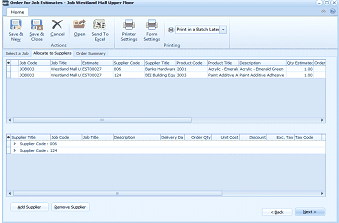
The "Order for Job Estimates" dialog window is displayed, showing Step 2 "Allocate to Suppliers" for the "Westland Mall Upper Floor" job. The tabs at the top show "Select a Job", "Allocate to Suppliers" (currently active), and "Order Summary". The toolbar includes standard buttons plus "Print in a Batch Later". The top data grid shows purchase line items from the estimate with columns for Job Code, Job Title, Estimate, Supplier Code, Supplier Title, Product Code, Product Title, Description, and Qty Estimate. Two line items are visible with associated supplier and product information. The bottom section shows a "Supplier Title" grid with a supplier entry ("Supplier Casias - EDX") and a plus (+) expand icon to view allocated items. Below the grids are "Add Supplier" and "Remove Supplier" buttons, and navigation buttons "Back" and "Next" at the bottom right.
The top section of the screen will list all the purchase items that are on the estimate. The bottom section of the screen will show the suppliers that the items have been allocated to. To view the items allocated to each supplier select the + next to the supplier.
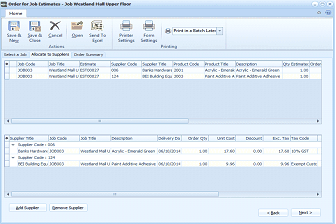
The "Order for Job Estimates" dialog window is displayed, showing Step 2 "Allocate to Suppliers" with the supplier allocations expanded. The top data grid shows purchase line items from the estimate with columns for Job Code, Job Title, Estimate, Supplier Code, Supplier Title, Product Code, Product Title, Description, and other details. The bottom section shows the "Supplier Title" grid with suppliers expanded (using the + icon) to reveal the items allocated to each supplier. Two supplier entries are visible with their allocated line items showing details like Job Code, Job Title, Description, Delivery Date, Order Qty, Unit Cost, Discount, and Tax Code columns. This shows the complete allocation of estimate items to their respective suppliers. "Add Supplier" and "Remove Supplier" buttons appear at the bottom, along with "Back" and "Next" navigation buttons.
- Adding an Item to a Supplier: If an item has not been allocated to a supplier because no supplier was associated with the item when the estimate was created, you can allocate this item by dragging the line item to the required supplier. If the supplier is not shown, you can add a new supplier by selecting the Add Supplier button at the bottom of the screen.
- Changing Supplier Allocation: If an item has been allocated to a supplier but you now wish to change that allocation then drag the item from the supplier line to the new supplier. Alternatively you can Remove the supplier and drag the items from the top section to another supplier or a new supplier. If the supplier is not shown then you can add a new supplier by selecting the Add Supplier button at the bottom of the screen.
Step 3. Order/Requisition Summary
You can select the option to produce a purchase order, or purchase requisition by selecting the appropriate option on the final screen. This screen will also display a summary of each order or requisition to be placed with each supplier.
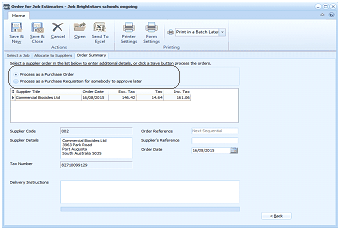
The "Order for Job Estimates" dialog window is displayed, showing Step 3 "Order Summary" for the "Brightstars schools ongoing" job. The tabs show "Select a Job", "Allocate to Suppliers", and "Order Summary" (currently active). The toolbar includes standard buttons plus "Print in a Batch Later". The main area shows processing options with two radio buttons: "Process as a Purchase Order" (selected) and "Process as a Purchase Requisition for somebody to approve later". Below is a supplier summary grid showing columns for Supplier Title, Order Date, Exc. Tax, Tax, Inc. Tax, with an entry for "A Commercial Batteries Ltd" with corresponding dates and amounts. The lower section shows additional order details including Supplier Code, Supplier Details (showing address information), Order Reference, Supplier's Reference, Tax Number, and Delivery Instructions fields. A "Back" navigation button is at the bottom left.
The top section of the screen will show the various suppliers and the value of each order. By selecting a supplier you can add add the supplier reference and delivery instructions on the bottom section of the screen if required. The order date can also be changed by selecting the specific supplier and on the bottom section of the screen select the Order Date and change if necessary.
Printing:
Select the option to print immediately, in a batch later or set to no printing:
Save and New:
When you have finished preparing the orders select Save and New to process these orders and continue creating new purchase orders for another job.
Save and Close:
When you have finished preparing the orders and you have no more orders to create, select Save and Close to process these orders.