Job Record - Financial
Job Record - Financial
Details
-
Tax Category: Select the tax status of this job, i.e. whether it is taxable or exempt, by clicking the drop-down arrow.
-
Contract Value: If the job is at a fixed price contract type the value here. Alternatively, press F3 or click the calculator button to enter the value. This is a memorandum entry only.
-
Category: You can assign a category to this job for additional reporting purposes. This field holds up to 10 characters.
-
Invoice Retention: Click the relevant radio button if an amount or percentage of the charge is to be retained pending customer approval, completion of the next stage, or final completion of the job.
-
Select "None" if invoice retention does not apply to the job.
-
Select "Percentage of" if a percentage of the invoiced value is to be retained pending customer approval. If you select Percentage, then you can enter a percentage to apply to three different levels of charge. Example: If a retention of 10% is to apply to the first 50,000 of the charges and 5% applies to the next 100,000 with 2% applying to the remainder of the charges, then you would enter a rate of 10% up to a charge value of 50,000 on the first line and a rate of 5% on charges up to a value of 150,000 on the second line (being 50,000+100,000) and a rate of 2% on the third line. Note: if you have only one rate and it applies to all charges then you can just enter the 10% in the third line leaving line 1 and 2 to default to zero.
-
Select "Amount of" if an amount of the invoiced value is to be retained pending customer approval.
-
Maximum Amount of Retention: you can restrict the total amount of retention to be deducted on the overall job by entering the appropriate limit in the field "Up to a Maximum of". Retentions will be deducted from each invoice for the job based on the criteria set subject to the maximum specified.
-
Mark up on Cost to Charge: Set the percentage mark up to be added to your costs, enabling you to calculate charges for individual jobs.
Note: If you leave the field at 0.00%, the full cost and charge that you originally set up will be added to the job. If you set the mark up at, for example, 5%, that 5% is added to the cost but not the charge.
-
Labour: Enter the percentage mark up to be added to the cost of labour in calculating charges. To set up a labour rate where you can set cost and charge prices, see Adding Labour Rates.
-
Materials: Enter the percentage mark up to be added to the cost of stock materials in calculating charges. To set up a product cost see Setting up Product Accounts.
-
Purchases: Enter the percentage mark up to be added to the cost of purchases in calculating charges.
-
Sub-Contractors: Enter the percentage mark up to be added to the cost of sub-contractors in calculating charges. To set up a labour rate where you can set cost and charge prices, see Adding Labour Rates.
-
Equipment Used: Enter the percentage to be added to the cost of equipment hire in calculating charges.
-
Current Balances: If you already have a job set up, the Current Balances displays the current balances in grid form in terms of:
-
Total Job to Date: Displays the current balance from the start of the job.
-
Total Year to Date: Displays the current balance from the start of the financial year. You will have set the start and end dates of your financial year in the company setup phase. See Creating a New Company for details.
-
This Period to Date: Displays the current balance for the past month.
-
Current WIP: Displays the current cost of work not yet invoiced.
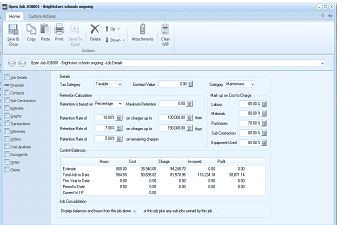
The "Open Job" dialog window is displayed showing the "Financial" tab (referred to as "Job Details" in the breadcrumb) for the "Brightstars schools ongoing" job. The window has a modern ribbon-style toolbar at the top with Home and Custom Actions tabs. The left side shows navigation tabs for Job Details, Financial (currently selected), Sub-Contractors, Estimate, Graphs, Transactions, Deliveries, Orders, Cost Analysis, Notes, and Documents. The Details section contains fields for Tax Category (set to "Taxable"), Contract Value (5.00), Category, and Retentions. The Retention section shows "Retention is based on Percentage" with a "Maximum Retention" option and three tiers of rates: "Retention Rate of 10.00% on charges up to 100,000.00", "Retention Rate of 7.00% on charges up to 150,000.00", and a third rate with a "Maximum Amount of Retention" field. The "Mark up on Cost to Charge" section shows percentage fields for Labour, Materials, Purchases, Sub Contractors, and Equipment Used. The "Current Balances" grid displays rows for Total Job to Date, Total Year to Date, This Period to Date, and Current WIP, with columns for Hours, Cost, Charge, Invoiced, and Profit. The bottom shows "Job Consolidation" options to display balances from the job alone or the job plus any sub jobs owned by this job.
Job Financial Screen