Editing Jobs
Editing Jobs
Sometimes it might be necessary to change the details on a Job. For example, you might want to change the percentage mark-up on labour.
To edit a Job Record:
-
Select Jobs in the Folders list (left of screen) and a list of existing jobs (if any) appears in the main viewing area (right of screen).
-
Double-click the job name that you want to edit and the details of that job appears as below:
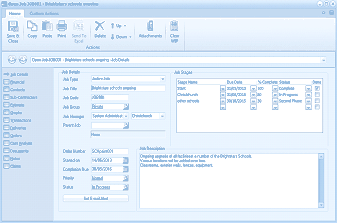
The "Open Job" dialog window is displayed showing a job record for "Brightstars schools ongoing". The window has a toolbar with buttons including Save & Close, Copy, Paste, Print, Send To, Delete, Down, and Attachments. The left side shows navigation tabs for Job Details, Financial, Sub-Contractors, Estimate, Graphs, Transactions, Deliveries, Orders, Cost Analysis, Notes, and Documents. The main area shows the "Job Details" tab with fields including Job Type (Active Job), Job Title ("Brightstars schools ongoing"), Job Code, Job Group ("System Administrator"), Job Manager (dropdown showing "Christchurch"), and Parent Job. Below are fields for Order Number ("SCRpurchNO"), Started On date (19/05/2013), Completion Due date (30/06/2215), Priority, and Status ("In Progress"). A "Job Description" text area describes an ongoing upgrade project. On the right side is a "Job Stages" grid showing stages with columns for Stage Name, Due Date, % Complete, Status, and Done, with entries for stages like "Christchurch", "other schools", and others.
Brightstars Schools job record
-
Edit the details as required. For a breakdown of each section, see Adding Jobs.
**Save Settings **To save the settings, select 'Save and Close' at the top of the screen.