Printing/Previewing Job Cards
Printing/Previewing Job Cards
You can print Job Card for a particular Job by selecting the Job and selecting Print provided you have added your custom Job Card form to the list of Forms.
Adding a Job Card Form:
Select Printer and Forms Settings and select New Document
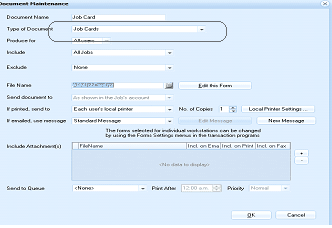
The "Document Maintenance" dialog window is displayed for setting up a Job Card document. The window contains fields for "Document Name" (showing "Job Card"), "Type of Document" (dropdown set to "Job Card"), "Preview As" field, "Include" (set to "All Jobs"), "Exclude" (set to "None"), and "File Name" field with a browse button and "Edit this form in the report designer" link. Additional settings include "Send document to" with an option "As shown on the Form Settings tab or as approved", "If printed, send to" (set to "Each user's local printer"), "No of Copies" (1), and "Local Printer Settings" button. Email options show "If emailed, use message" with "Standard Message" dropdown, "Edit Message" and "New Message" buttons. At the bottom are "Include Attachment(s)" checkbox options for FileName, Include on Email/Include on Print/Include on Fax. A "Send to Queue" option shows "None" with "Print After" time field set to "12:00 AM" and "Priority" set to "Normal". OK and Cancel buttons are at the bottom right.
Select the Document type as Job Card and the either enter the form name or browse and select the form.
To print or preview a Job Card:
-
Select Jobs in the Folders list (left of screen) and a list of existing jobs (if any) appears in the main viewing area (right of screen).
-
Double-click the job name that you want to edit and the details of that job appears as below:
-
Click on Print or Preview, and if a Job Card form exist, then it will print the Job Card, otherwise it will print a screen shot of the Job
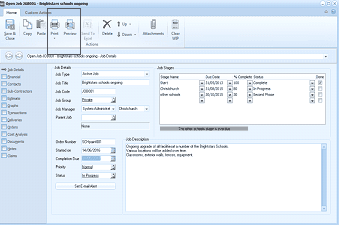
The "Open Job" dialog window is displayed showing the "Job Details" tab for the "Brightstars schools ongoing" job record. The window has a toolbar at the top with buttons including Save & Close, Copy, Paste, Print, Preview, and others. The left side shows navigation tabs for Job Details, Financial, Sub-Contractors, Estimate, Graphs, Transactions, Deliveries, Orders, Cost Analysis, Notes, and Documents. The main area shows job detail fields including Job Type (Active Job), Job Title, Job Code, Job Group ("System Administrator"), Job Manager (showing "Christchurch"), and other standard fields. The "Job Stages" grid on the right shows stages with columns for Stage Name, Due Date, % Complete, Status, and Done. A "Job Description" text area describes the ongoing upgrade project at Brightstars Schools, mentioning classrooms, outdoor walls, fences, and equipment. A note at the bottom of the stages grid states "To enter a new stage or revise a new stage."
Brightstars Schools job record