Job Email Alerts
Job Email Alerts
You can set up an E-mail alert so that an e-mail message is sent to the Job Manager or any other person responsible for evaluating, and controlling costs on jobs. The e-mail alert can be sent when the costs or charges exceed the estimate.
Setting up E-mail Alert
Select the Job select Set E-mail Alert.
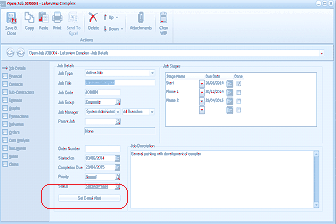
The "Open Job" dialog window is displayed showing the "Job Details" tab for a "Lakeview Complex" job record. The window has a toolbar with buttons and navigation tabs on the left. The main area shows standard job detail fields including Job Status, Job Title, Job Code, Job Group, Job Manager, and Parent Job, along with Order Number, Started On date, Completion Due date, and Status fields. A "Job Stages" grid is shown on the right. At the bottom left of the form, a "Set E-mail Alert" link is circled in red to highlight its location, indicating where users should click to access the email alert settings for the job.
This will open the settings screen as follows:
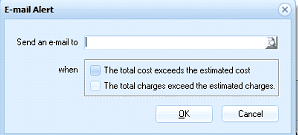
The "E-mail Alert" dialog box is displayed as a small popup window. It contains a "Send an e-mail to" field with a text input and a finder button to select an email address. Below that is a "when" section with two checkboxes: "The total cost exceeds the estimated cost" (checked) and "The total charges exceed the estimated charges" (unchecked). The dialog has "OK" and "Cancel" buttons at the bottom right for confirming or cancelling the email alert settings.
Send an e-mail to: Enter the recipients e-mail address. You can either enter this address manually or select the Finder button (F3) to select from your list of contacts.
When do you want the e-mail sent.
You can select the event which will trigger an e-mail to be sent to the nominated recipient when
- The total cost exceeds the estimated cost.
- The total charges exceed the estimated charge.
Note: both of the above options can be selected.