Deleting a Job
Deleting a Job
Sometimes it might be necessary to delete a job record.
To delete a Job Record:
-
Select Jobs in the Folders list (left of screen) and a list of existing jobs (if any) appears in the main viewing area (right of screen), as below:
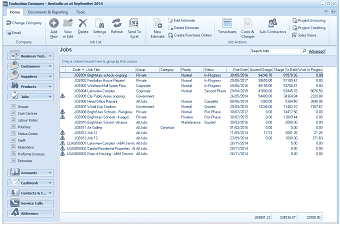
The ABM main application window is shown displaying the "Jobs" list view. The title bar shows "Evaluation Company - Australia as at September 2014". The left side shows a folder navigation tree with sections including Business Tod..., Customers, Suppliers, Products (expanded to show sub-items including Job Records highlighted). The main viewing area on the right displays a "Jobs" list with a search bar and "Advanced" link. The list shows multiple job records in a data grid with columns for Code, Job Title, Group, Category, Status, Quoted, Charges, and other financial columns. Visible job entries include items like "Brightstars school ongoing", "Westland Mall Upper Floor", "Head Office Repairs", "BrightStar Schools - Furagns", and others. Each entry shows associated group, status (like In Progress, First Phase, Contractor), and financial values. A toolbar at the top includes buttons for Edit Estimate, Timesheets, Costs & Charges, Create Purchase Orders, Sub-Contractors, and Project Invoicing. The bottom shows totals.
List of existing jobs (if any)
Click once on the job that you want to delete, for example 'Mr. Kilroy's Swimming Pool', and either press the 'Delete' key on your keyboard or select the 'Delete' icon at the top of the screen.
You will see the following prompt: "Are you sure that you want to delete the job record for Mr. Kilroy's Swimming Pool." If you are sure that this is the job that you want to delete, click 'Yes'. If not, click 'No', and no deletions will have occurred.