Journal Adjustments
Journal Adjustments
You can adjust Customer accounts, Supplier accounts, and allocate cost to either Ledger accounts or Job records.
To create a Journal Adjustment:
-
Select Accounts in the main screen and a list of sub-categories will appear.
-
Select Journal in the list of sub-categories and a list of existing journal entries will appear:
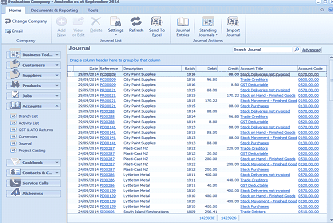
The ABM main screen showing the "Journal" list view within the Accounts section. The left panel shows the folder navigation tree with Business Tools, Customers, Suppliers, Products, Accounts (expanded), Branch List, and other categories. The main area displays a list of journal entries in a table with columns including Date, Reference, Description, Debit, Credit, and other transaction details. The toolbar at the top shows options for Email, Add, New, Delete, Settings, Refresh, Send To Excel, Journal Entries, Standing Journals (with sub-menu), and Import Journals. Multiple journal entry rows are visible with various dates, references, and amounts.
List of Journal Entries
-
In the Journal Transactions menu bar, select Journal Entries and a Journal Adjustments screen will appear:
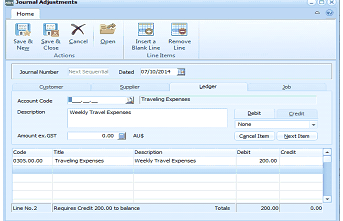
The "Journal Adjustments" screen with a toolbar at the top containing buttons: Save & New, Save & Close, Cancel, Open, Insert a Blank Line, and Remove Line. Below the toolbar are fields for "Journal Number" (set to "Next Sequential") and "Dated" (showing "07/10/2014"). The form has four tabs: Customer, Supplier, Ledger, and Job. The "Ledger" tab is currently selected, showing fields for Account Code (displaying "Travelling Expenses"), Description ("Weekly Travel Expenses"), Amount ex. GST (showing "0.00 AUS"), and buttons for Debit, Name, Cancel Item, and Next Item. Below is a transaction grid with columns: Code, Title, Description, Debit, and Credit, showing one line item for "Travelling Expenses - Weekly Travel Expenses" with a Debit of 200.00. The totals row shows 200.00 Debit and 0.00 Credit, with a status line reading "Line No.2 Requires Credit 200.00 to balance".
Journal Adjustments
-
Journal Number: Enter a number or reference that will be used to identify this journal in reports later.
-
Dated: Enter the date here. By default, it is set at today's date. Alternatively, press F3 or click the button to the right of the field to check the calendar.
Customer
-
Customer Code: Enter the unique identifying code for the customer here. Alternatively, press F3 or click the button to the right of the field to select from the customer list. To create a new customer account see Setting up Customer Accounts.
-
Description: The description entered here appears in the customer's statement. By default, it says Account Adjustment.
-
Amount Paid: Enter the amount actually paid by the customer. Press F3 or click the calculator button to the right of the field to calculate the amount.
-
Select Items to Offset: Select this option to select the outstanding debts paid this time. Various options are available within this screen to offset any particular debt or the oldest debt, or even to offset the debt partially.
-
Debit/Credit: Select this option to indicate whether the journal adjustment was a debit or credit.
-
Cancel Item: Warning: Selecting this option cancels the entries made on this section.
-
Next Item: Once all the details have been entered, select this option to add another item to the ledger for this adjustment.
Supplier
-
Supplier Code: Enter the unique identifying code for the supplier here. Alternatively, press F3 or click the button to the right of the field to select from the supplier list. To create a new supplier account, see Setting up Supplier Accounts.
-
Description: The description entered here appears in the supplier's statement or remittance. By default, it says Account Adjustment.
-
Amount Paid: Enter the amount actually paid by the supplier. Press F3 or click the calculator button to the right of the field to calculate the amount.
-
Select Items to Offset: Select this option to choose the credits paid by this refund. Various options are available within this screen to offset any particular debt or the oldest debt, or even to offset the debt partially.
-
Debit/Credit: Select this option to indicate whether the journal adjustment was a debit or credit.
-
Cancel Item: Warning: Selecting this option cancels the entries made on this section.
-
Next Item: Once all the details have been entered, select this option to add another item to the ledger for this adjustment.
Ledger
-
Account Code: Enter the Ledger Account code here. Alternatively, press F3 or click the button to select from a list of existing accounts. To set up a new Ledger Account, which includes an account code, see Adding a Ledger Account.
-
Description: Enter a description here that appears in transaction histories and reports later.
-
Amount ex. GST: Enter the total amount excluding GST or Tax. Alternatively, press F3 or click the calculator button to calculate the amount.
-
Debit/Credit: Select this option to indicate whether the journal adjustment was a debit or credit.
-
Cancel Item: Warning: Selecting this option cancels the entries made on this section.
-
Next Item: Once all the details have been entered, select this option to add another item to the ledger for this adjustment.
Job
-
Job Code: Enter the code of the job for this adjustment. Press F3 or click the button to select from the list. To set up a job record, which includes a job code, see Adding Jobs.
-
Description: Enter a description that appears in the job history later.
-
Cost Amount: Enter here the cost amount actually paid in relation to this job. Alternatively, press F3 or click the calculator button to calculate the amount.
-
Charge Amount: Enter here the charge amount actually paid in relation to this job. Alternatively, press F3 or click the calculator button to calculate the amount.
-
Cost Centre: Enter the cost centre name here. Alternatively, press F3 or click the button to select from the list of existing cost centres. To set up a new cost centre, see Adding Cost Centres.
-
Stage: After you have entered the Job code, a list of stages (if any) appears in the drop-down list for you to choose from. Select the stage to which this journal adjustment applies. To set up a stage for a job, see Adding Jobs.
-
Debit/Credit: Select this option to indicate whether the journal adjustment was a debit or credit.
-
Cancel Item: Warning: Selecting this option cancels the entries made on this tab.
-
Next Item: Once all the details have been entered, select this option to add another item to the ledger for this adjustment.
Save Settings When you have entered the relevant details, select either: Save and Close: This will save the entries and bring you back to the main menu. or: Save and New: This will save the entries open a new 'Journal Adjustments' screen.