Editing Standing Journals
Editing Standing Journals
The Standing Journal option is used for repeated journal entries such as Depreciation.
To edit a Standing Journal:
-
Select Accounts in the main screen and a list of sub-categories will appear.
-
Select Journal in the list of sub-categories and a list of existing Journal Entries (if any) will appear:
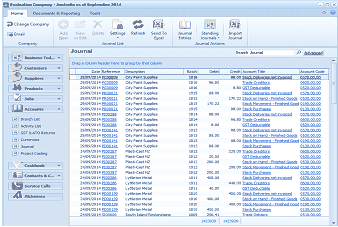
The ABM main screen showing the "Journal" list view within the Accounts section. The left panel shows the folder navigation tree with Business Tools, Customers, Suppliers, Products, Accounts (expanded), Branch List, and other categories. The main area displays a list of journal entries in a table with columns including Date, Reference, Description, Debit, Credit, and other transaction details. The toolbar at the top shows options for Email, Add, New, Delete, Settings, Refresh, Send To Excel, Journal Entries, Standing Journals (with sub-menu), and Import Journals. Multiple journal entry rows are visible with various dates, references, and amounts.
List of existing Journal Entries
-
In the Journal Transactions menu bar, click the arrow to the right of Standing Journals.
-
Select Add, Edit or Delete Standing Journals and the following screen appears:
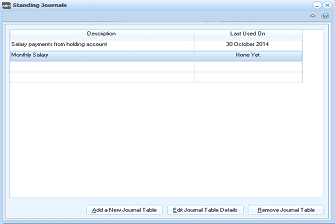
The "Standing Journals" dialog box displaying a table with columns for "Description" and "Last Used On". Two standing journal entries are listed: "Salary payments from holding account" (last used 30 October 2014) and "Monthly Salary" (last used "None Yet"). At the bottom of the dialog are three buttons: "Add a New Journal Table", "Edit Journal Table Details", and "Remove Journal Table".
Standing Journals
-
Select the journal you want to edit and select Edit Journal Details.
The following screen will appear:
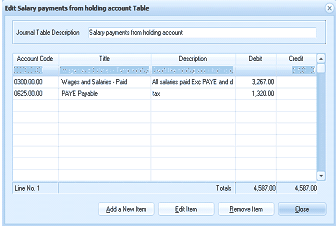
The "Edit: Salary payments from holding account Table" dialog showing the journal table details. At the top is a "Journal Table Description" field containing "Salary payments from holding account". Below is a table with columns: Account Code, Title, Description, Debit, and Credit. Two line items are listed: account "0300.00.00 - Wages and Salaries - Paid" with description "All salaries paid Exc PAYE and d tax" and a Debit of 3,267.00, and account "0825.00.00 - PAYE Payable" with a Credit of 1,320.00. The Totals row shows 4,587.00 for both Debit and Credit. At the bottom are buttons: "Add a New Item", "Edit Item", "Remove Item", and "Close". A "Line No. 1" indicator is shown at the bottom left.
Edit Journal
- You have the option to either 'Add a New Item', 'Edit Item', or 'Remove Item'. Select the item that you want to edit and select Edit Item. The following screen will appear:
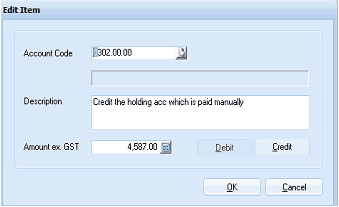
The "Edit Item" dialog box for editing a standing journal line item. It contains fields for: Account Code (showing "302.00.00" with a lookup button), a read-only field showing the account name, Description (showing "Credit the holding acc which is paid manually"), and Amount ex. GST (showing "4,587.00" with a calculator button). To the right of the amount field are "Debit" and "Credit" radio buttons, with "Credit" selected. OK and Cancel buttons are at the bottom of the dialog.
Edit the item as required and click 'OK' to process the new information and return to the journal entry details.