Project Costing
Project Costing
You can set up projects so that you can track various ledger costs against each project. Example: if you set up a project for a special promotion, you may wish to select such costs as advertising, telephone costs and postage against such a project, whilst analysing such costs under their normal ledger accounts.
To set up a Project:
- Select Accounts in the Folders List (left of screen) and then select Projects.
Select New in menu bar (at top of screen) and an Add New Projects screen appears:
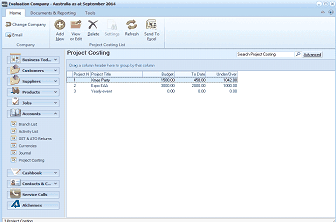
The ABM main screen showing the "Project Costing" list view. The left panel shows the folder navigation tree with Business Tools, Customers, Suppliers, Products, Accounts (expanded to show sub-items including Project Costing), Branch List, and other categories. The main area displays a "Project Costing" table with columns: Project/Project Title, Budget, To Date, and Over/Under. Three project entries are visible with their respective budget amounts, costs to date, and over/under budget figures. The toolbar at the top provides options for Email, Add, New, View, Delete, Settings, Refresh, and Send To Excel.
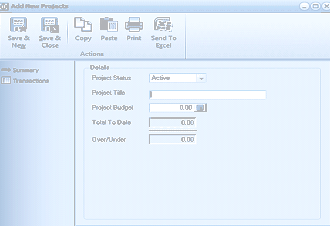
The "Add New Project" dialog box with a toolbar at the top containing Save & New, Save & Close, Copy, Paste, Print, and Send To Excel buttons. The left panel has navigation tabs: Summary and Transactions. The main area shows the "Details" section with fields for: Project Status (dropdown set to "Active"), Project Title (empty text field), Project Budget (showing "0.00" with a calculator button), Total To Date (showing "0.00", read-only), and Over/Under (showing "0.00", read-only).
Enter the details for the project.
-
Project Status: Select active or inactive. If you are setting up a new project then you should select active.
-
Project Title: Enter the title of the project
-
Project Budget: If you have a specified budget for this project then enter the amount here.
-
Total To Date: This will be automatically updated when you assign costs to this project.
Entering Costs against a Project:
You can associate costs to a project when entering a Supplier order/invoice, Cash payments/receipts or Ledger journals:
-
Supplier Order/Invoice:
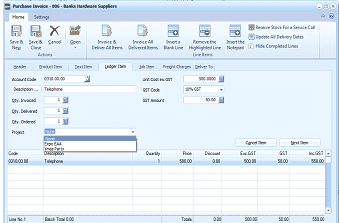
The "Purchase Invoice" screen showing a supplier invoice for "Banks Hardware Suppliers". The screen has tabs for Home and Settings, with toolbar buttons including Save & New, Save & Close, Cancel, Invoice All Delivered Items, Blank Line, Remove the Highlighted Line, and Hide Completed Lines. The form shows Supplier Details, Delivery Details, and Other sections at the top. Below is a line items grid with tabs for Product Items, Text Items, Ledger Items, Job Items, Freight Charges, and Deliver To. The Ledger Items tab is active, showing columns for Account Code, Description, GST Code, Qty Invoiced, GST Amount, and a "Project" dropdown field highlighted at the bottom of the line entry area, allowing the user to assign a project to this invoice line item.
When processing a supplier order and you select a ledger line item you can allocate the project for each line. When you process the invoice either selecting the order or processing an invoice without an order you can select the project from the dropdown list when you enter ledger line items. The costs entered for each line will then be associated with the selected projects.
-
Cash Payments/Receipts
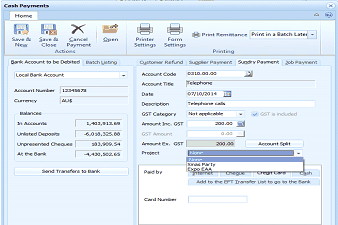
The "Cash Payments" screen showing fields for processing a payment. The toolbar at the top includes Save & New, Save & Close, Cancel, Open, Printer Settings, Form, Print Remittance, and Print in a Batch Later options, with a Printing section. The form shows "Bank Account to be Debited" on the left with fields for Local Bank Account, Account Number (showing "123456678"), Currency (AUS), and balance information (Balance, Unbanked Deposits, Unpresented Cheques, At the Bank). On the right are fields for Account Code, Period date, Description ("Telephone calls"), GST Category ("Not applicable"), Amount ex. GST, GST Amount, Amount Ex. GST (showing "200.00"), and Account Split. At the bottom is a "Project" dropdown field with a list showing project options like "Xmas Party" and "Expo Pub", allowing users to assign a project to this cash payment. Additional fields include Paid by, Card Number, and a "Send Transfers to Bank" button.
When entering a ledger payment you can assign the cost to a project.
-
Ledger Journals
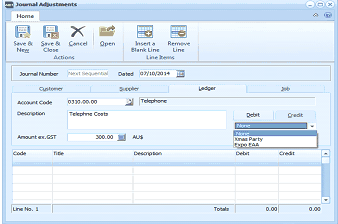
The "Journal Adjustments" screen with the Ledger tab selected. The toolbar shows Save & New, Save & Close, Cancel, Open, Insert Blank Line, and Remove Line buttons. The form has fields for Journal Number ("Next Sequential"), Dated ("07/10/2014"), Account Code ("0330.00.00 - Telephone"), Description ("Telephone Costs"), Amount ex. GST ("300.00 AUS"), and Debit/Credit radio buttons. Below the main entry fields is a "Project" dropdown showing options including "Xmas Party" and "Expo Pub", allowing users to associate this journal line with a project. The lower grid shows columns for Code, Title, Description, Debit, and Credit.
when entering a journal for a ledger line you can associate the cost with a project from the drop-down list.
Viewing Projects
You can view the various projects that you have setup by selecting Accounts in the Folders List (left of screen) and then select Projects.
The ABM main screen showing the "Project Costing" list view. The left panel shows the folder navigation tree with Business Tools, Customers, Suppliers, Products, Accounts (expanded to show sub-items including Project Costing), Branch List, and other categories. The main area displays a "Project Costing" table with columns: Project/Project Title, Budget, To Date, and Over/Under. Three project entries are visible with their respective budget amounts, costs to date, and over/under budget figures. The toolbar at the top provides options for Email, Add, New, View, Delete, Settings, Refresh, and Send To Excel.
This will display a list of the projects together with the cost to date, budgeted amount and under/over where applicable. You can also send the information to Excel for further analysis if required.