Customer Delivery Rules
Customer Delivery Rules
Customer Delivery Rules
You can set up rules that apply to the treatment of orders received from customers.
Select the customer and edit the Delivery Details. There is a drop down list of the delivery requirements.
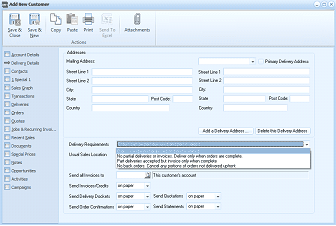
The "Add New Customer" window showing the Delivery Details tab. The left sidebar shows navigation tabs including Account Details, Delivery Details (currently selected), Contacts, Sales Graph, and others. The main area shows "Addresses" section with Mailing Address fields (Street Line 1, Street Line 2, City, State, Post Code, Country) and a "Primary Delivery Address" section with corresponding fields and buttons to "Add a Delivery Address" and "Delete the Delivery Address". Below are fields for: Delivery Requirements (with a dropdown showing delivery options), Usual Sales Location, Send all Invoices to (set to "This customer's account"), Send Invoices/Credits (set to "on paper"), Send Delivery Dockets (set to "on paper"), Send Order Confirmations (set to "on paper"), and Send Statements (set to "on paper").
Options
-
Orders can be part delivered and part invoiced.
If the customer is willing to accept deliveries of goods and allow goods that are not in stock now to be placed on back order, then you can select this option.
-
No Partial deliveries or invoices
If the customer stipulates that they will only accept delivery of the order if the order is complete, then select this option. In this case the order can only be delivered/invoiced is sufficient stock is available for all line items on the order.
-
Part deliveries accepted but on invoice when complete:
If the customer is willing to accept partial deliveries of goods, but require that only one invoice is issued covering the total of all deliveries, or the total order, then select this option.
-
No back orders:
If the customer is willing to accept delivery of whatever goods are in stock but will re-order any goods not delivered, then undelivered products or back orders need to be cancelled.