Customer Accounts - Jobs & Recurring Invoices
Customer Accounts - Jobs & Recurring Invoices
To add a customer to a job, see Job Record - Job Details.
-
Job Number: Details of the job are given here, such as the cost to date, charge to date, amount invoiced to date, and the status of the job.
Click 'View Job' to view the job selected above.
-
Account Number: Details of the invoice are given here, such as the description, amount to date, and details of the time scale for this invoice.
It is also possible at this point to add, edit, or delete recurring invoices by clicking the appropriate option at the bottom of the screen.
To add a recurring invoice:
At the bottom of the screen, select Add Recurring Invoice:
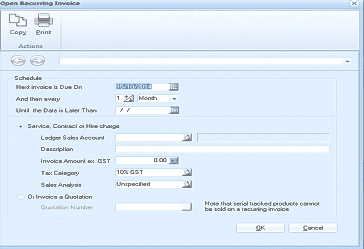
The "Open Recurring Invoice" dialog window. The toolbar has Copy and Print buttons. Below is the "Schedule" section with fields: "Next Invoice is Due On" (date picker), "And then every" (number field set to 1 with "Month" dropdown), and "Until the Date is Later Than" (date field). Below are two radio button options: "Service, Contract or Hire charge" (selected) and "Or Invoice a Quotation". Under the service option are fields for: Ledger Sales Account, Description, Invoice Amount ex. GST (showing 0.00), Tax Category (showing "10% GST"), and Sales Analysis (showing "Unspecified"). A note states "Note that serial tracked products cannot be sold on a recurring invoice." OK and Cancel buttons are at the bottom right.
-
Next Invoice is Due On: Enter the date the next invoice is to be generated.
-
And then every: Select the period between invoices.
-
Until the Date is Later Than: Enter the date the invoices will stop.
Select whether the recurring invoice is a service, contract, or hire charge, or invoice a quotation.
Service, Contract or Hire charge:
-
Ledger Sales Account: Select the Sales Revenue ledger account to which this invoice will be posted.
-
Description: Enter the full description as it is to appear on printed invoices or statements.
-
Invoice Amount ex. GST/VAT: Enter the amount to be charged before tax.
-
Tax Category: Enter the tax category name.
-
Sales Analysis: Click the button or press F3 to select a sales analysis name.
Invoice a Quotation:
-
Quotation Number: Click the button or press F3 to select a quotation to invoice.